Connecting via SSH
SSH (Secure Shell) provides direct command line access to your Spark ProStation. Unlike the graphical TGX session, SSH offers a lightweight, text based interface that is ideal for running scripts, managing files, and automating workflows remotely.
Before You Begin
Complete the following steps before attempting to connect to your ProStation via SSH:
You'll need the Spark software installed on your local machine before you can connect.
- Windows & macOS: Use the Spark Desktop App to download your SSH .pem key and connection command.
 Get Spark Desktop App for Windows
 Get Spark Desktop App for MacOS
On the Dashboard, confirm that the Connect button is visible and available next to your workstation. This indicates your ProStation is up and ready to accept connections.

Refer to the Setting Up Your ProStation guide before continuing.
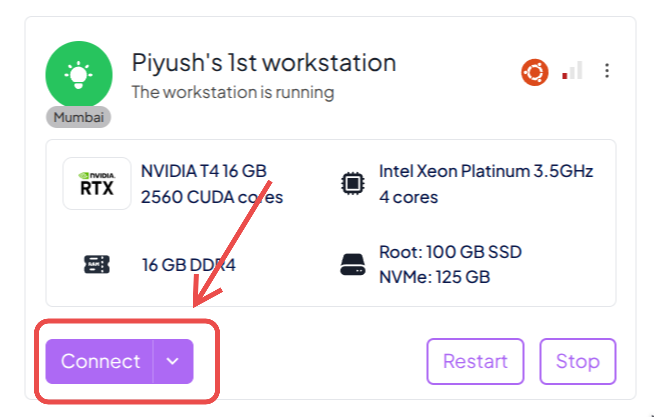
Connecting via SSH
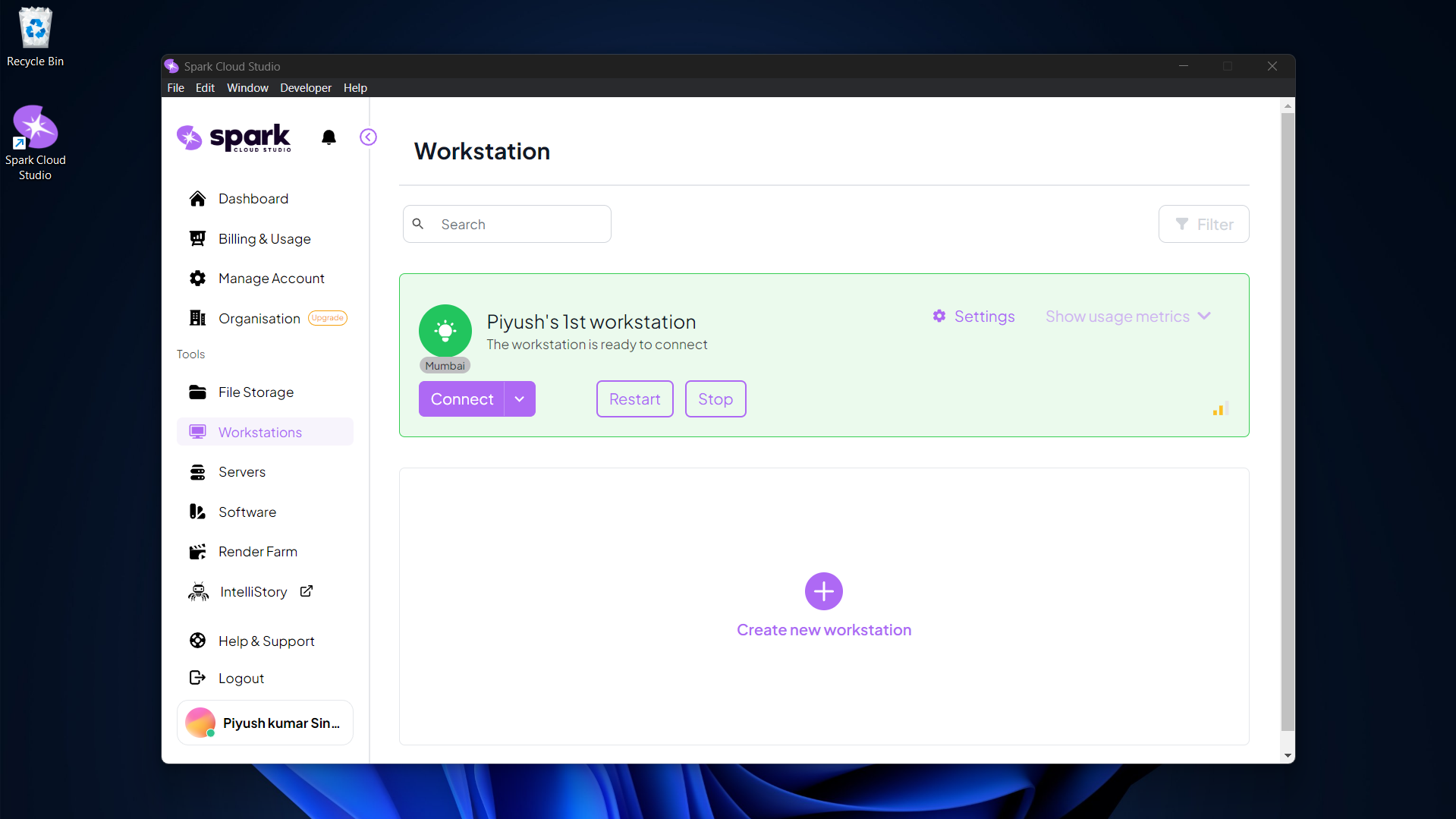
Launch the Spark app and navigate to the Dashboard.
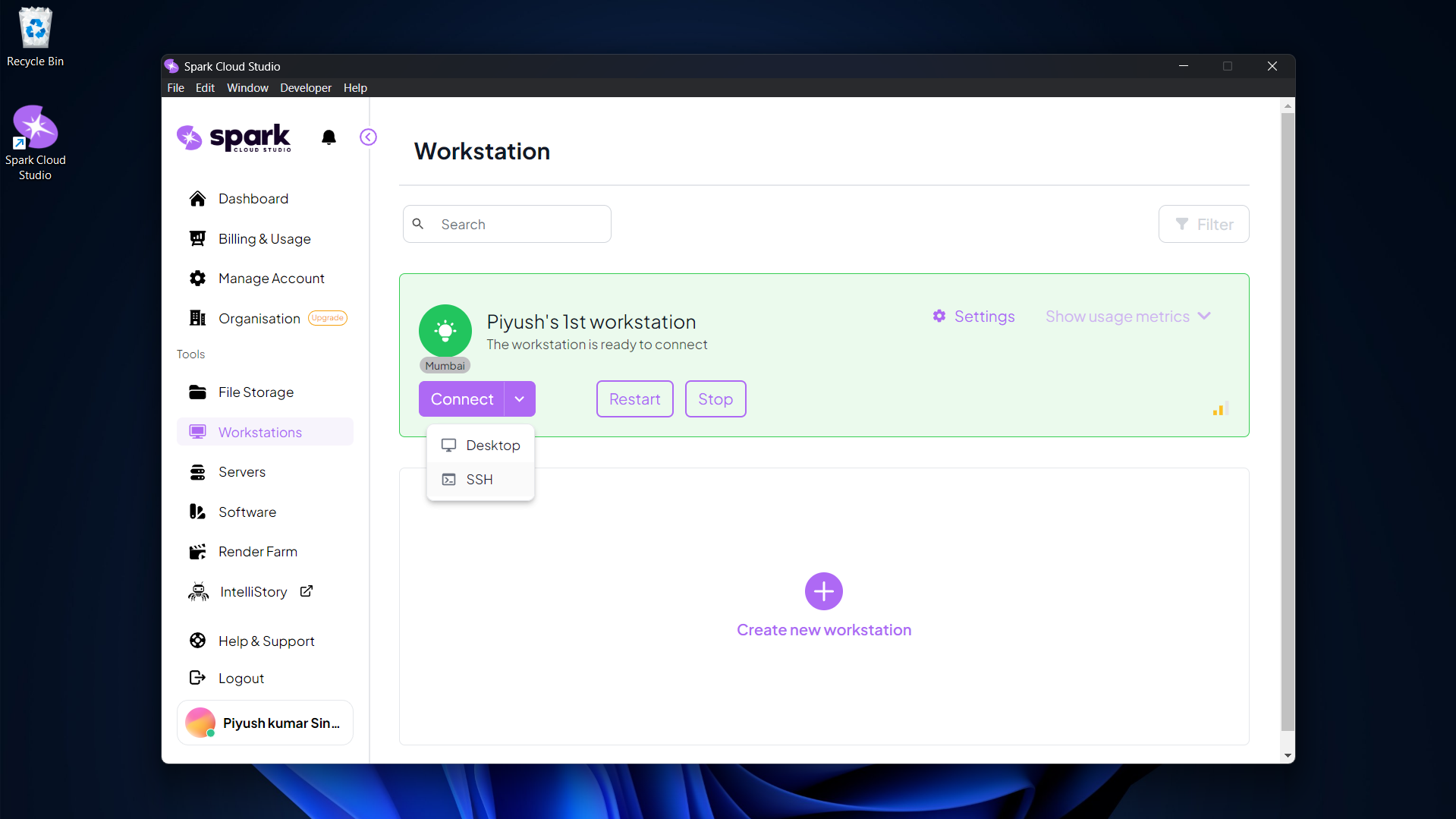
Click the dropdown arrow on the Connect button next to your workstation. Select SSH from the options shown.
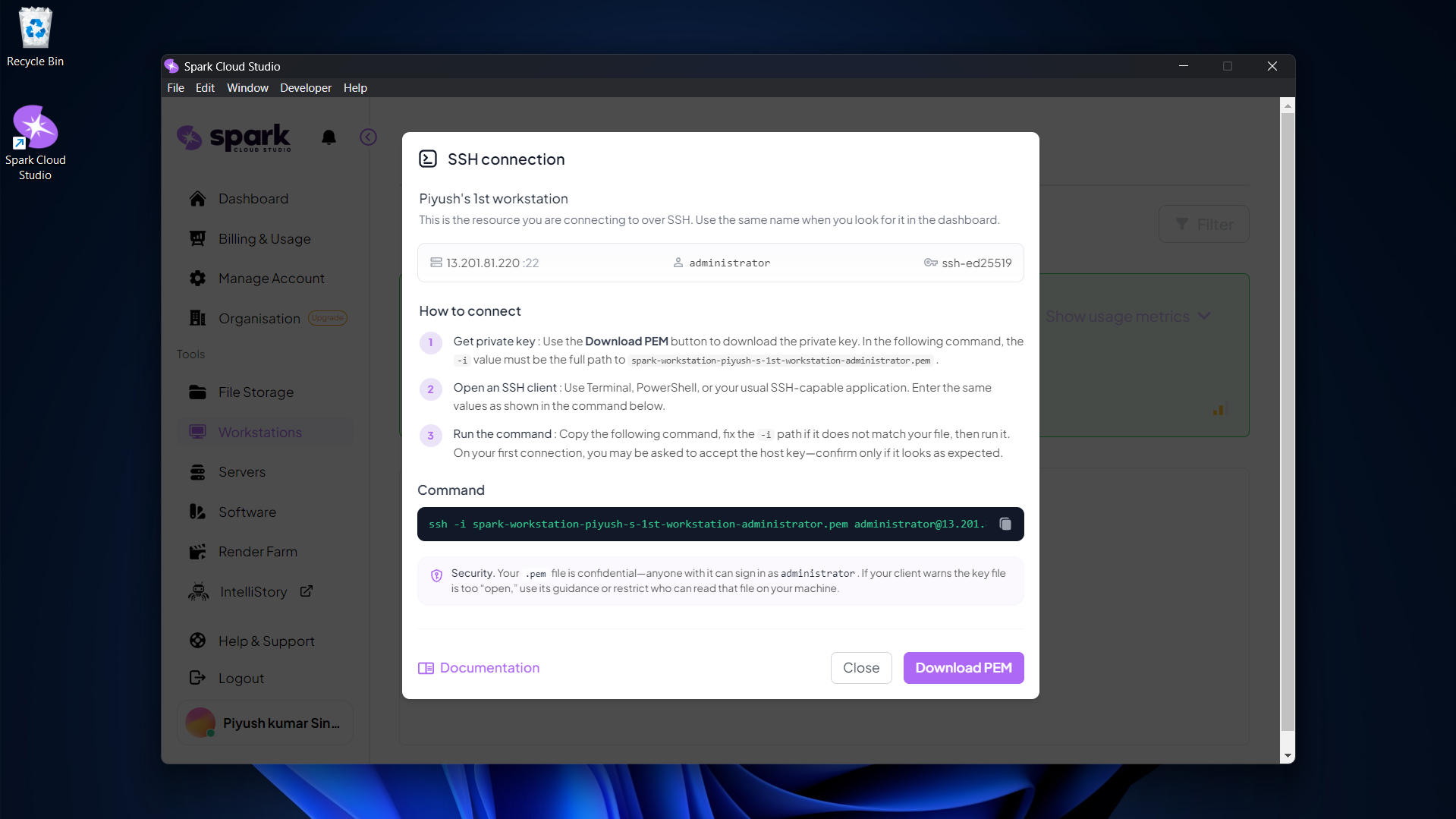
An SSH connection panel will open showing the IP address, username, and a pre-filled SSH command.
- Click Download PEM to save your private key file.
- Copy the SSH command shown in the panel.
- Windows: Open PowerShell or Windows Terminal.
- Navigate to the folder where your
.pemfile was saved. - Restrict permissions on your
.pemfile so OpenSSH accepts it, then run the SSH command. - On first connection, you will be prompted to confirm the host fingerprint. Type
yesand press Enter.
cd path\to\your\pem\file
icacls ".\spark-workstation-name.pem" /inheritance:r
icacls ".\spark-workstation-name.pem" /grant:r "$($env:USERNAME):R"
ssh -i spark-workstation-name.pem administrator@<your-ip>
icacls ".\spark-workstation-name.pem" /inheritance:ricacls ".\spark-workstation-name.pem" /grant:r "$($env:USERNAME):R"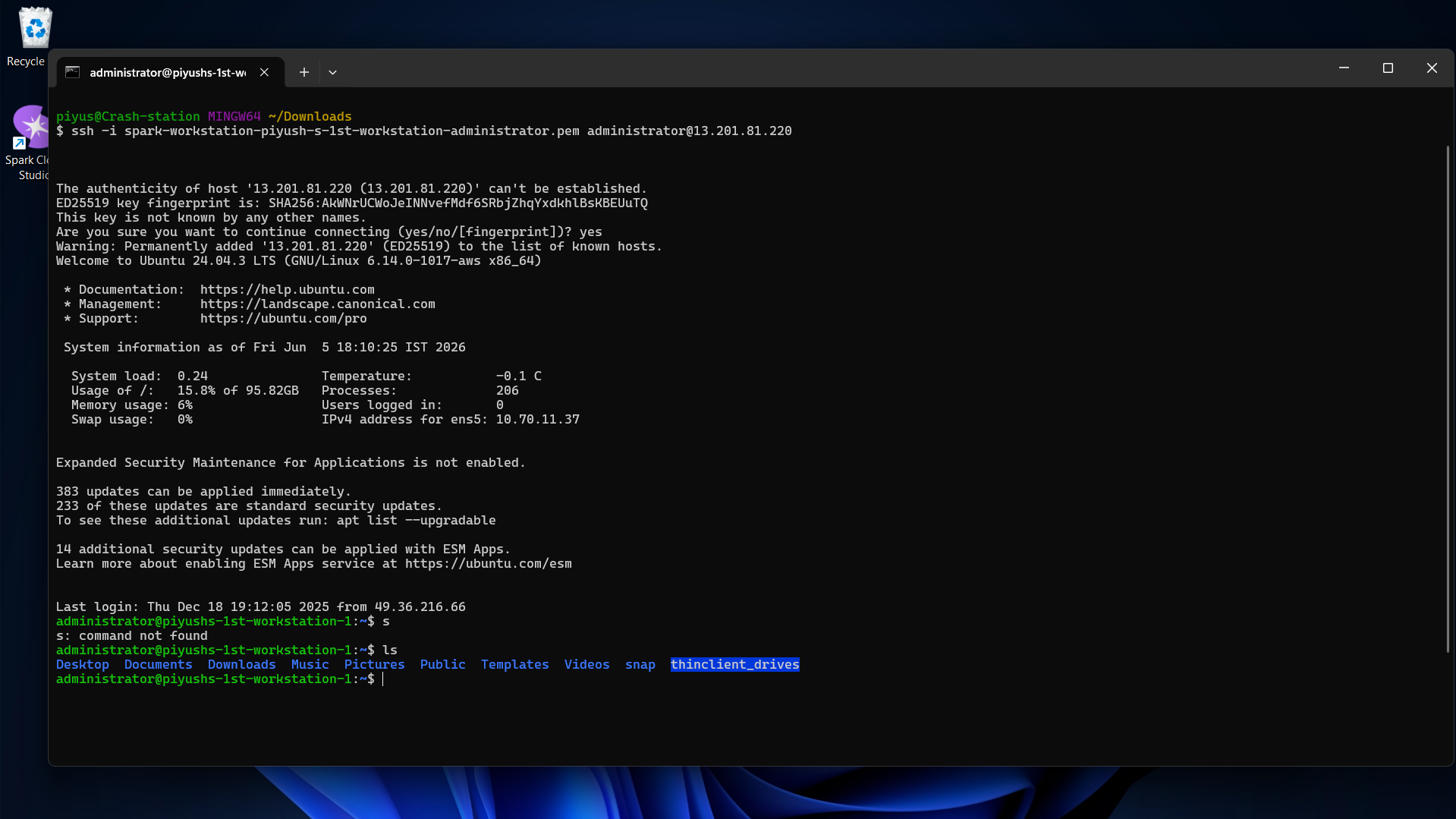

Disconnecting or logging out does not stop your ProStation. It continues running and billing. If you're done for the day, go to the Dashboard and click Stop.