Connect on Linux
Use the tabs below to connect your Spark ProStation from Linux using either TGX (remote desktop) or SSH (command line).
- TGX
- SSH
Connect with TGX
Before You Begin
Install the standalone TGX Receiver for Linux:
 Get TGX Receiver for Linux
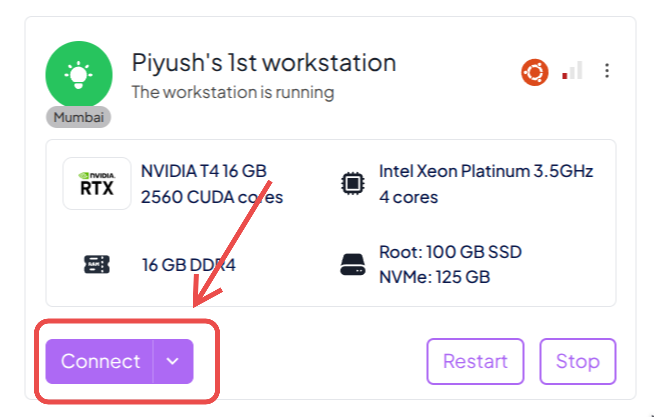
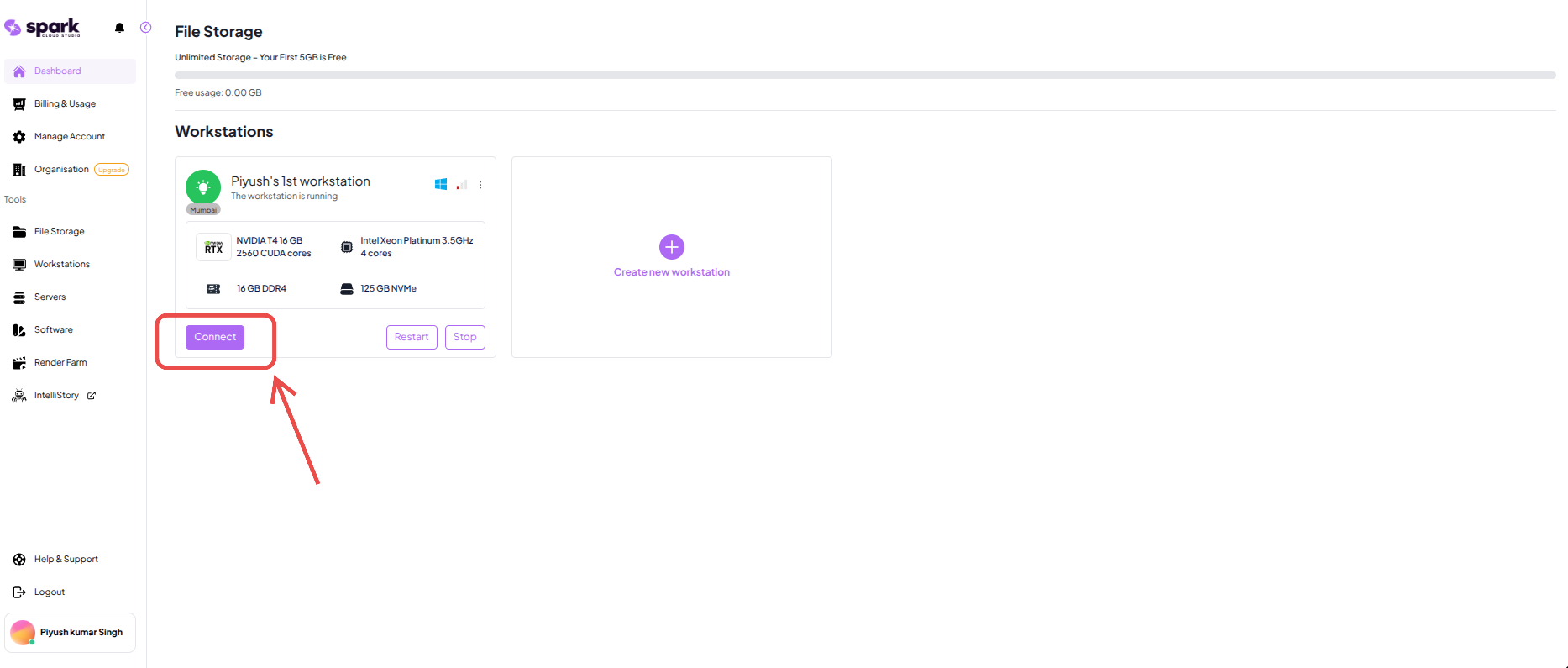
On the Dashboard, confirm that the Connect button is visible and available next to your workstation. This indicates your ProStation is up and ready to accept connections.

Refer to the Creating Your ProStation guide before continuing.
Connecting with TGX
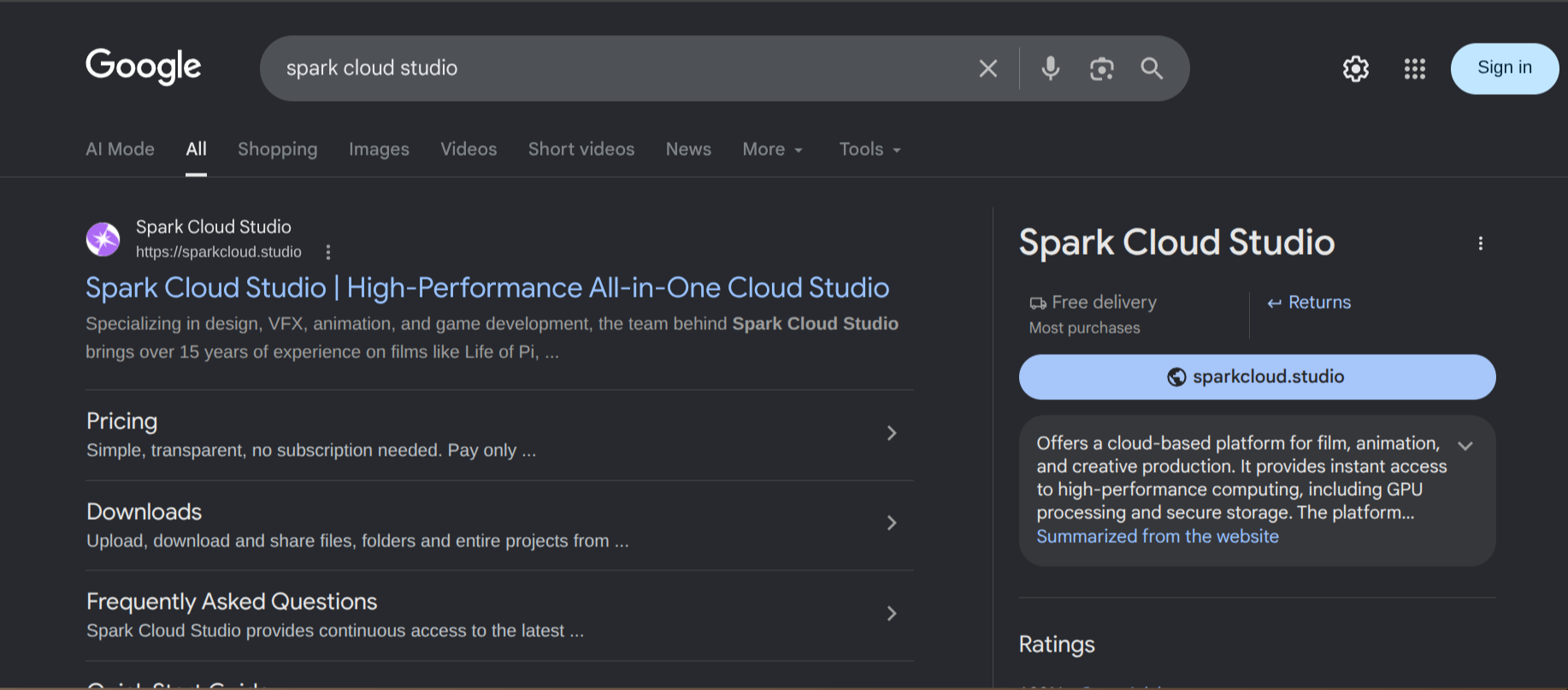
Open a web browser and navigate to Spark Cloud Studio.
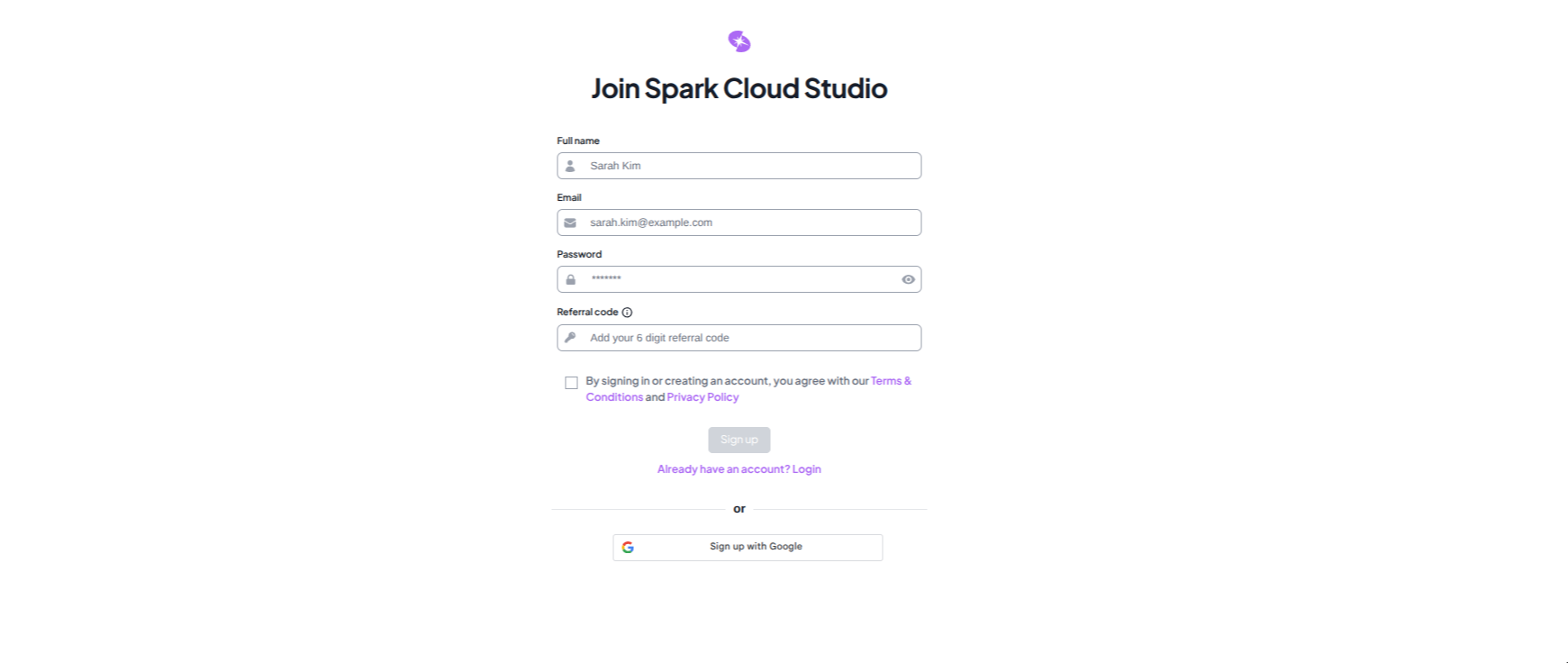
Sign in with your account. After authentication, you will be redirected to the dashboard.
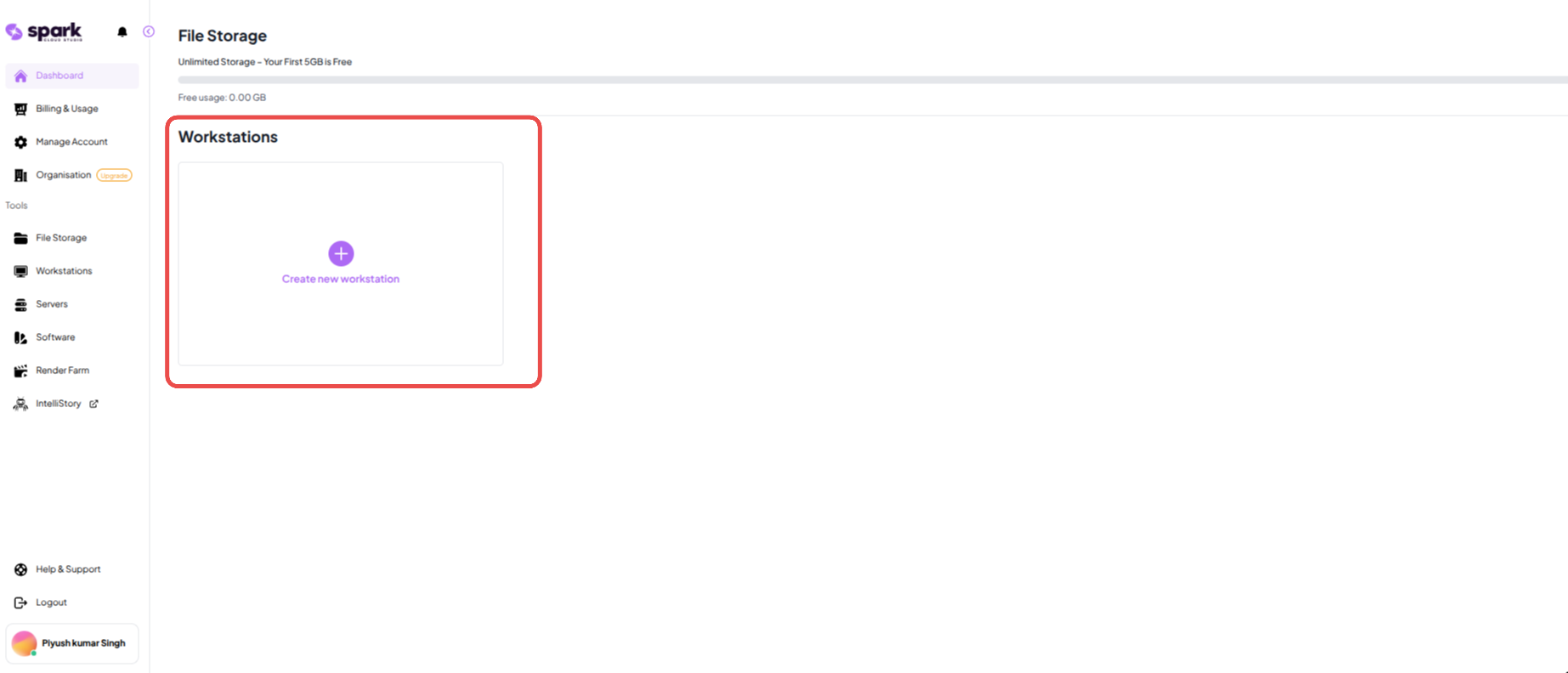
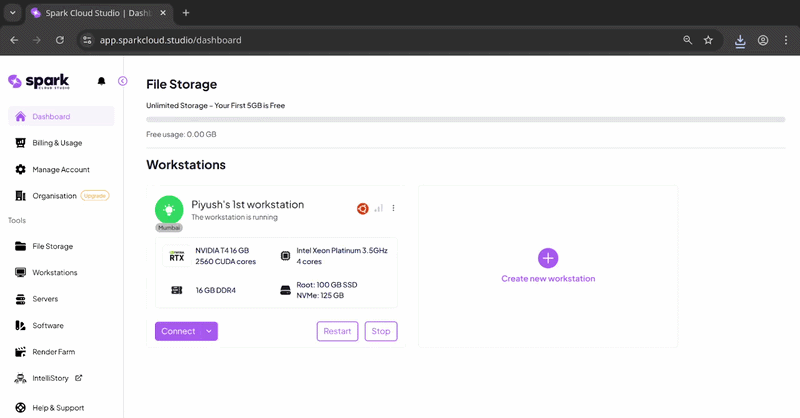
From the Workstations section:
- If you do not have a workstation yet, follow the Workstation Creation Guide.
- If you already have one, click Start.
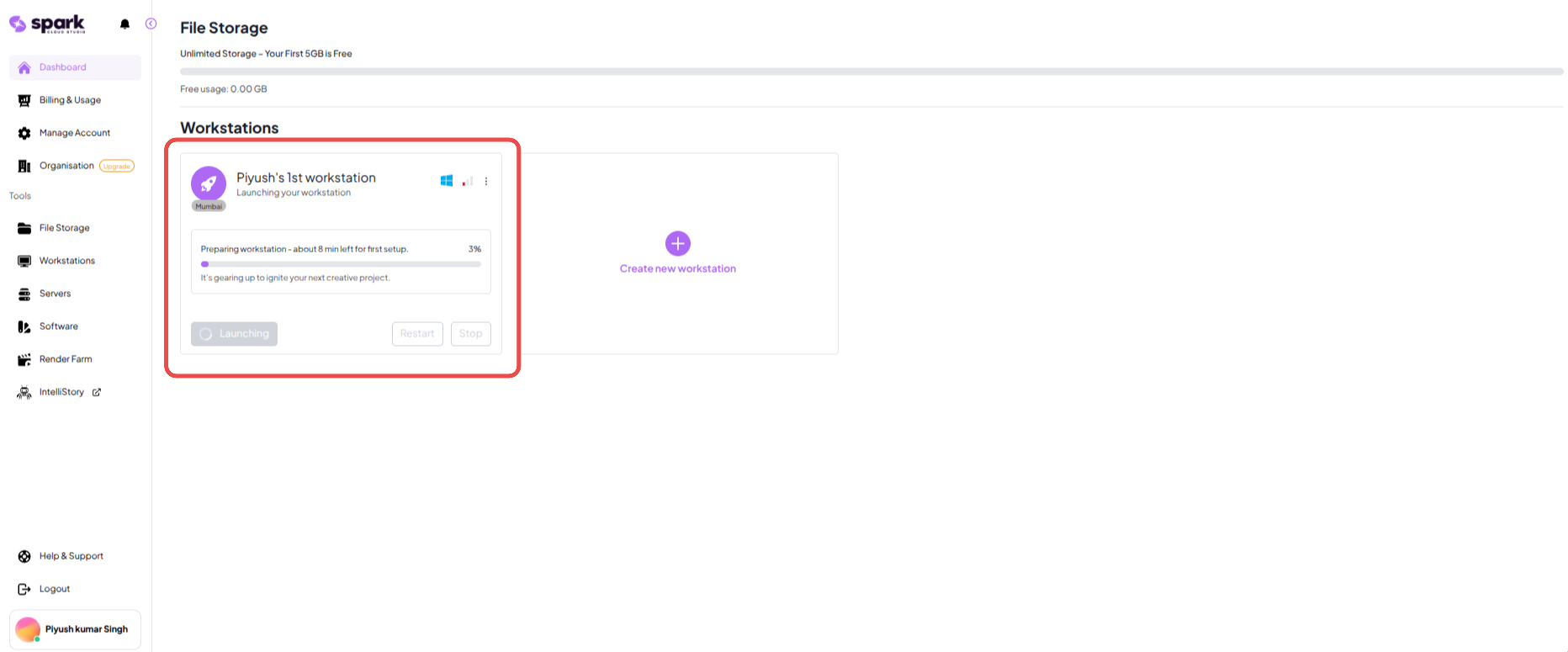
Wait until the workstation status becomes Running and the Connect button is available.

When a newly created workstation is launched for the first time, startup may take approximately 5 to 10 minutes while provisioning and resource allocation complete. Subsequent starts typically take less than 2 minutes.
Click Connect on your workstation card. A time-limited .tgx file is downloaded to your Downloads folder.

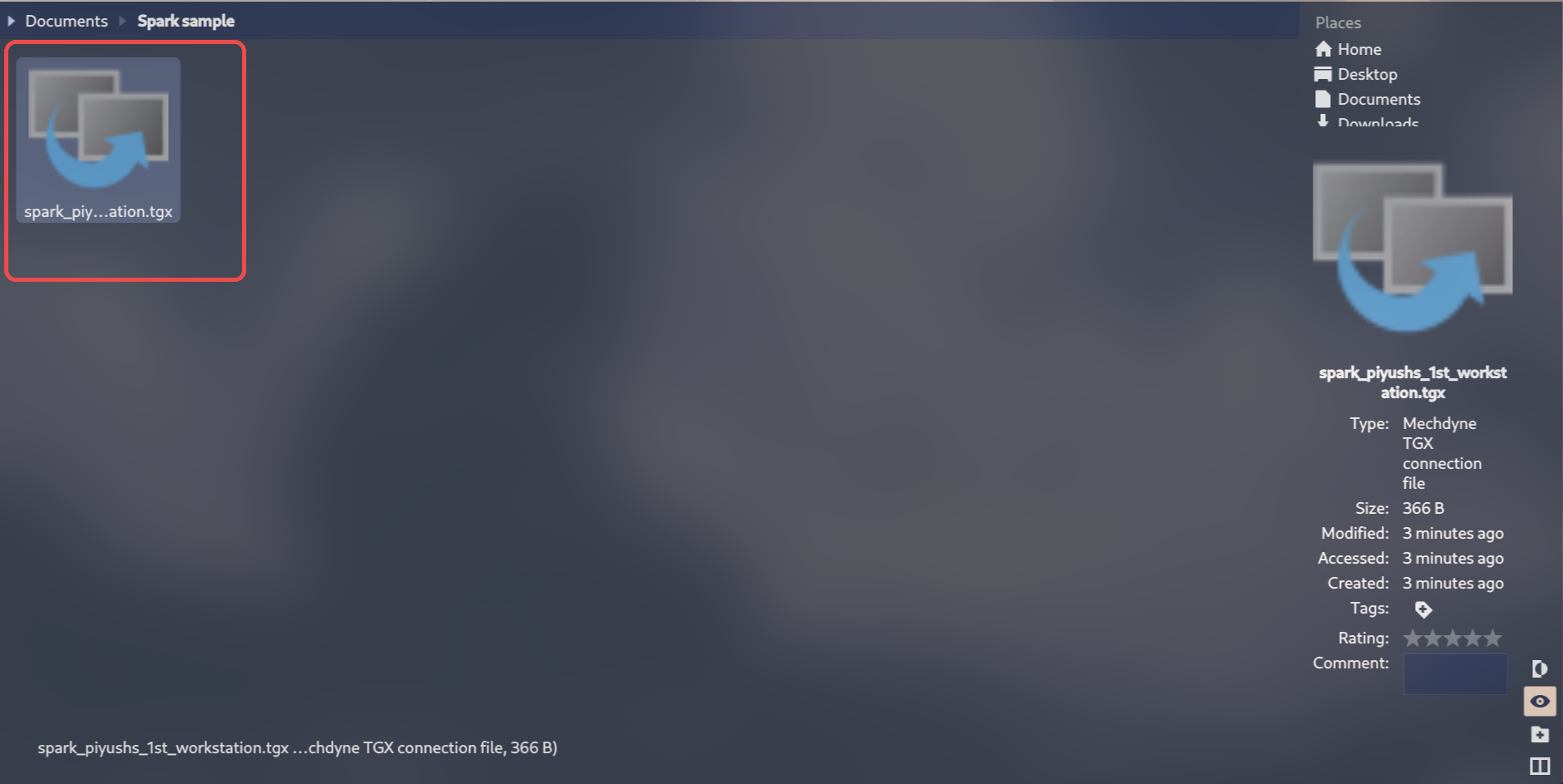
This file expires in about 5 minutes and can only be used once. If it expires, click Connect again to generate a new one.
Open the downloaded .tgx file to launch TGX Receiver.
Run this command in terminal (replace file name as needed):
tgx-receiver --connect ~/Downloads/your-prostation.tgx
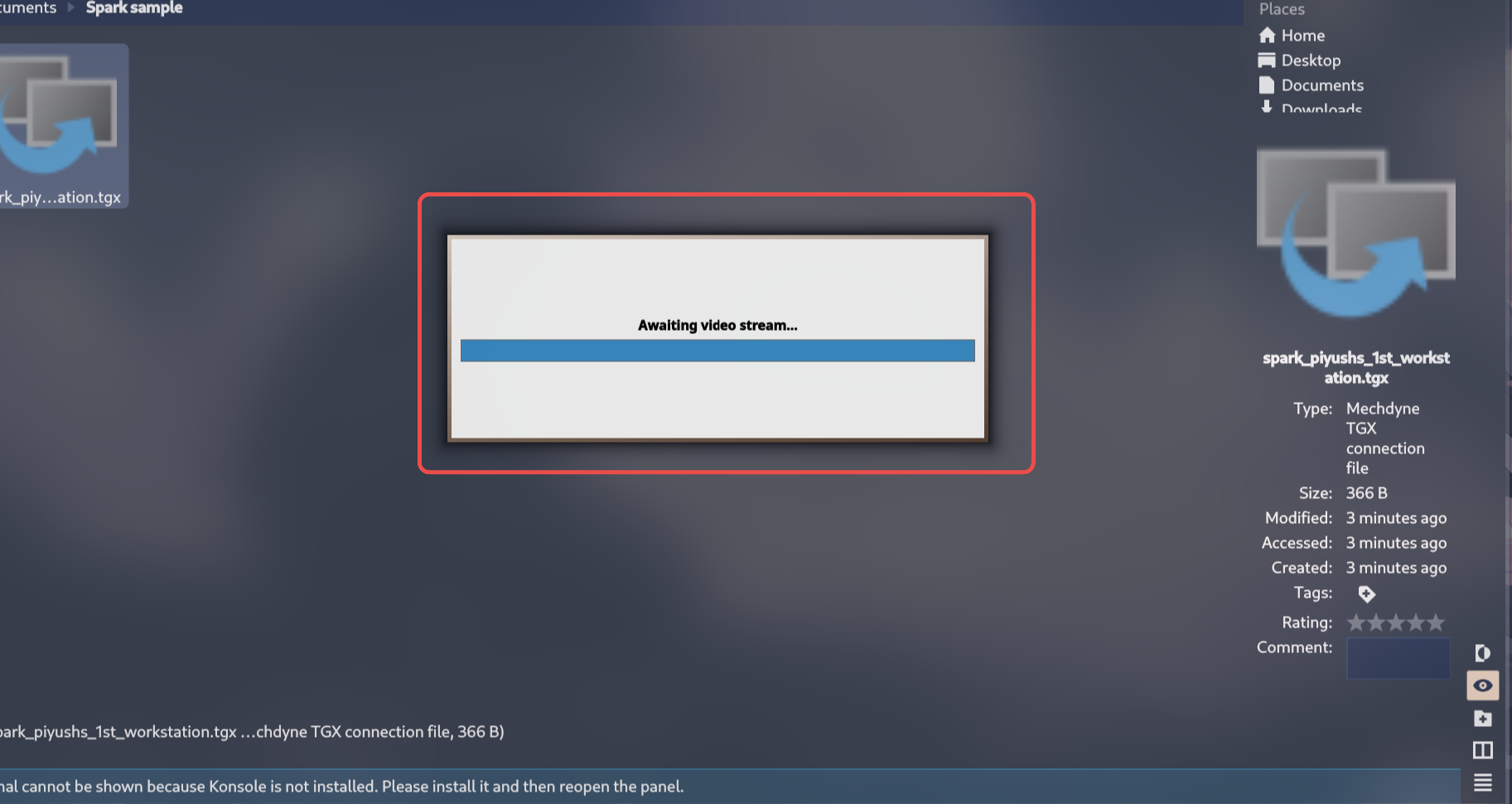
TGX Receiver will establish the connection and open your remote desktop.
Linux TGX Keyboard Shortcuts
| Session Action | Keyboard Shortcut |
|---|---|
| Minimize Session | Ctrl + Alt + N |
| Maximize Session | Ctrl + Alt + M |
| Restore Window | Ctrl + Alt + W |
| Toggle Fullscreen | Ctrl + Alt + S |
| Enable Multi-Screen | Ctrl + Alt + D |
| Disconnect Session | Ctrl + Alt + X |
Connect with SSH
Before You Begin
Make sure your workstation is in Running state so SSH credentials are available from the dashboard.
If you do not have a workstation yet, create one first using the Workstation Creation Guide.
Connecting with SSH
Open your browser and go to Spark Cloud Studio Dashboard.
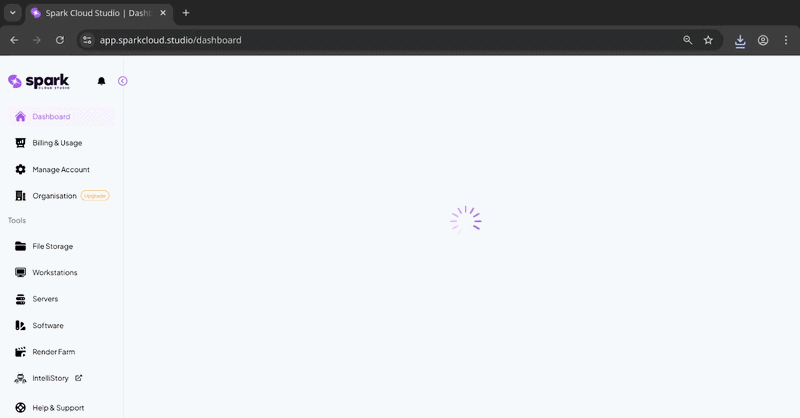
Click the Connect dropdown and choose SSH.
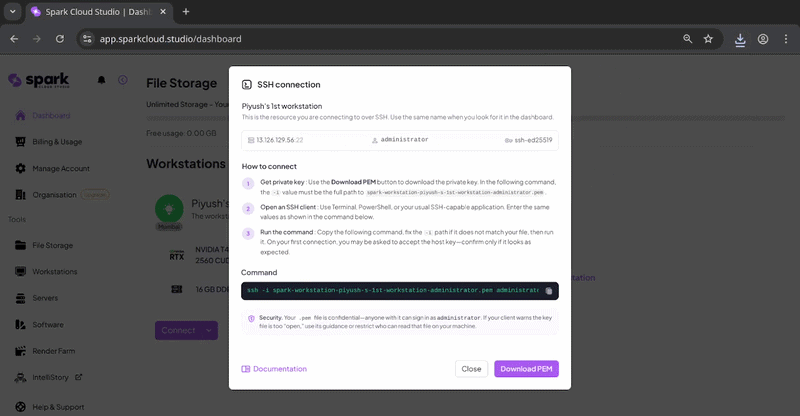
In the SSH panel:
- Click Download PEM
- Copy the generated SSH command
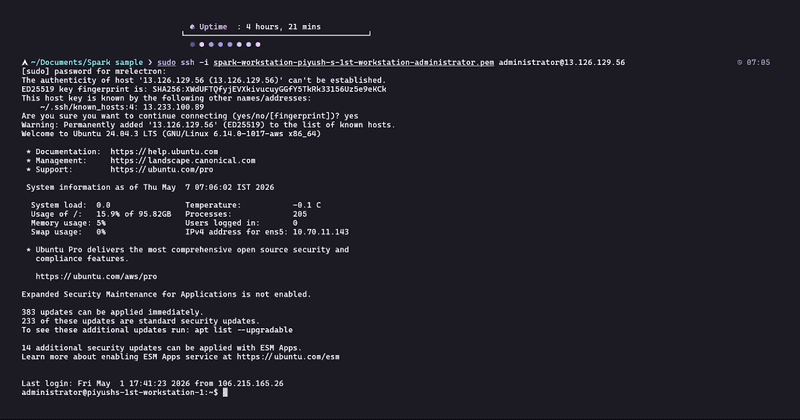
Open terminal and run:
cd ~/Downloads
chmod 400 spark-workstation-name.pem
ssh -i spark-workstation-name.pem administrator@<your-ip>
On first connection, type yes to accept the host fingerprint.
Disconnecting or logging out does not stop your ProStation. It continues running and billing. If you are done, go to the Dashboard and click Stop.