Inside Your Workstation
Overview
The Inside Your Workstation panel provides quick access to essential controls for managing your TGX workstation session.
These tools help monitor connection strength, control display quality, manage USB devices, and adjust screen fit and color preferences for optimal performance.
Workstation Toolbar Options
| Tool | Description | Screenshot |
|---|---|---|
| Network Strength | Displays your current TGX connection quality in bars. A higher number of bars indicates a more stable and faster connection. | 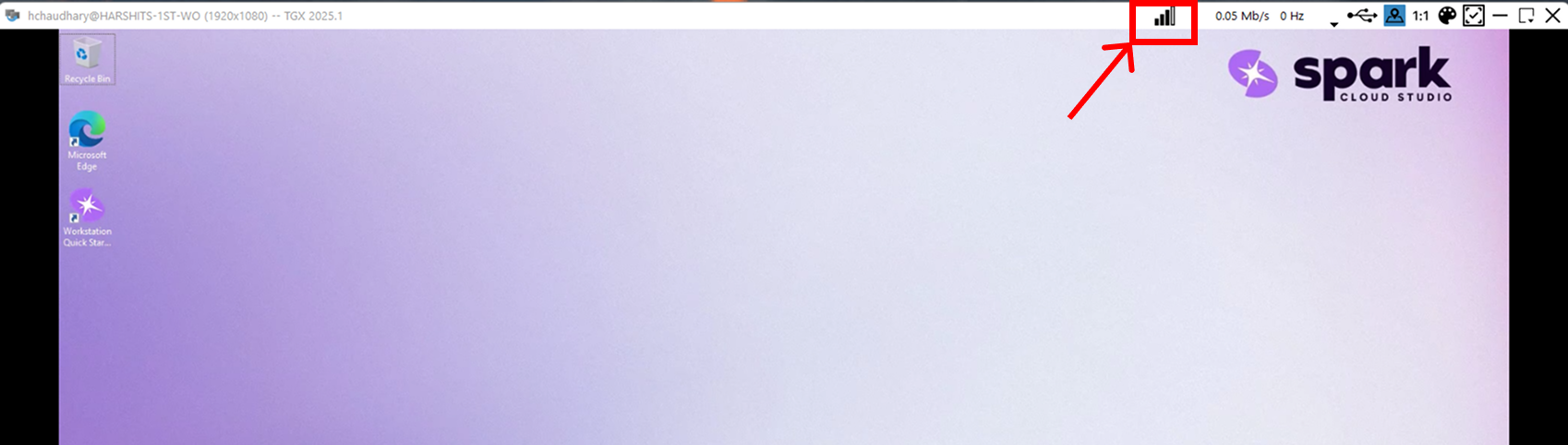 |
| Performance Monitor (Hz / IQ / Mb/s) | Displays live session statistics: • Hz: Current frame rate of your session. • IQ: Image Quality factor for visual clarity. • Mb/s: Network bandwidth in use. |  |
| USB Selection | Opens the USB sharing dialog, allowing you to connect local USB devices (keyboard, storage, audio, etc.) to the remote workstation. | 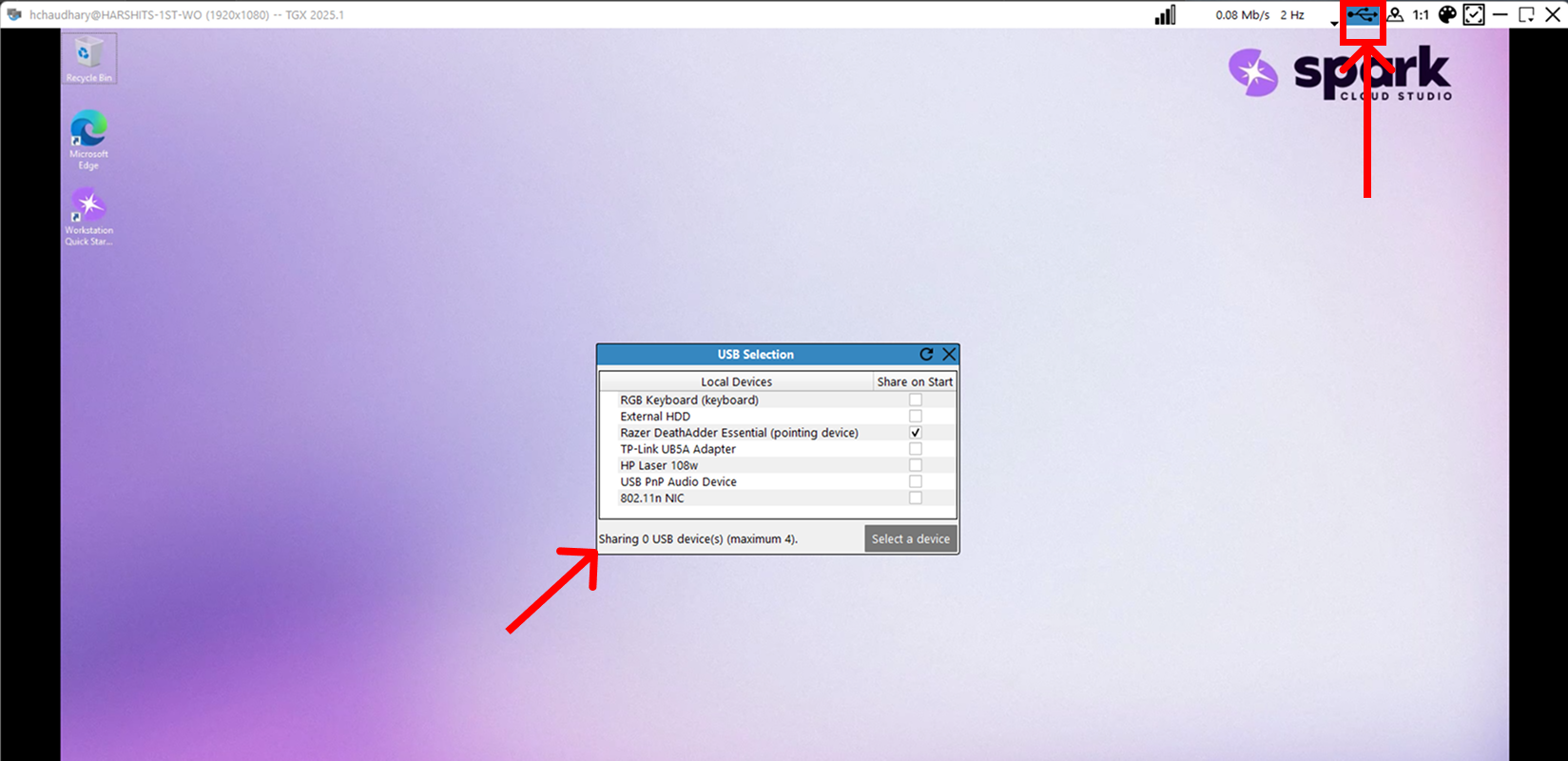 |
| Mini-map Display | Toggles the small preview window in the top-left corner of your screen for quick navigation within the remote session. | 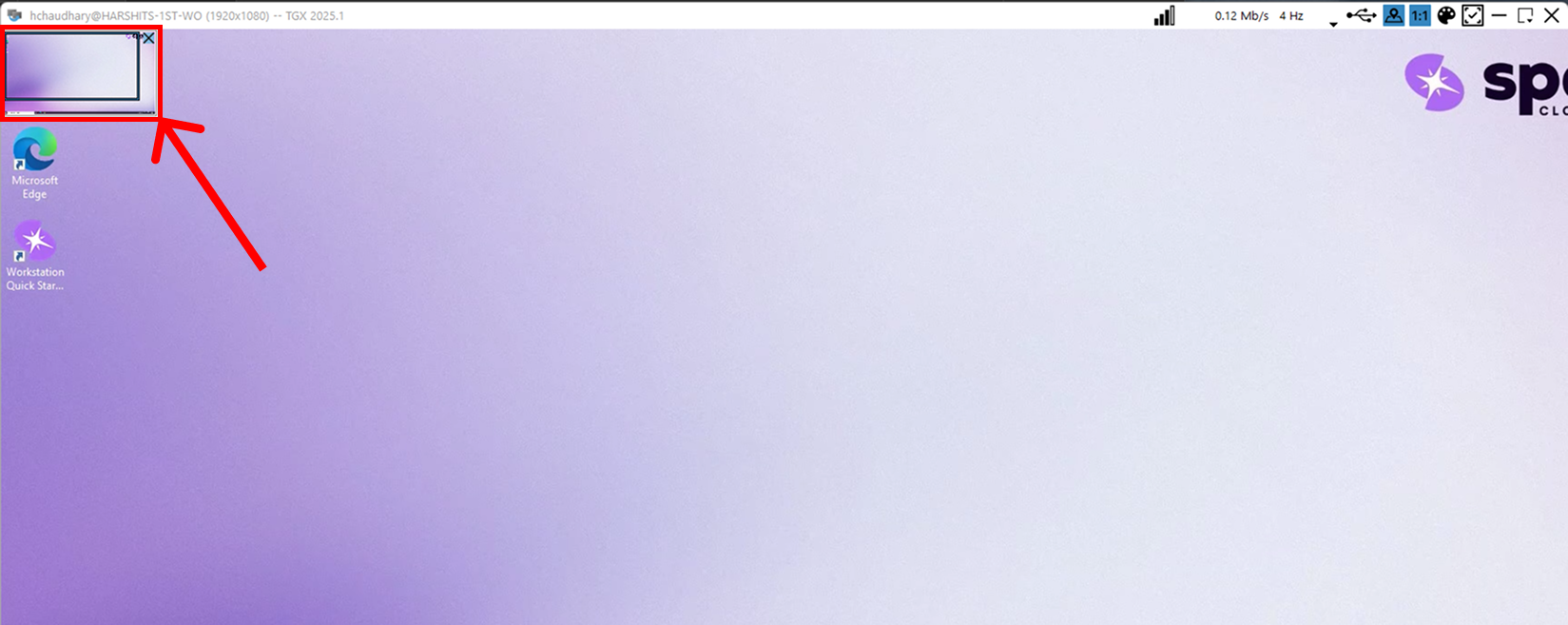 |
| Resolution Toggle (1:1 / Fit to Screen) | Switches between full-resolution 1:1 mode and scaled-to-fit view. Use 1:1 for pixel-accurate work; use Fit for better visibility. | 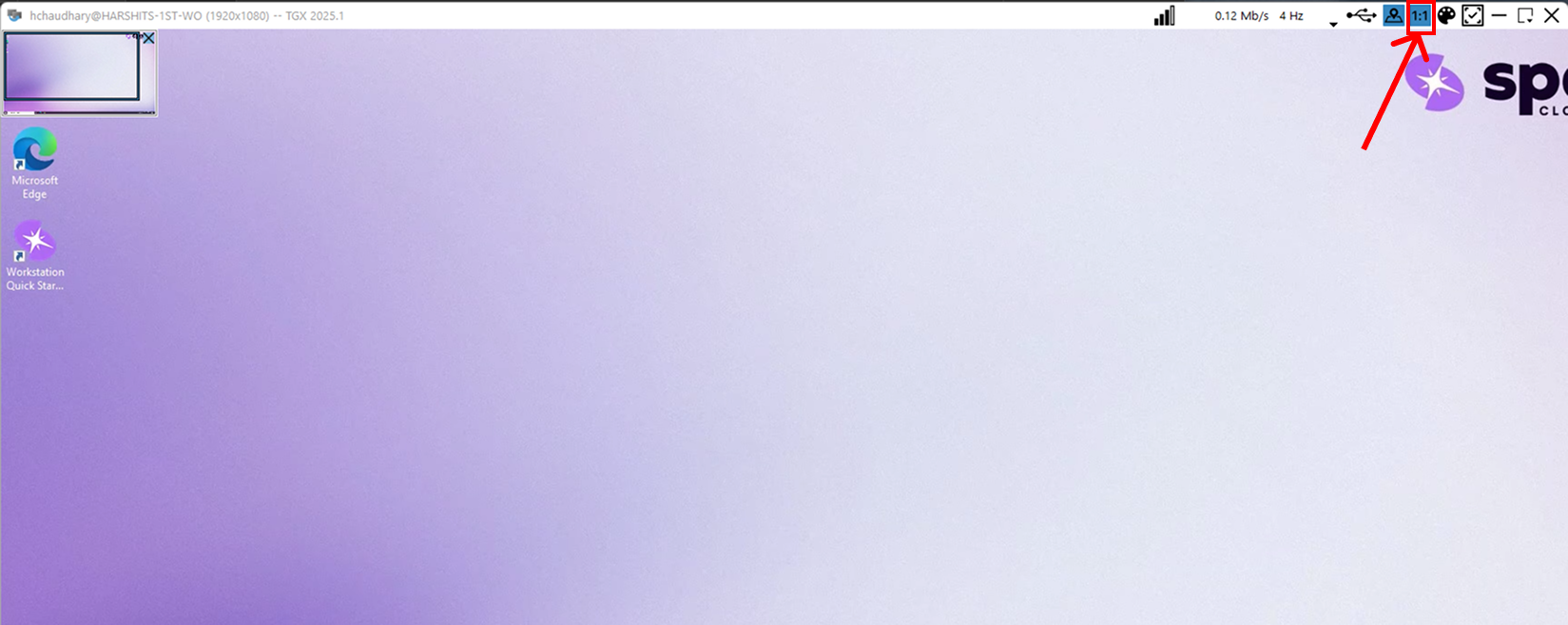 |
| Multi-Monitor Support | Expand the TGX session across multiple monitors when your local system has more than one display connected and enabled. | |
| Color Mode (Full / Reduced) | Toggles between full-color and reduced-color display modes. Note: Full-color mode may slightly reduce performance or increase bandwidth usage. | 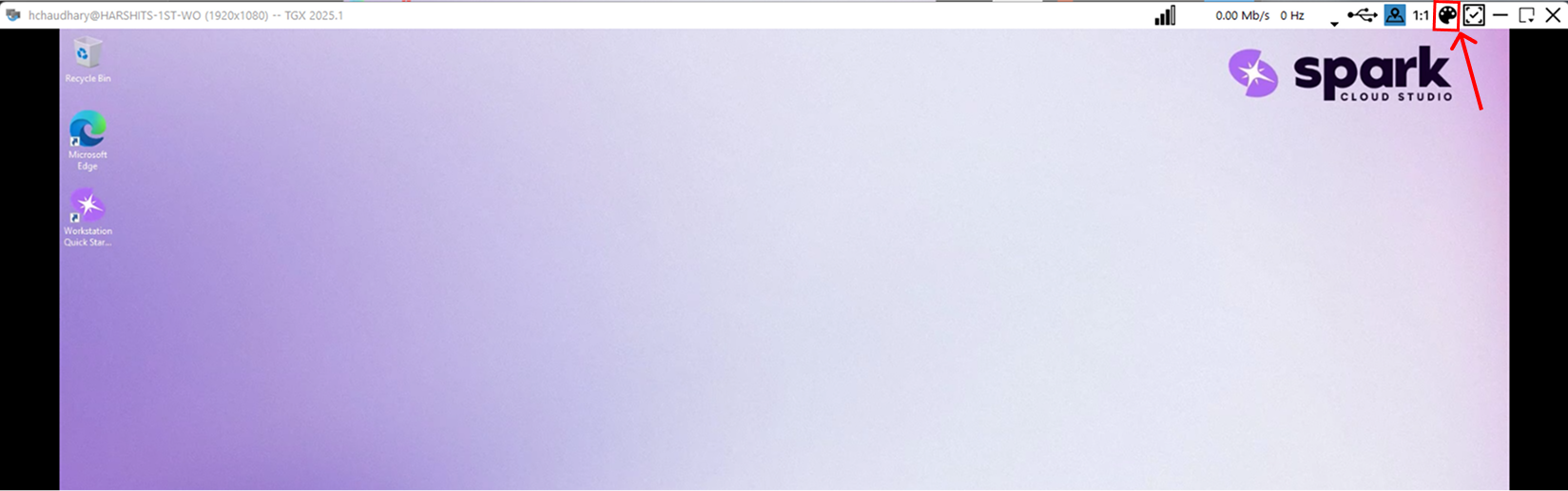 |
| Restore Window to Best Fit | Adjusts the session window to the optimal size for your display. | 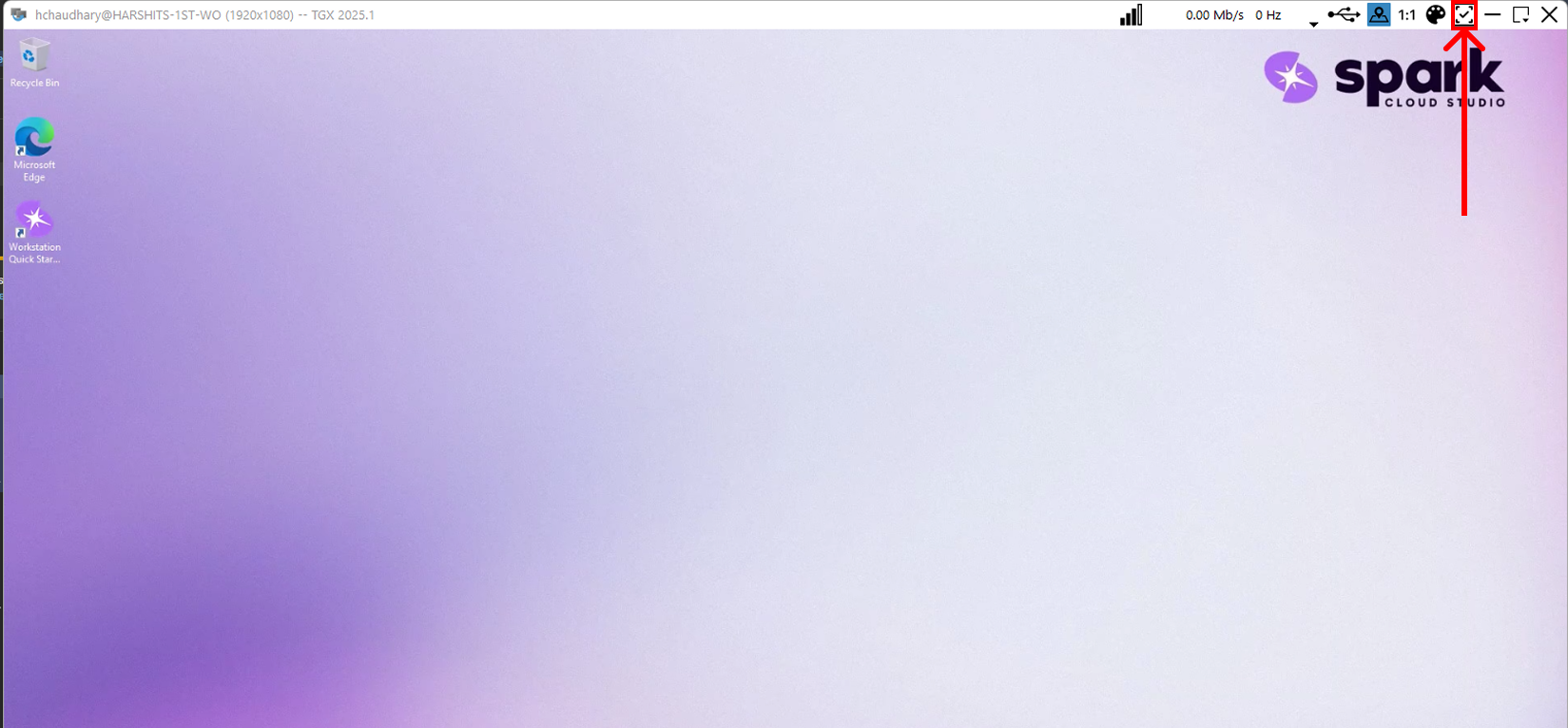 |
| Window Controls (Minimize / Maximize / Close) | Standard window controls to minimize, expand, or close the TGX session window. | 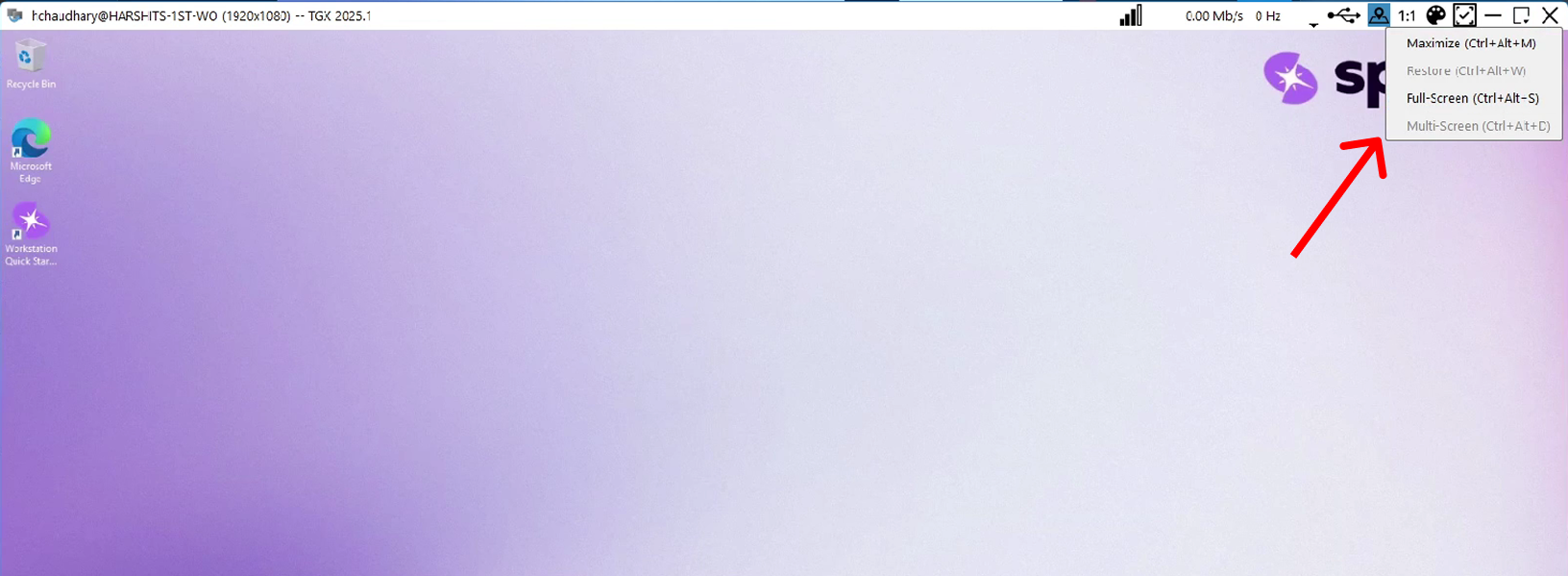 |
USB Selection
Click the USB icon from the toolbar to open the USB Selection window.
In the list of detected Local Devices, check the boxes next to the USB devices you wish to share with your workstation session. You can enable "Share on Start" to automatically connect them next time.
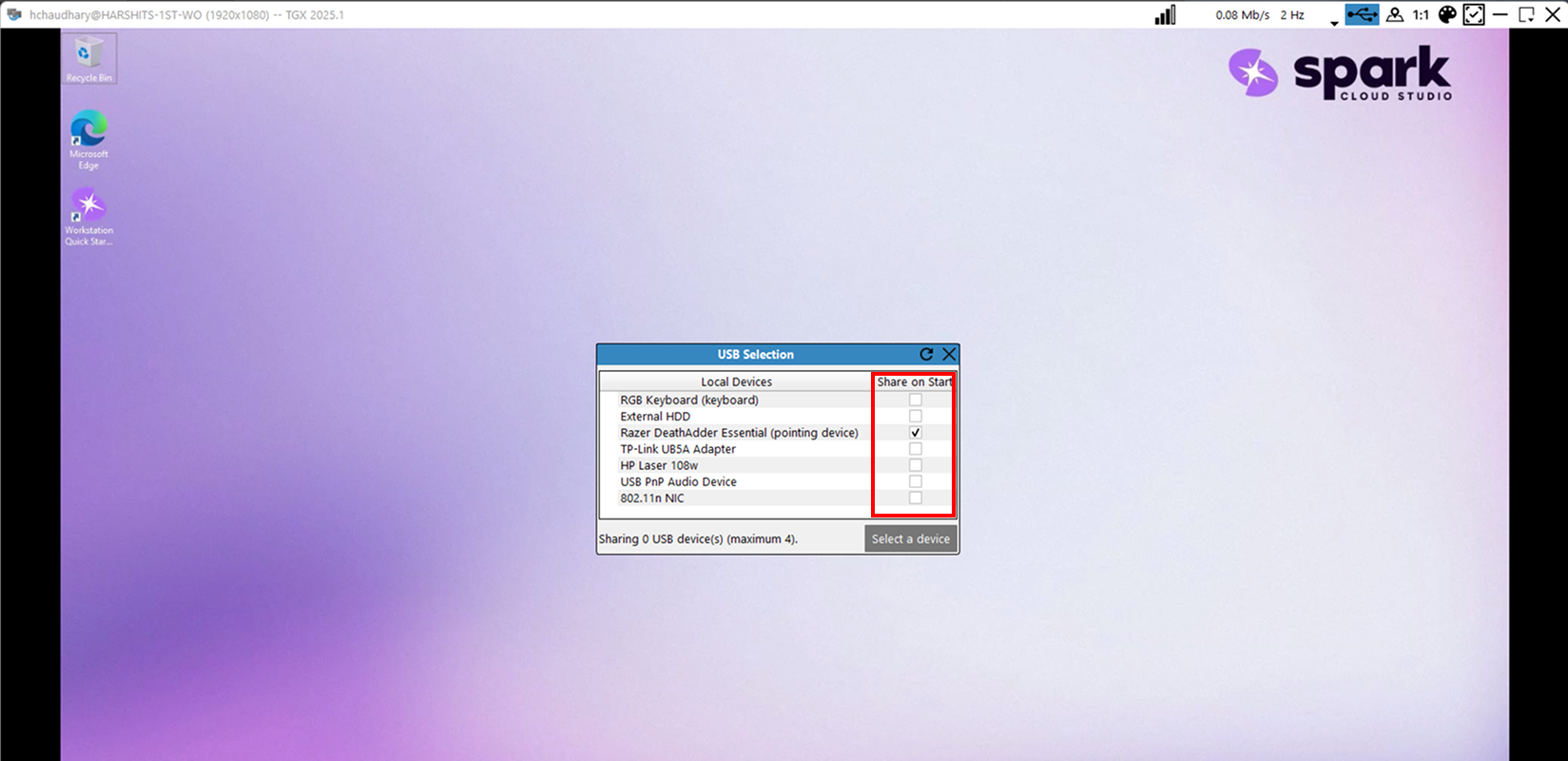
Once selected, your devices will be redirected into the remote workstation environment. You can share up to 4 USB devices simultaneously.


If your USB device does not appear, try reconnecting it locally or clicking the refresh icon in the top-right of the USB Selection panel.
Understanding Hz, IQ, and Mb/s
These three indicators provide insights into your TGX workstation's performance and connection health.
| Metric | Meaning | Notes |
|---|---|---|
| Hz (Hertz) | Indicates the frame rate of your session. Higher Hz means smoother visuals and more responsive input. | Typically between 30–60 Hz depending on network speed. |
| IQ (Image Quality) | Represents the dynamic image quality scaling level. Adjusts automatically based on bandwidth to maintain fluid performance. | Values may fluctuate with network congestion. |
| Mb/s (Megabits per second) | Shows the real-time data transfer rate between your system and the TGX server. | Higher Mb/s indicates more data throughput and visual fidelity. |
Closing the Workstation
When you click the Close (X) button in the TGX window, a confirmation dialog appears.
You will be prompted with three options:
- Disconnect – Ends your TGX connection only. Your workstation remains running, and all applications stay active in the background. You can reconnect later and continue your session.
- Log Out – Logs you out of the workstation entirely and closes all running applications. Any unsaved progress will be lost.
- Cancel – Closes the dialog and keeps your current session active.


The Z: drive is an ephemeral, ultra-high-speed NVMe SSD attached directly to your Spark Cloud Studio workstation. All data stored on Z: will be permanently deleted whenever the workstation is stopped or shut down.

If you plan to resume work later, choose Disconnect to keep your workstation and applications running.