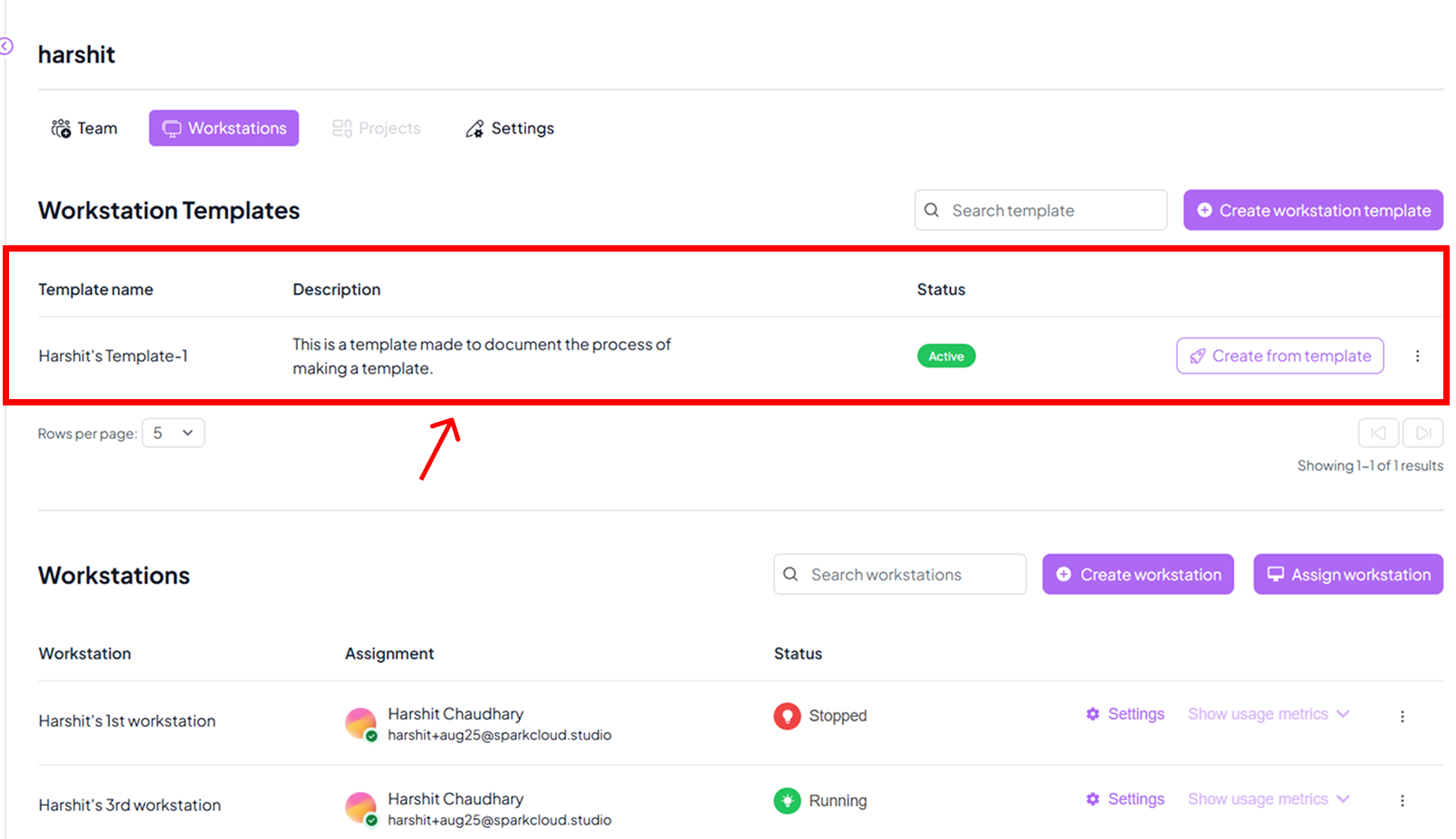
Create a Workstation Template
Create a Workstation Template
Templates allow you to save the configuration of an existing workstation so it can be reused later.
This helps maintain consistency across your organisation and saves setup time.

Ensure you already have a workstation that is set up and stopped before creating a template.

Step 1: Go to the Organisation Tab
- From your dashboard, navigate to the Organisation tab.
- This is the main section where template-related actions are managed.

Step 2: Open the Workstations Tab
- Inside the organisation view, click the Workstations tab.
- This tab shows all the workstations available in your organisation.
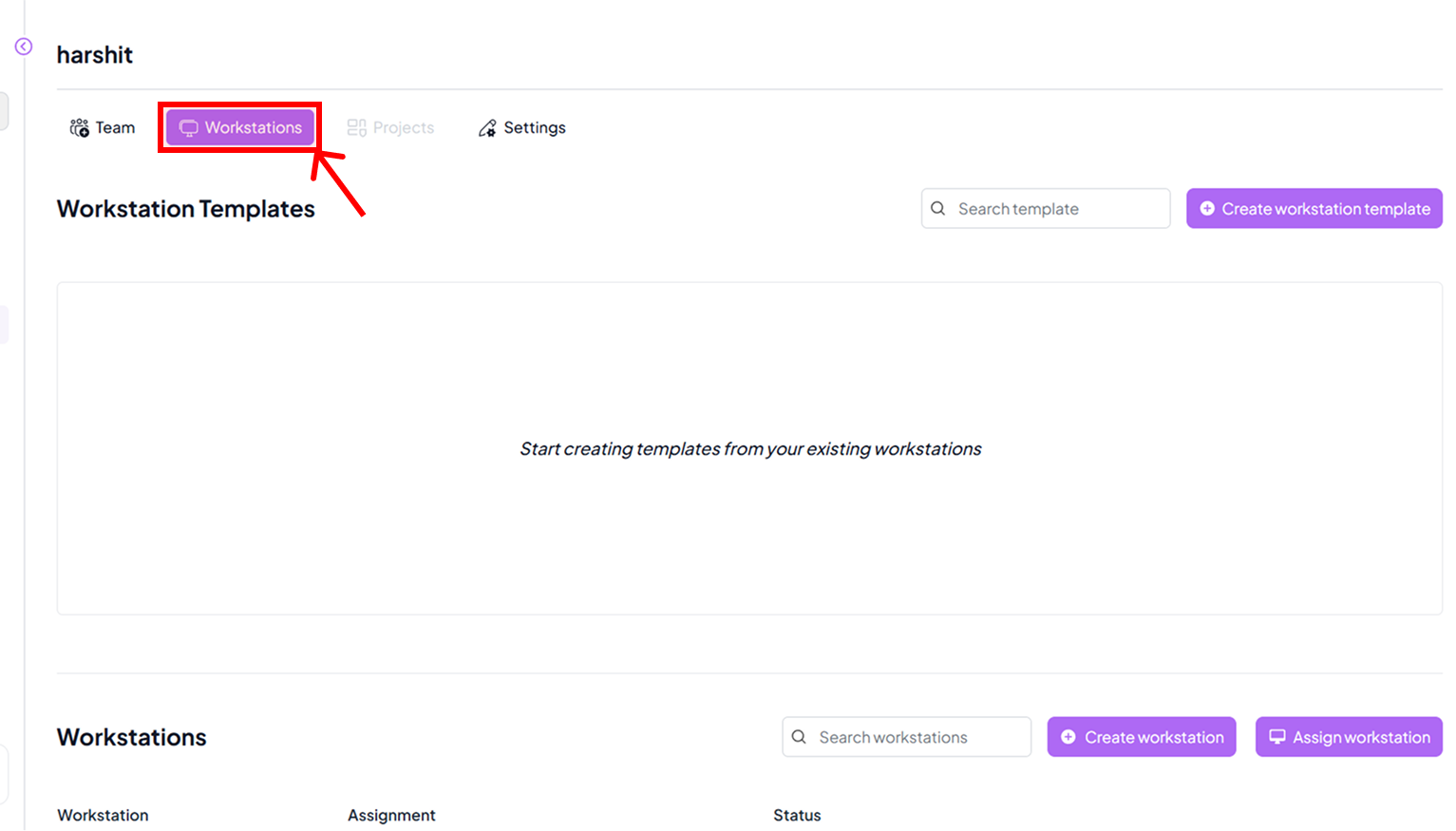
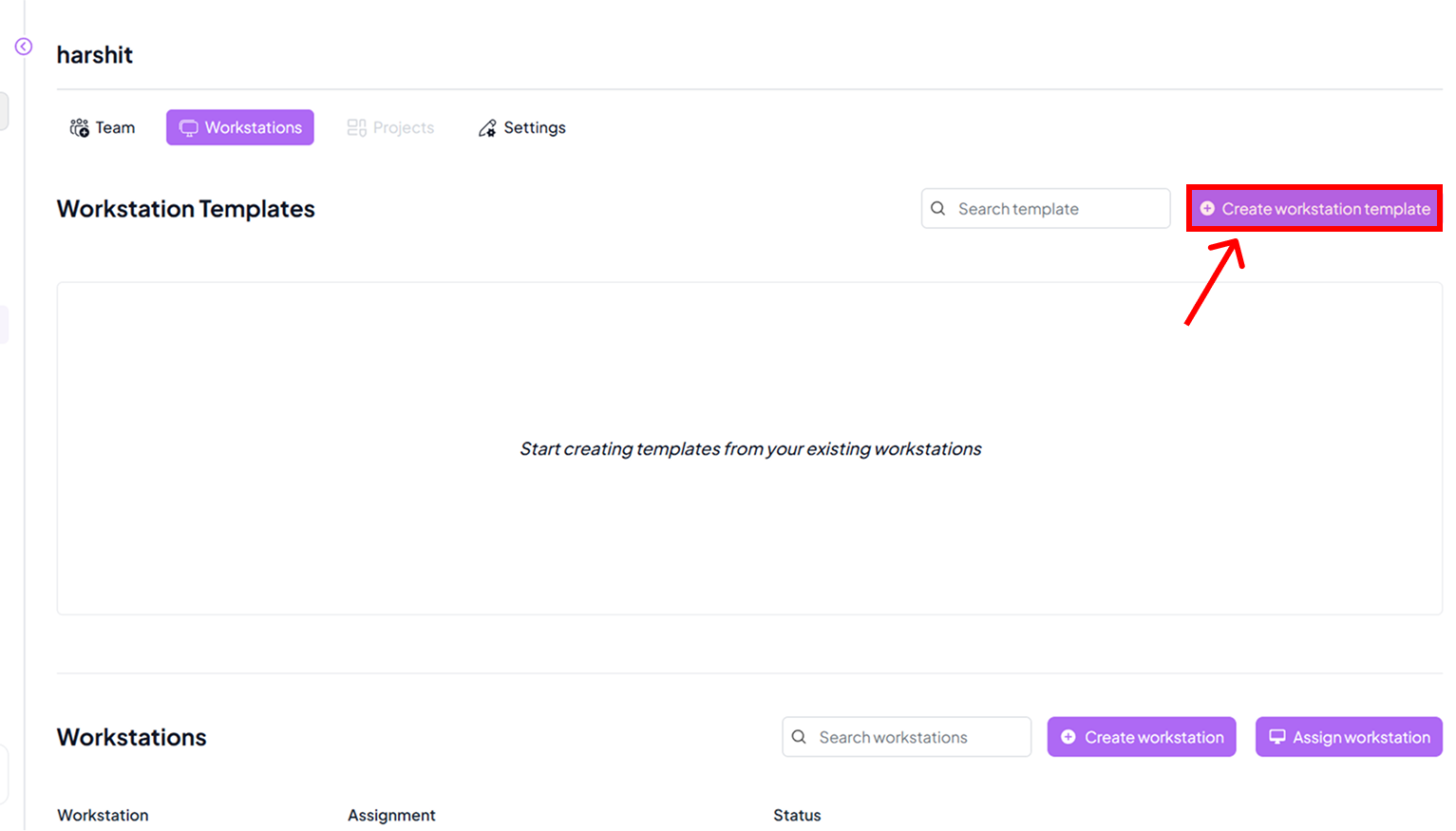
Step 3: Create Workstation Template
- Click the Create Workstation Template button.
Ensure you already have a workstation that is set up and stopped before creating a template.
Step 4: Select a Stopped Workstation
- From the dialog, select the workstation you want to convert into a template.
- Only stopped workstations will be displayed.
- Click Next to proceed.

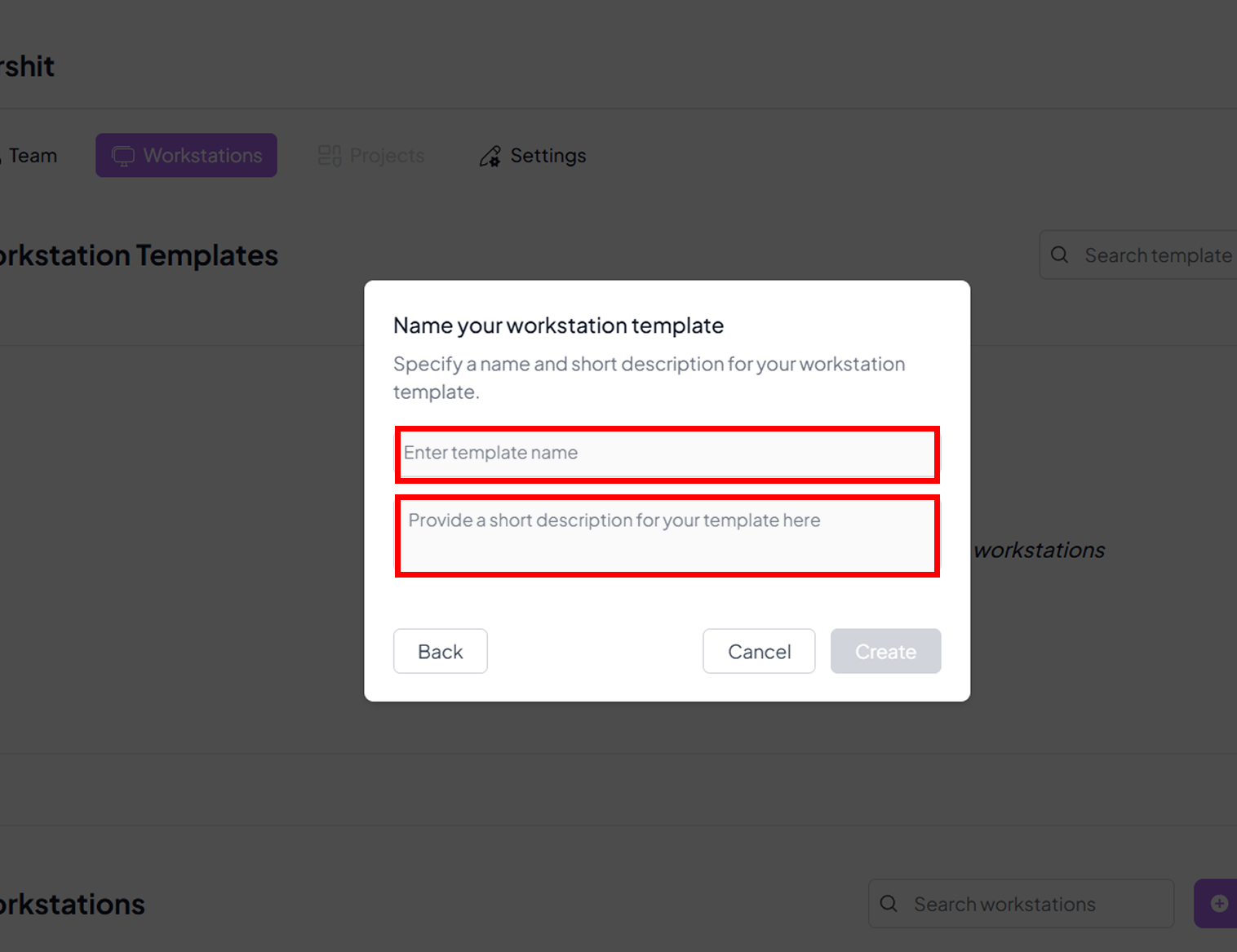
Step 5: Enter Template Details
- Provide a Template Name and a Template Description.
- These details make it easier to identify and manage templates later.
Step 6: Template Creation Process
- The system will now create your template.
- The process duration depends on the size and configuration of the workstation.
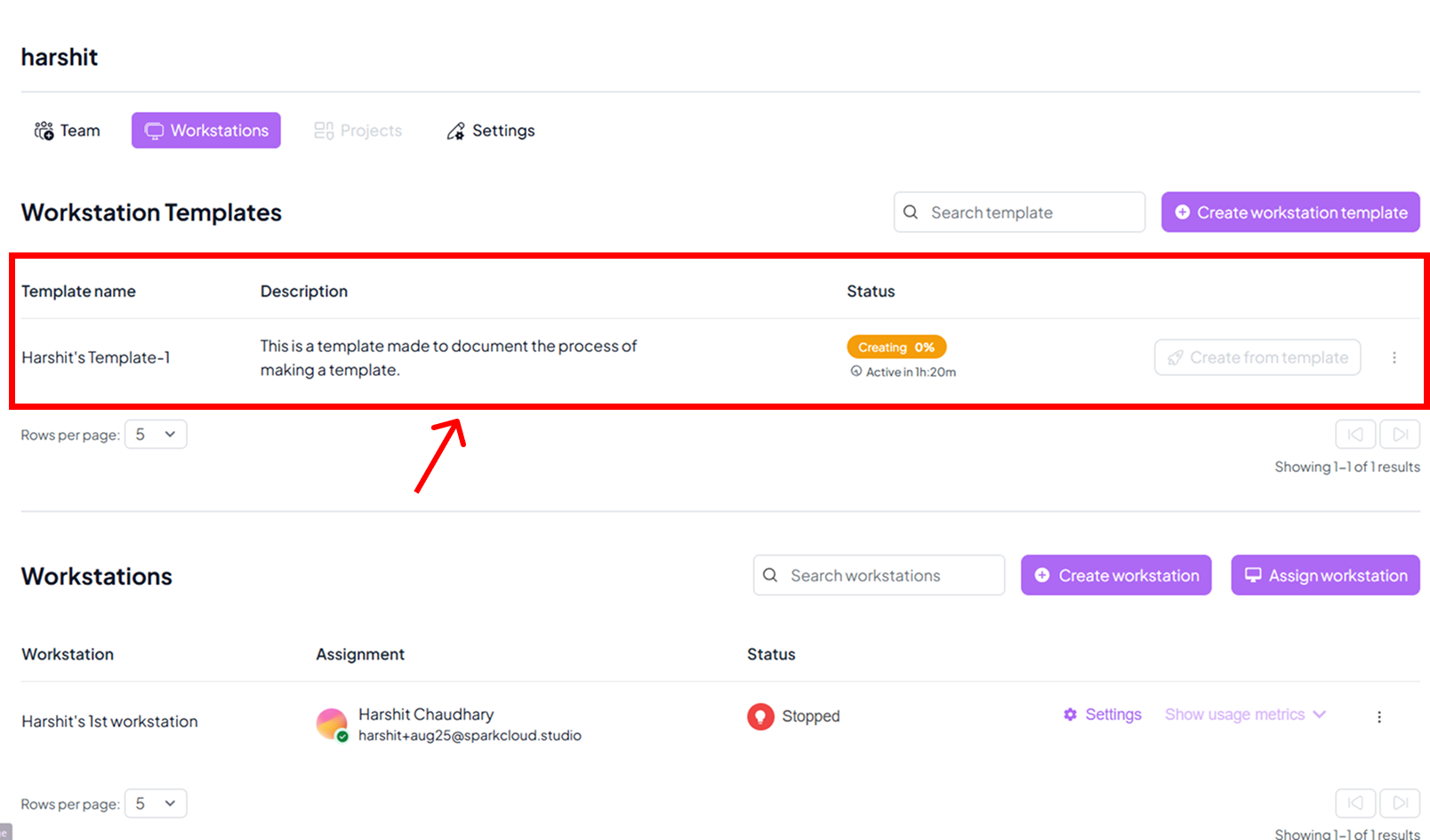
Step 7: Template Ready for Use
- Once completed, your template will be available under the organisation’s templates list.
- You can now reuse this template to quickly create new workstations.