Adding Team Members
Once your organisation is set up, you can bring in collaborators by inviting them as team members.
This gives them access to shared workstations, templates, and projects according to their assigned role.
Steps to Add Team Members
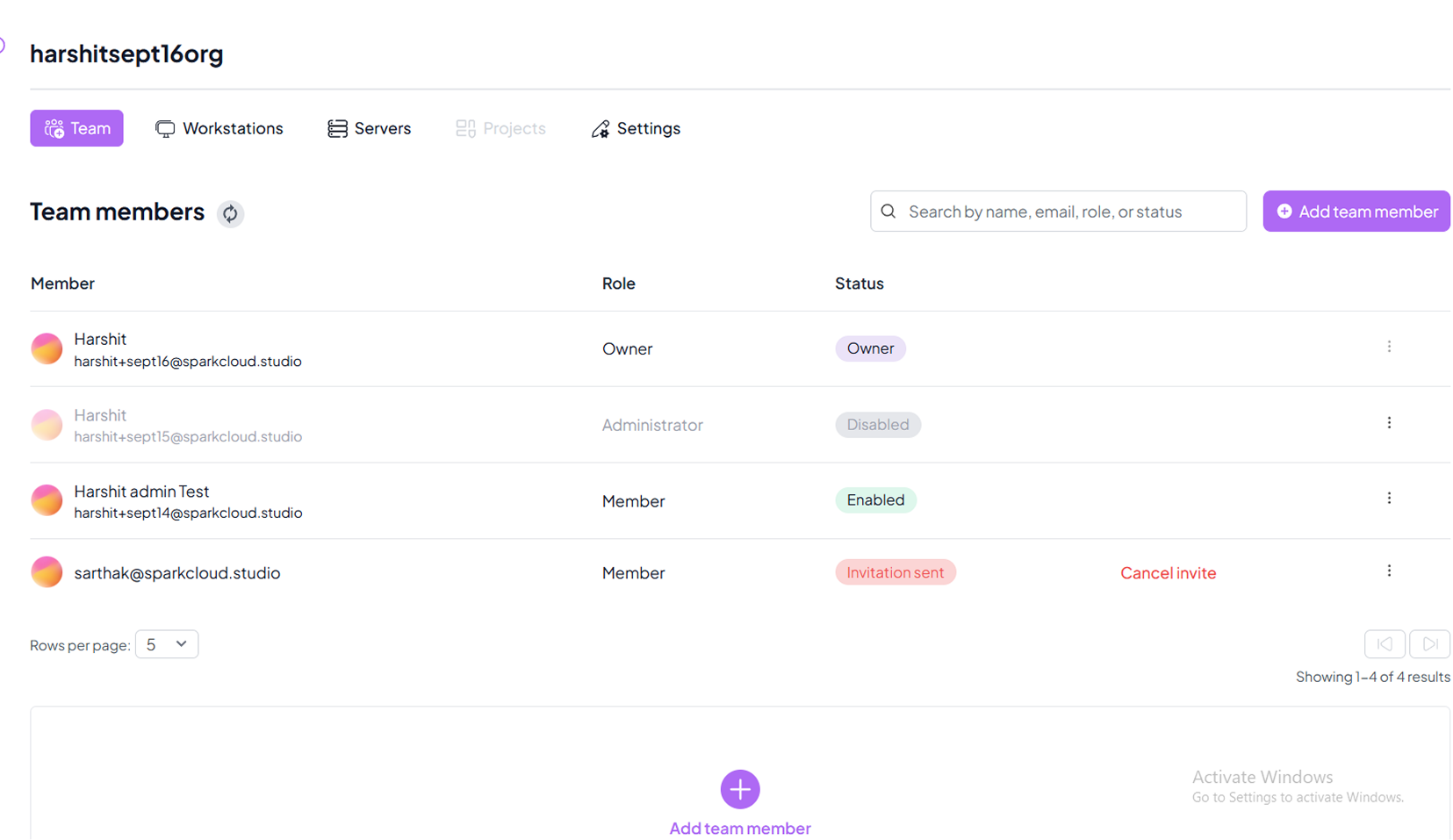
Step 1: Open Add Team Members Tab
Navigate to the Add Team Members button inside your Organisation Dashboard. This is where you can manage invitations and view existing members.
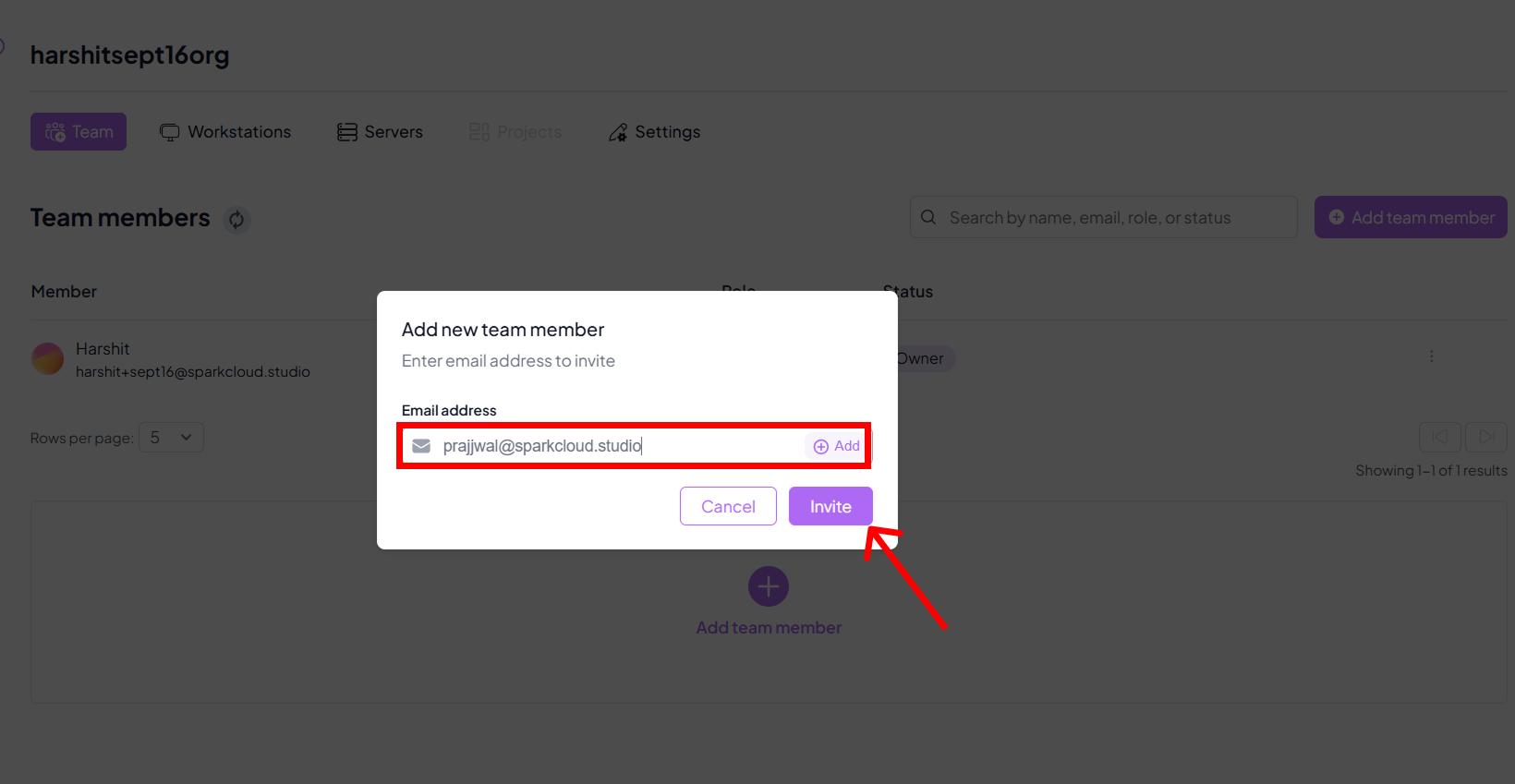
Step 2: Enter Email Addresses
Type the email addresses of the teammates you want to invite. You can add multiple addresses at once, by clicking on the + icon.
Step 3: Manage Member Roles & Actions
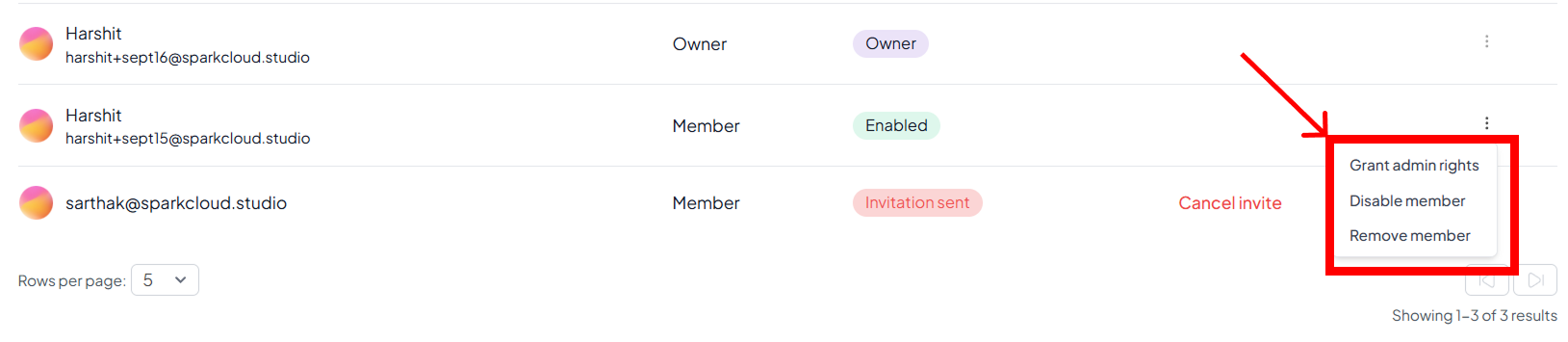
Once a member is added, you can adjust their access at any time from the member list:
- Grant Admin Rights – Promote a member to admin with full privileges.
- Disable Member – Temporarily revoke access without removing them.
- Remove Member – Permanently delete the member from the organisation.
Step 4: Cancelling Invitations
Pending members will show as Invitation Sent until they accept. You can also cancel invitations by clicking cancel invitate .
Notes
Ownerrole is fixed and cannot be reassigned.Enabledindicates an active member.Disabledmeans access is revoked until re-enabled.Administratorhas extended management rights. user.Invitation Sentshows pending acceptance from the invited