Teams
The Teams section under organizations tab provides owners and Administrators with full control over organisation members.
From this dashboard, you can view your team, assign roles, grant privileges, and manage member access efficiently.
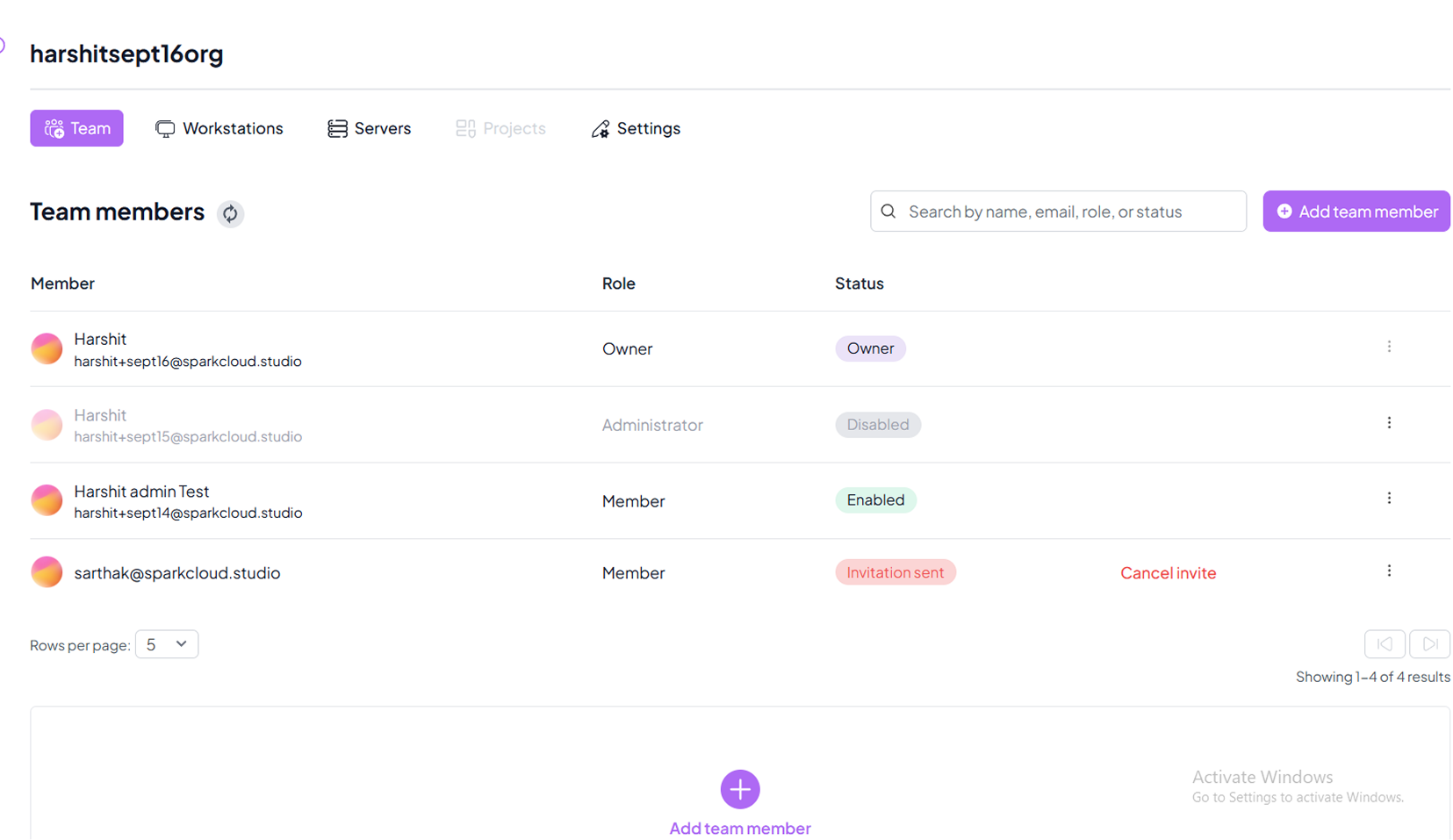
The Team Overview displays all members of your organisation with their assigned role and status.
This provides a quick snapshot of the current team structure.
Each member can hold one of the following roles:
- Owner → Full access, cannot be removed.
- Administrator → Manage members, settings, and resources.
- Member → Standard access to assigned resources.
Status flags (Enabled, Disabled, Invitation Sent) give visibility into each member’s current access state.
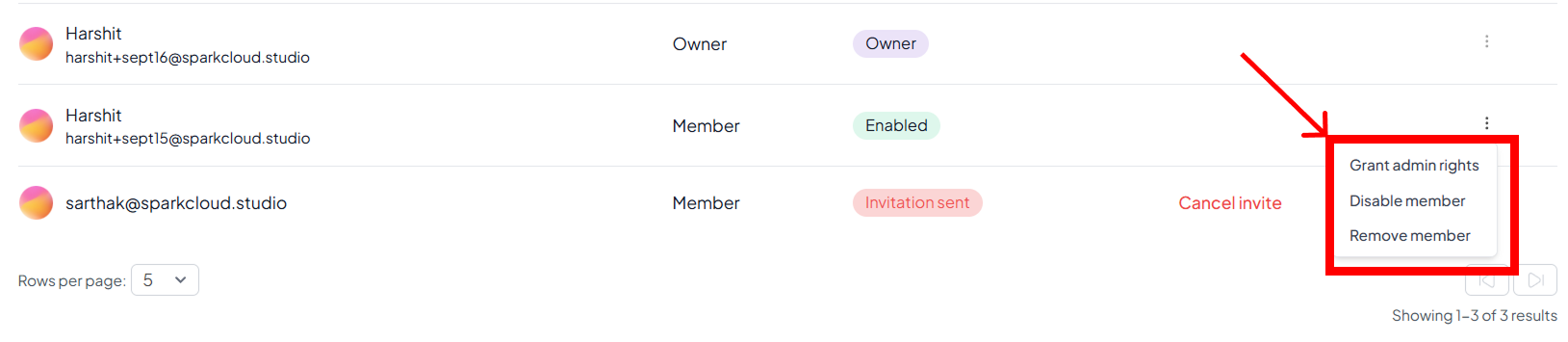
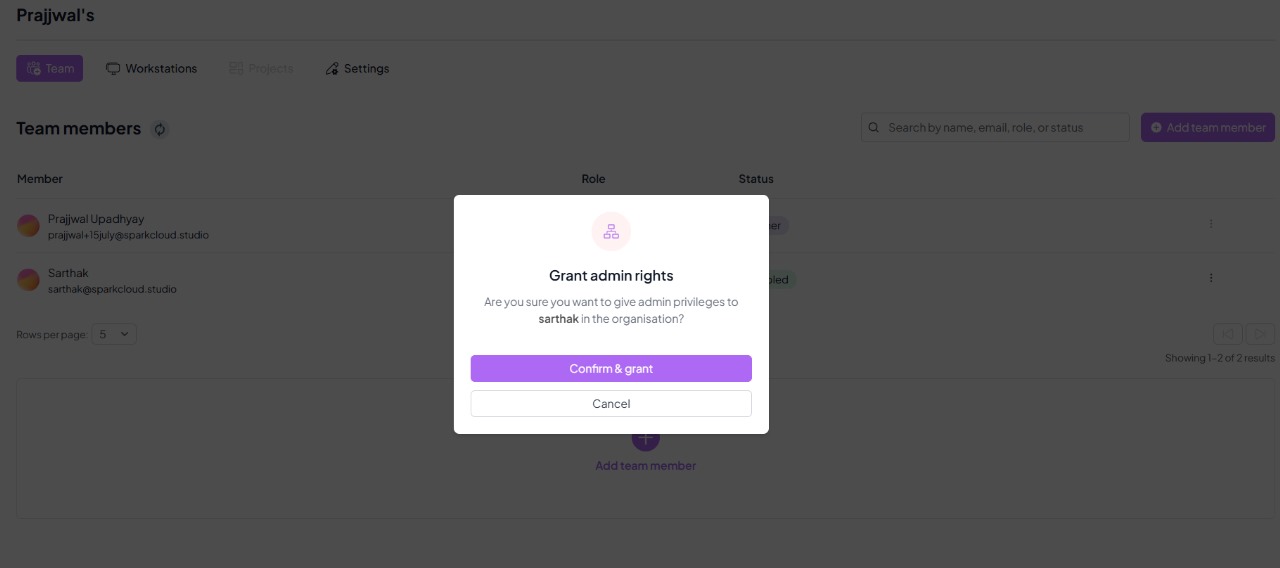
From the actions menu (⋮), Owners can grant Admin Rights to elevate a member’s role.
Admins gain management privileges without full ownership.
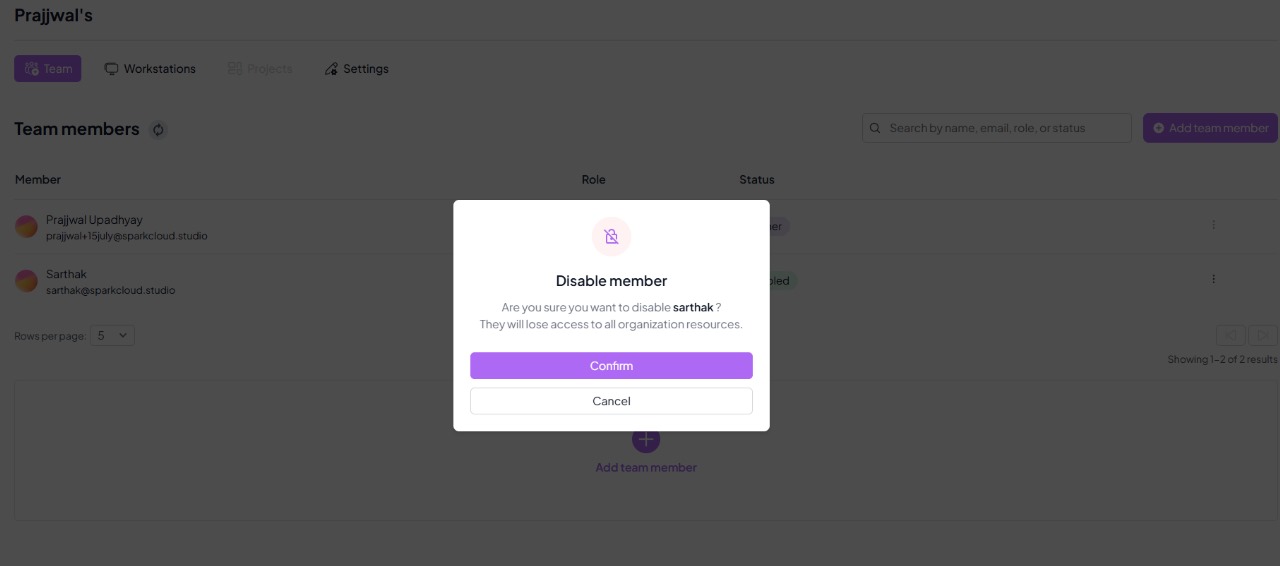
Use the Disable option to temporarily revoke access for a member.
To completely revoke membership, use Remove Member.
Disabled accounts can be re-enabled at any time by an Admin or Owner.
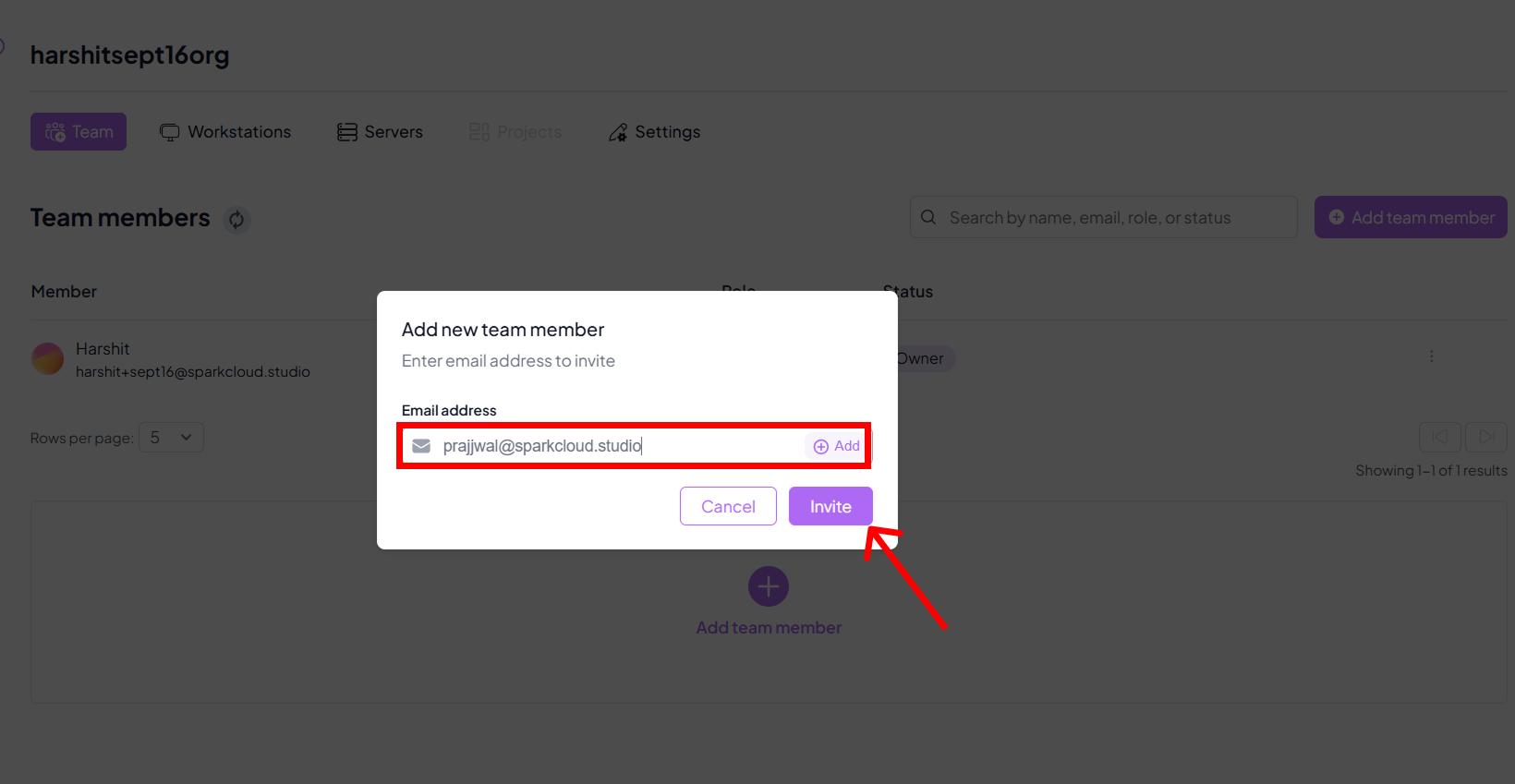
Invite new members by entering their email and selecting a role.
The user must accept the email invitation before access is activated.
Member Roles & Status Flags
The table below explains the different roles and status flags that can appear in the Team Members section of your Organisation.
| Role / Status | Tag | Description |
|---|---|---|
| Owner | Owner | The creator of the organisation. Has full rights and cannot be removed. |
| Administrator | Administrator | Elevated role with almost full privileges. Can manage members, workstations, and templates. |
| Member | Enabled | Standard collaborator role. Can access assigned workstations, templates, or projects. |
| Member | Disabled | The user account exists but has no access until re-enabled. |
| Pending Invite | Invitation Sent | The user has been invited but not yet accepted. Invite can be cancelled or resent. |
Notes
Ownerrole is fixed and cannot be reassigned.Enabledindicates an active member.Disabledmeans access is revoked until re-enabled.Invitation Sentshows pending acceptance from the invited user.