Organisation Settings
The Organisation Settings page provides centralised control over security, access, and operational policies.
Here you can enforce authentication, manage file access, and apply workstation restrictions to keep your organisation secure and cost-efficient.
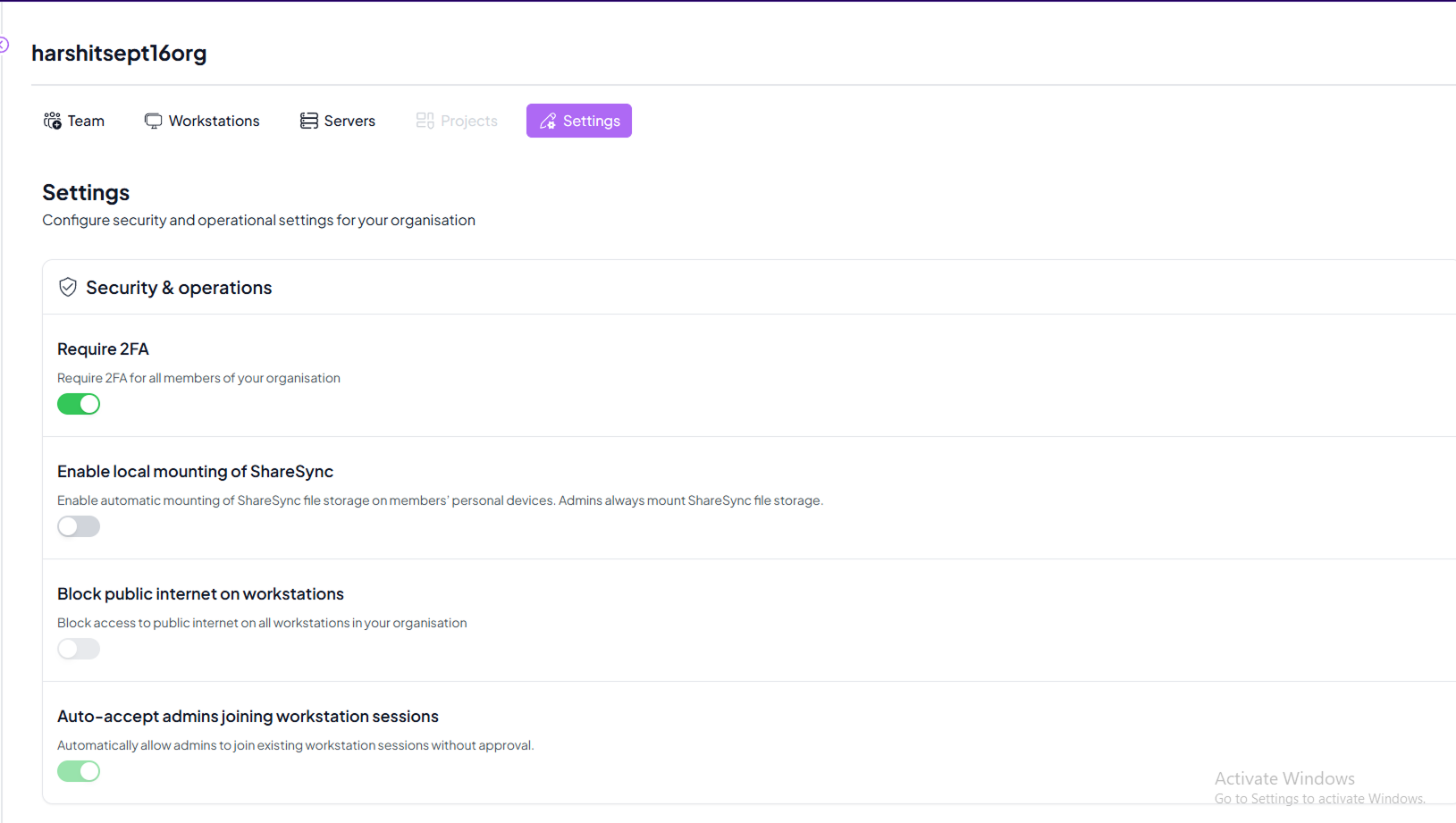
| Setting | Description | Status | Images |
|---|---|---|---|
| Require 2FA | Enforce Two-Factor Authentication (2FA) for all organisation members. Adds a strong layer of security to logins. | Available | 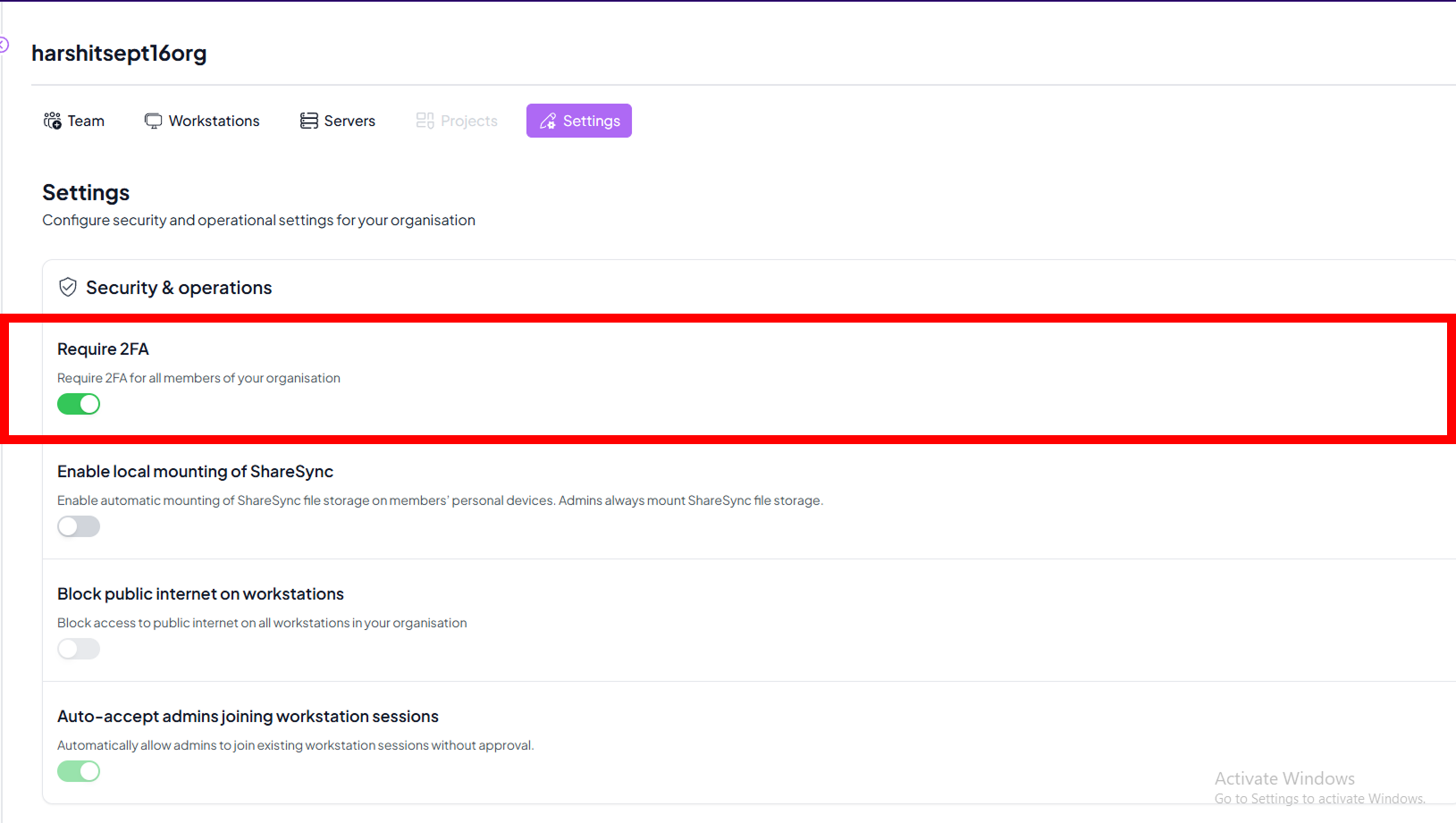 |
| Local Mounting of ShareSync | Allow users to mount ShareSync folders directly on local machines for seamless file sync. | Available | 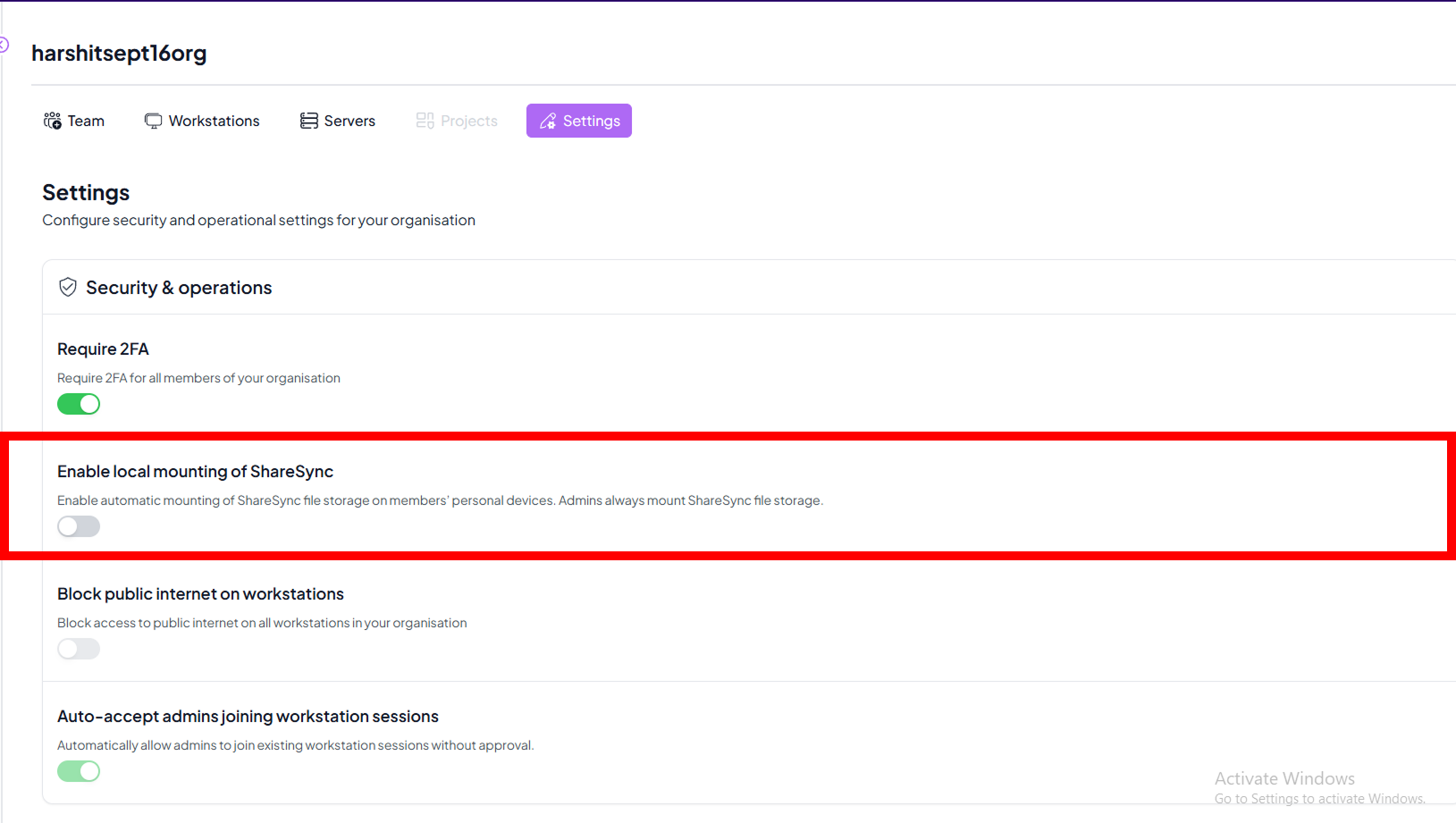 |
| Block Public Internet | Restrict outbound internet access from workstations for added isolation. | Coming Soon | 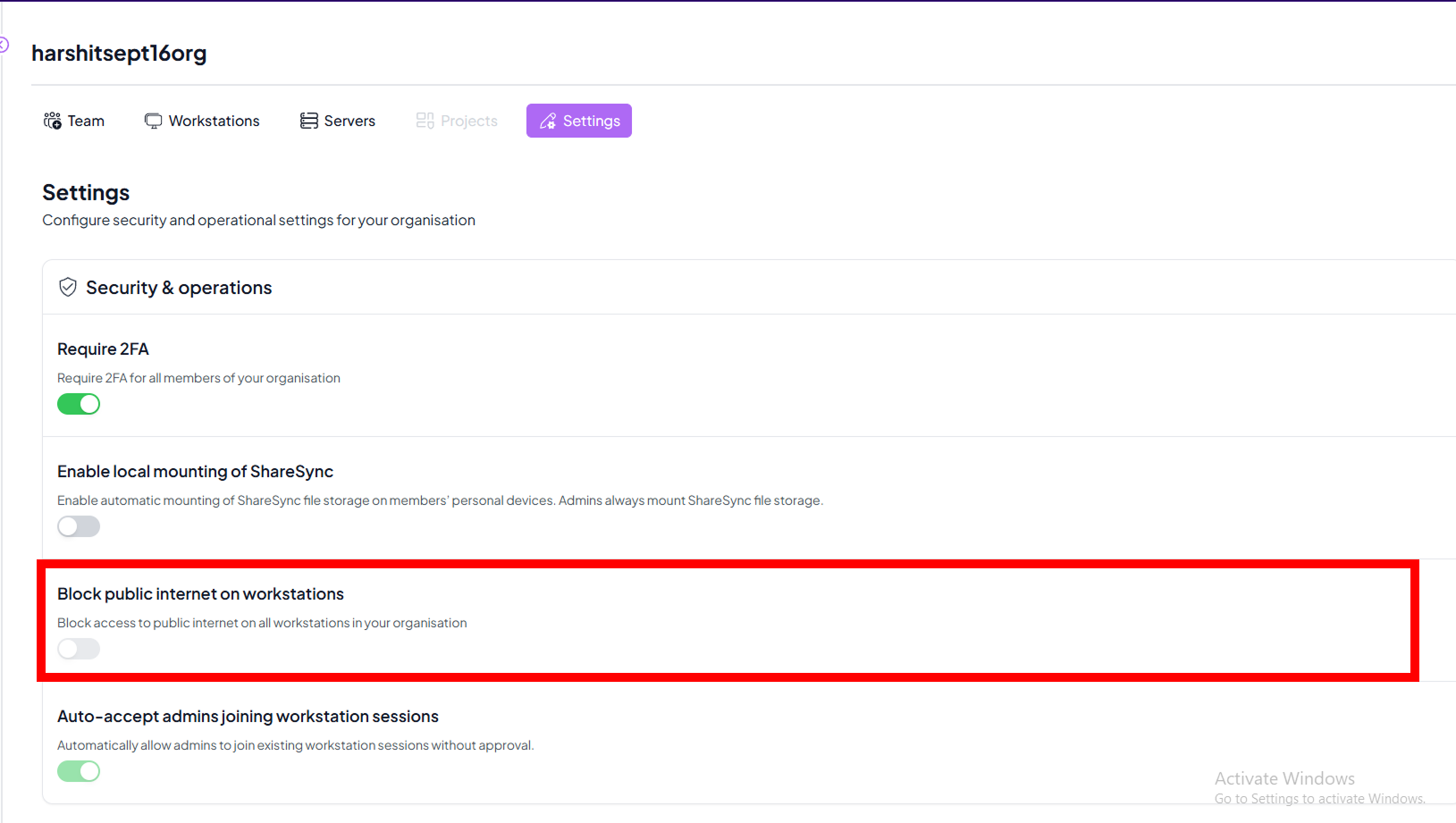 |
| Auto-Accept Admin Session Join | Admins can join live workstation sessions without user approval. Useful for audits/support. | Enabled by Default | 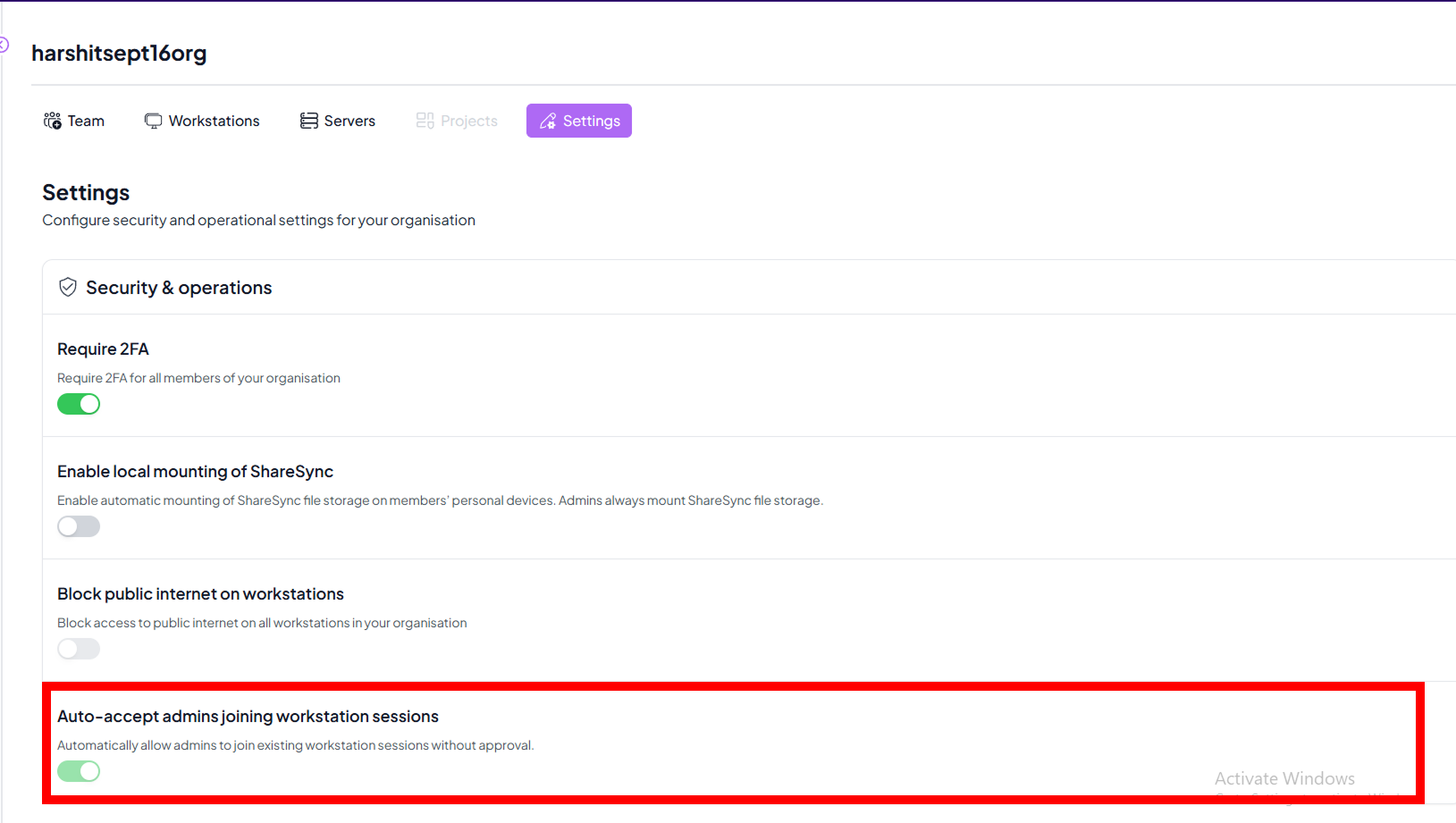 |
| Turn Off When Inactive | Automatically power down idle workstations after a set timeout to reduce costs. | Coming Soon | 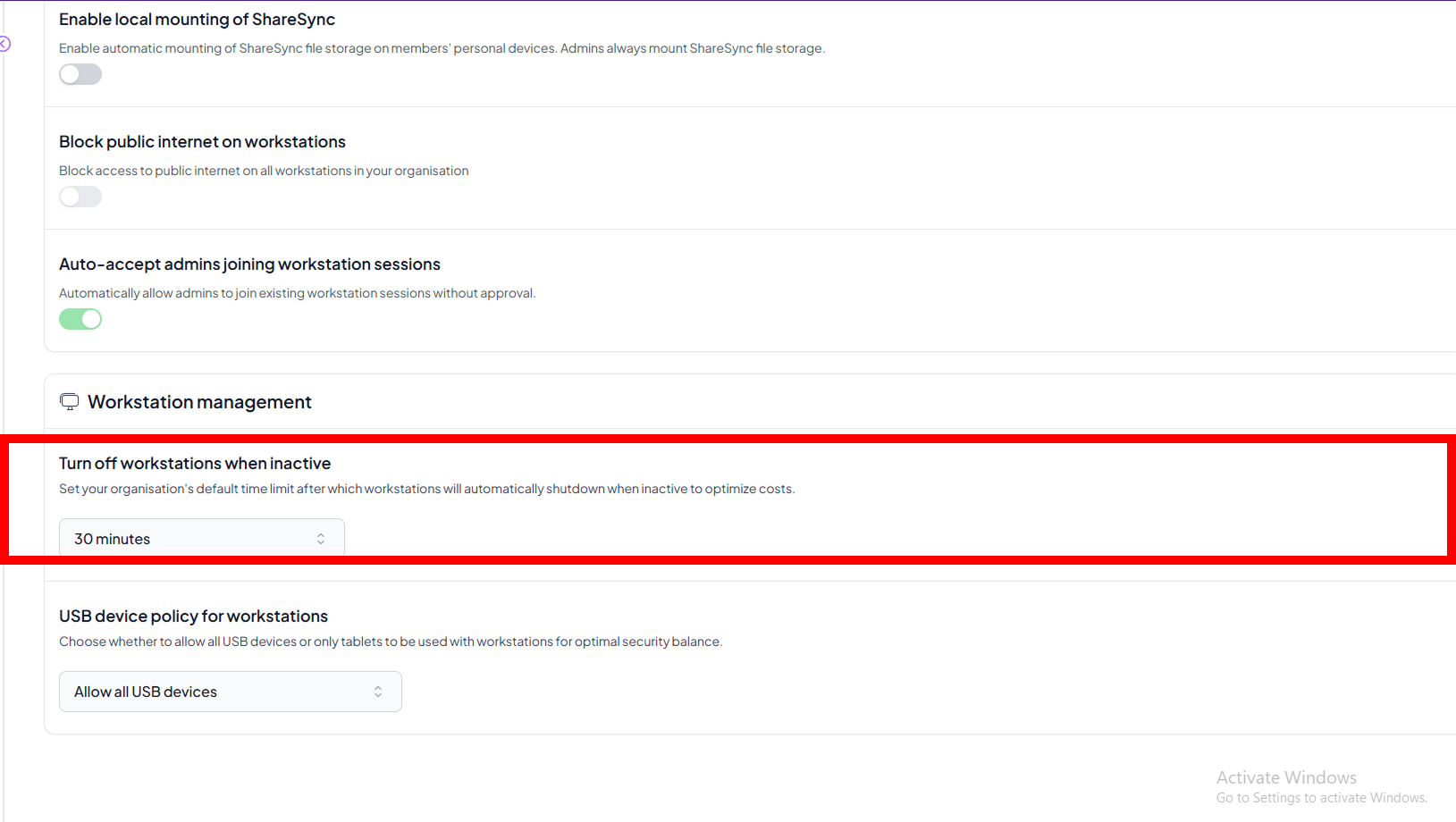 |
| USB Device Policy | Allow or block USB peripherals to protect sensitive data from unapproved devices. | Coming Soon | 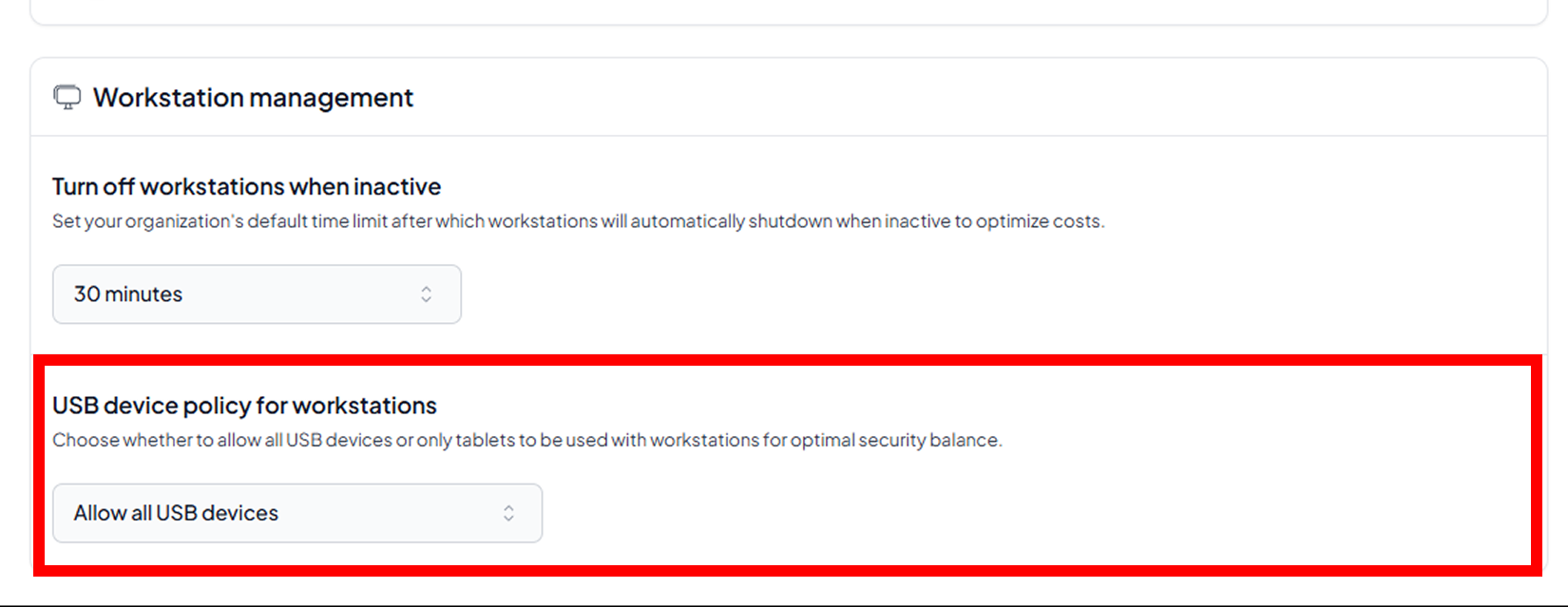 |
Steps to Enforce 2FA
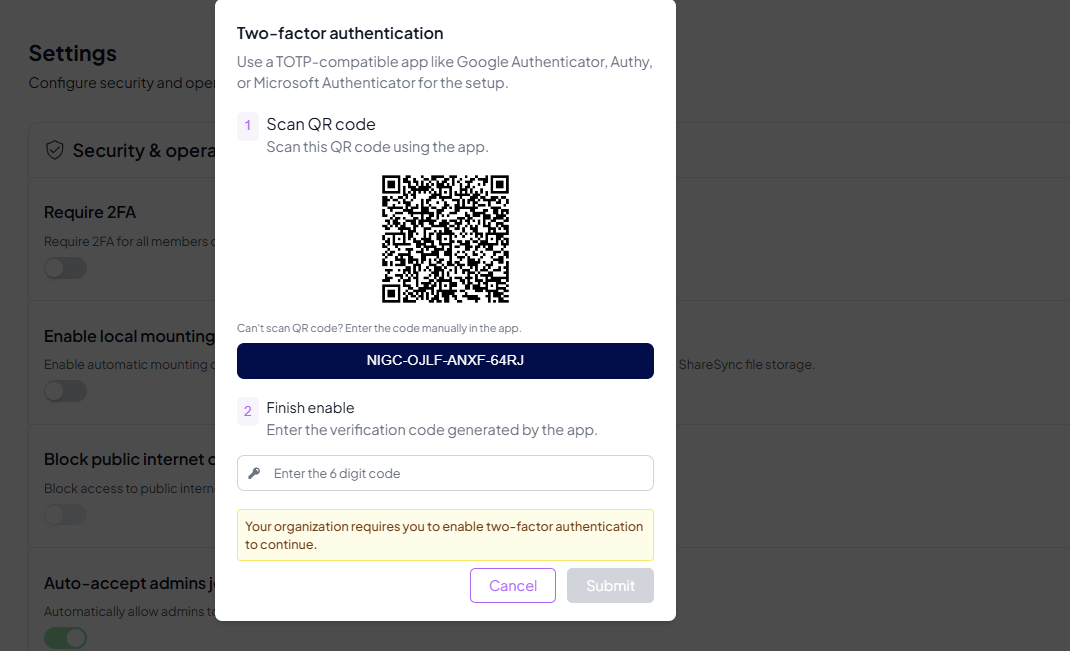
Follow these steps to enable and configure Two-Factor Authentication for your account.
Steps to Enable Two-Factor Authentication
Download and open any TOTP authenticator app such as Google Authenticator, Authy, or Microsoft Authenticator.
Use the app to scan the provided QR code.
If you are unable to scan it, manually enter the code shown on the website into the app.
Enter the verification code generated by your authenticator app into the website and click Submit.

After verification, you will be shown backup codes.
Save them in a secure location to use in case you lose access to your authenticator app.
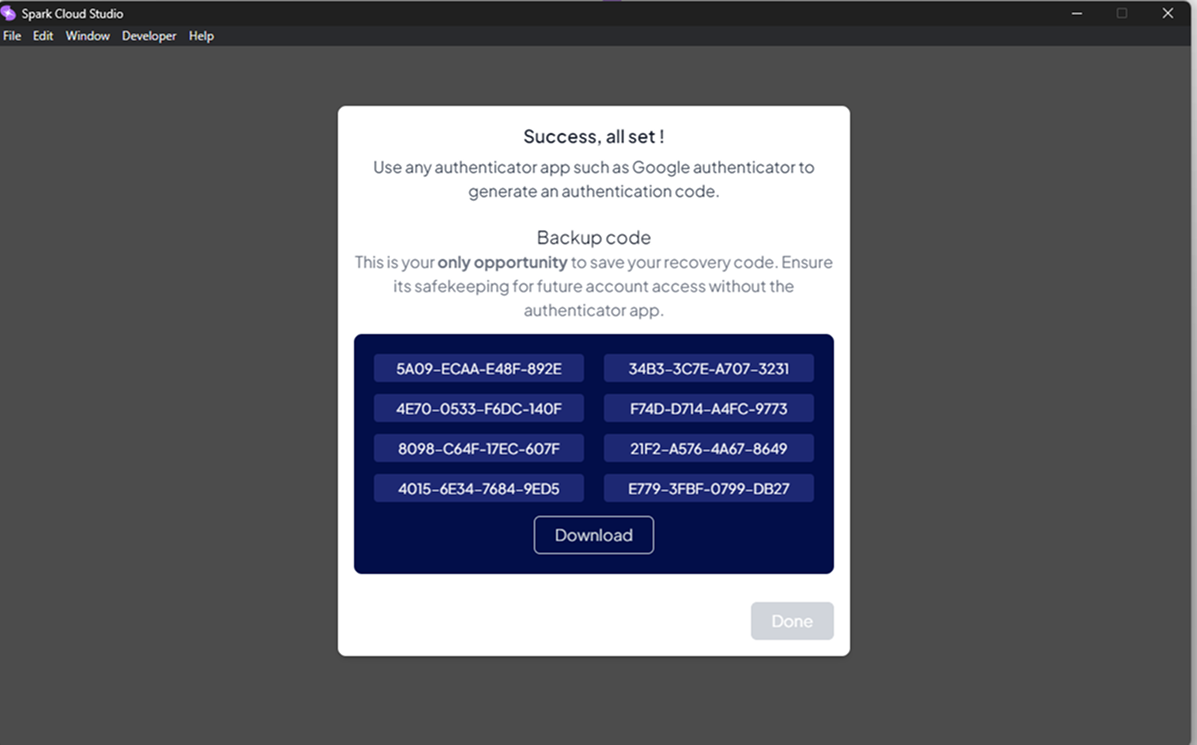
Two-Factor Authentication is now enabled.
You can turn it on or off anytime with a single click in your account settings.
Notes
Available→ Ready to use.Coming Soon→ Planned for a future release.Enabled by Default→ Already active and cannot be modified.