Billing Methods & Information
The Manage Billing Methods section within the Billing & Usage page allows users to configure and maintain their payment options securely within Spark Cloud Studio.
This ensures that services remain uninterrupted due to valid and active payment information.
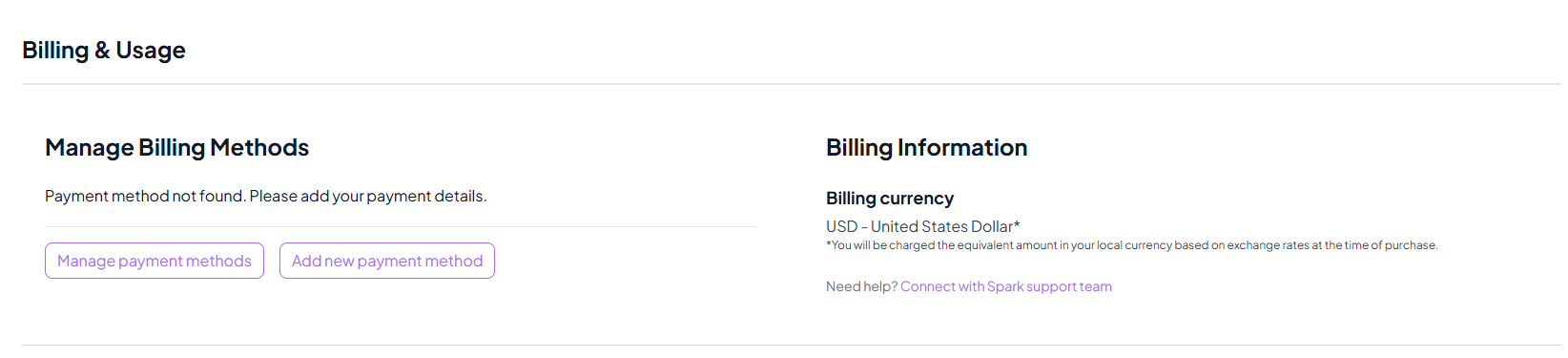
Accessing Payment Settings
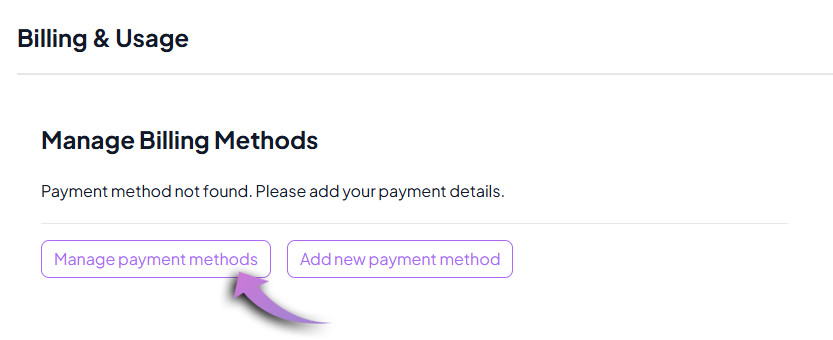
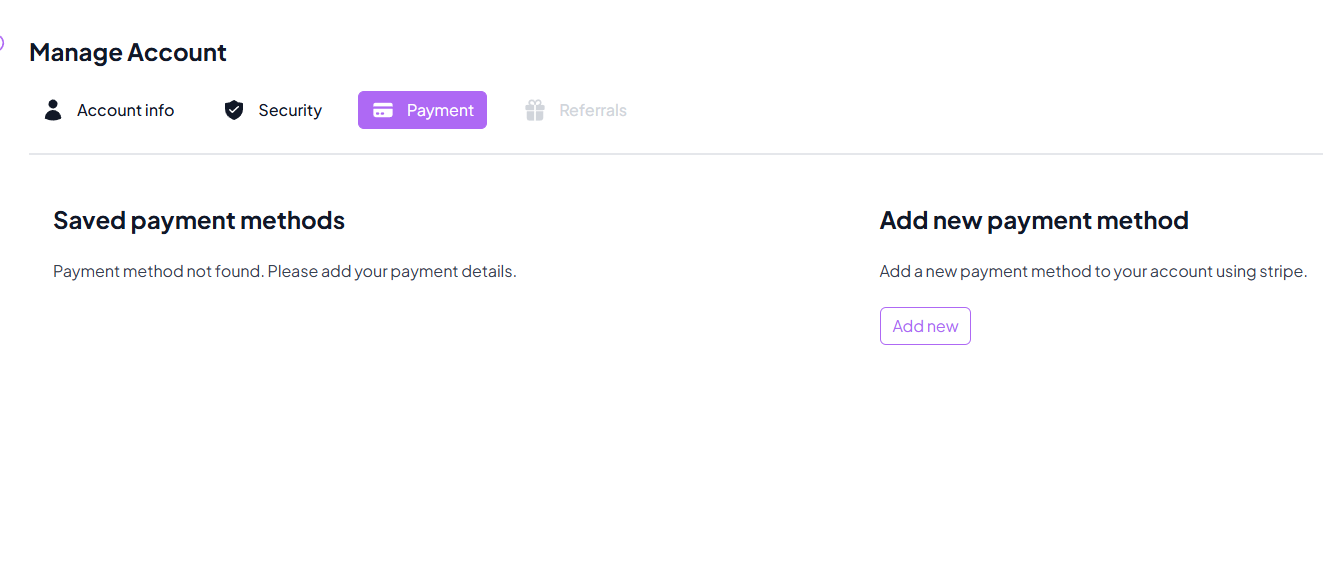
Click on Manage payment methods, it will navigate to the Manage Account > Payment tab to configure your saved payment options.
If no payment methods are added, the system prompts you to add one.
Adding a New Payment Method
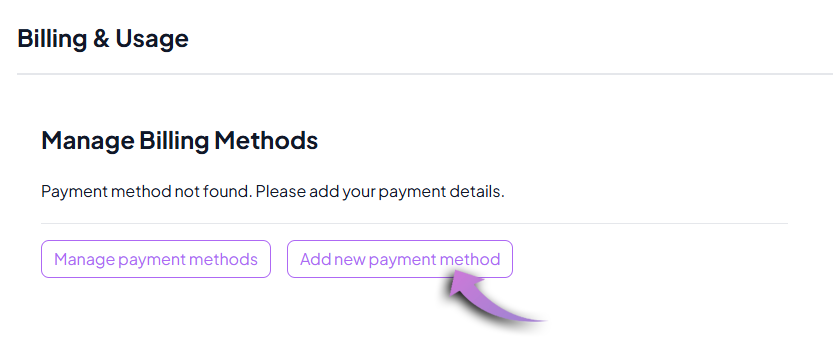
Click on the Add New Payment Method button.
You will be presented with a secure form powered by Stripe. Fill in the following details:
- Card Number: Enter your credit/debit card number (Visa, Mastercard, Amex supported).
- Expiration Date: The expiry date of your card in MM/YY format.
- Security Code (CVC): The 3-digit security code on your card.
- Country: Select your billing country from the dropdown.
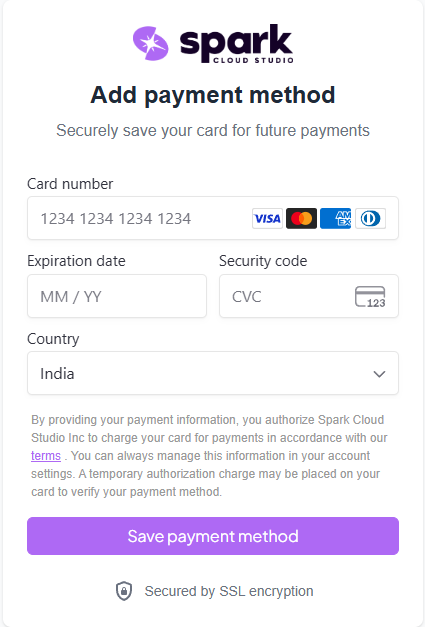
Once completed, click Save payment method to add it to your account.
Security & Compliance
- All payment data is handled securely through SSL encryption.
- Stripe ensures that card details are processed with PCI compliance.
- A temporary authorization charge might be placed on your card for verification.
Important Notes
- Users can manage or remove existing cards from the Manage Account section.
- Payment methods can be updated anytime to prevent billing failures.
This ensures users have a seamless experience when adding or updating payment methods in Spark Cloud Studio.