Installation & Setup
Welcome to Spark Cloud Studio, your cloud-native workspace for high-performance creative and technical workloads. This guide will help you get up and running in just a few steps, whether you're a solo creator, part of a remote team, or managing a studio pipeline.
Spark is designed to eliminate setup time, hardware barriers, and file transfer headaches. With on-demand cloud workstations, real-time syncing, and a fully pre-installed software stack, you can start working in minutes, not hours.
Download the Spark Desktop App
To get started, download the Spark Desktop App for your operating system. Spark provides a high-performance, low-latency workspace with ultra-responsive desktop streaming and 4K, 10-bit color depth support that eliminates setup time and hardware barriers.

Once installed, launch the app to sign up and begin your journey.

Spark recommends using Windows or MacOS for the most seamless experience via the Spark Desktop App. Linux users can access the full Spark environment directly through our Spark Web App in any modern web browser.
Getting Started
Sign Up
Launch the Spark Desktop App and create an account. You can sign up using your email and basic details. If you’ve received a referral code, make sure to enter it during the signup process. Referral codes may unlock early access to certain features, region preferences, or credits depending on your invite source.
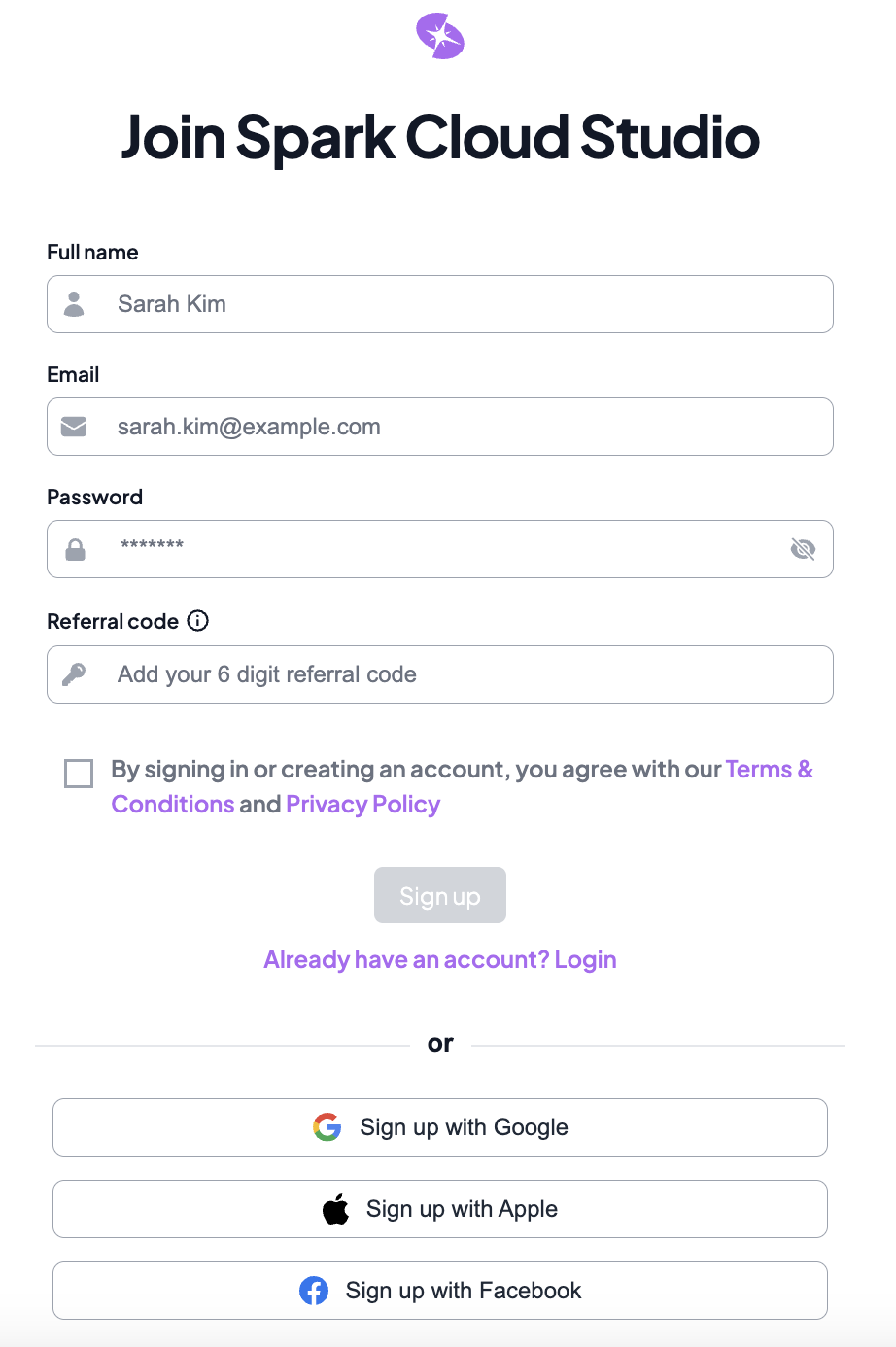
Spark will send an email to verify your email, once verified you can login and proceed.
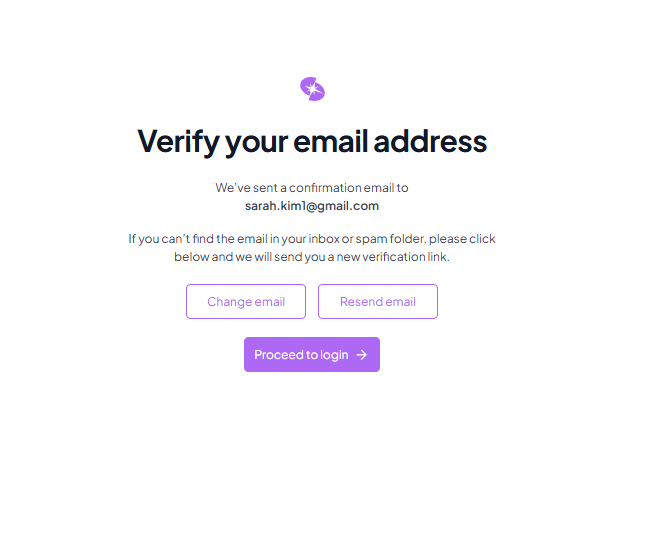
Once logged in, you’ll head to Onboarding, the primary stage to select your storage & first workstation region, workstation choice & configuration catered to your needs, and more.
Choose a Region
After a swift network performance test, select the data center region closest to your location or collaborators for optimal performance. Spark supports low-latency deployment and displays accurate latency across regions in North America, Europe, and Asia, with region-aware storage and compute options.
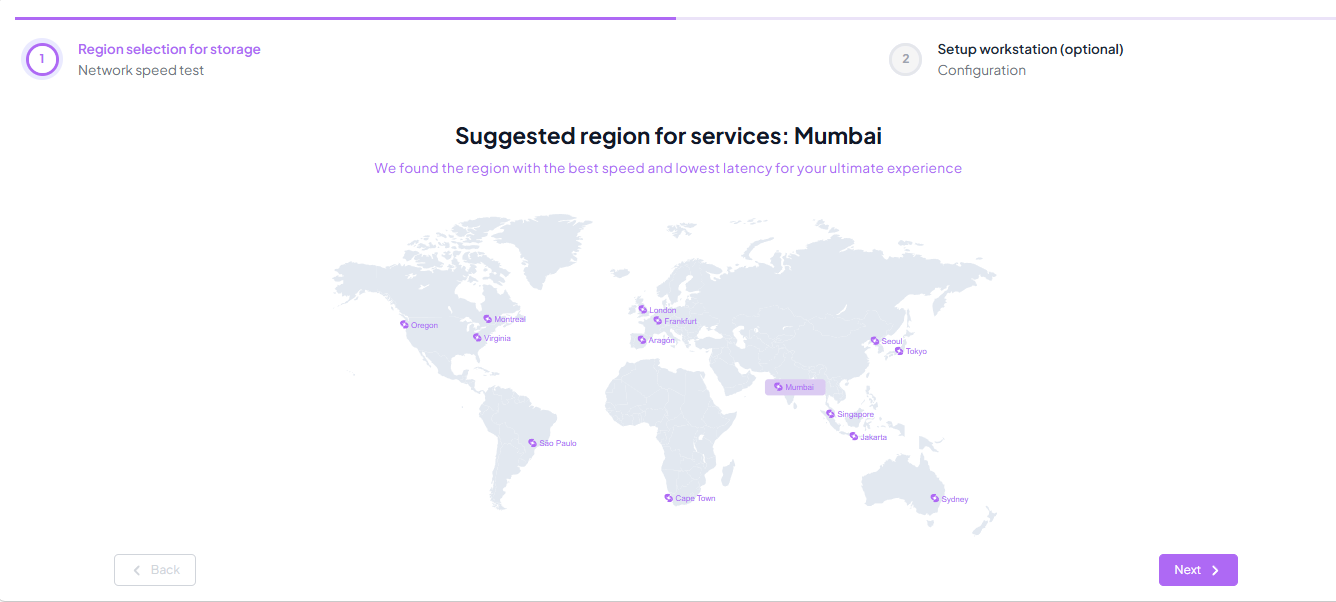
You can always change regions later, but performance is best when your workstation and storage are deployed locally.
To learn more about choosing the right workstation and region, head over to the Spark ProStation section.
Spin Up a Workstation
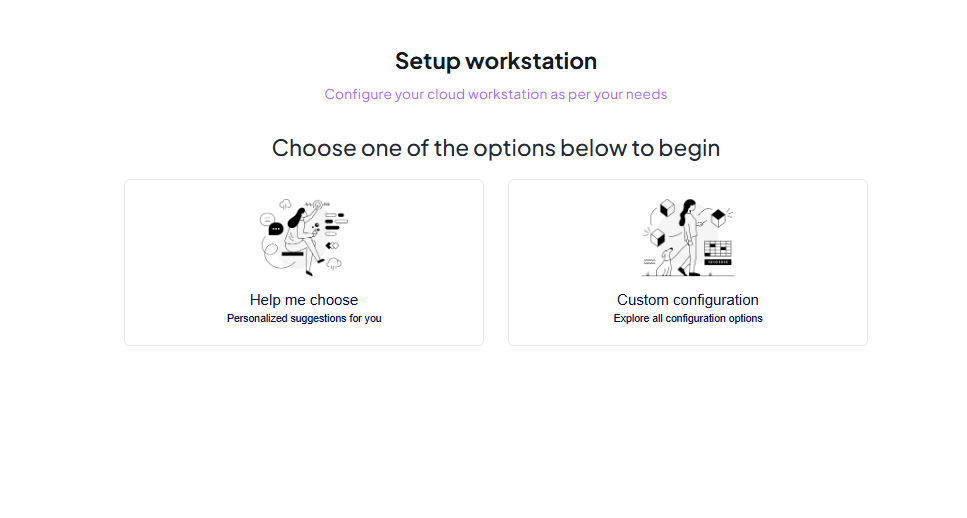
From the Setup Workstation, make way to either explore all custom ProStation configurations options or have us help you choose a personalized ProStation as per your creative focus and needs. Go over a wide range of ProStations ranging from the sweet Starter kits to the absolute beast Insanity and more while choosing what pre-installed softwares and OS you want in them.
-
Choose your Configuration Style: You can choose with a Custom Configuration or Help Me Choose.
-
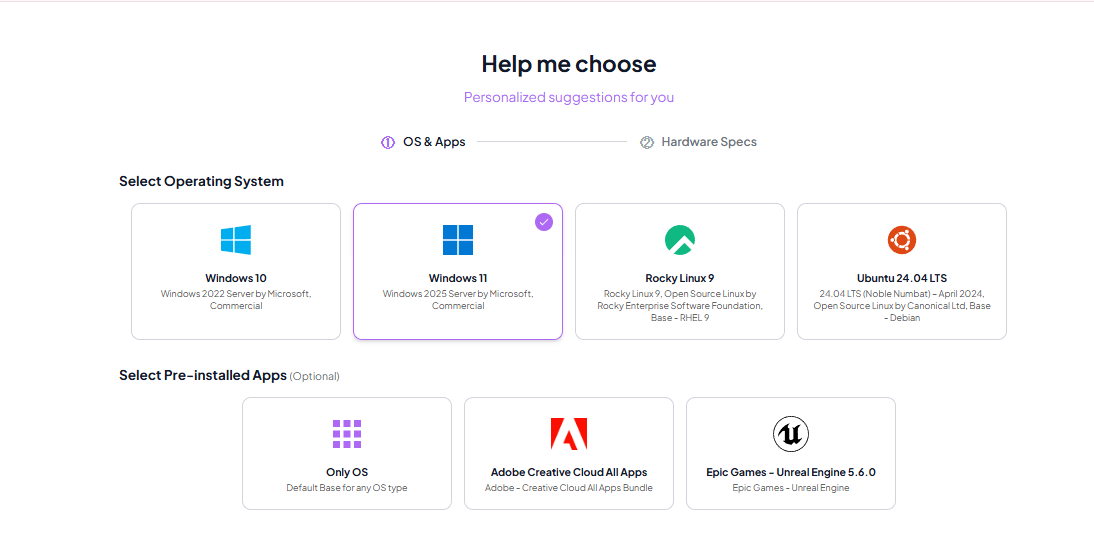
Select a Template: You can choose from the available operating systems and optionally select any pre-installed applications.
-
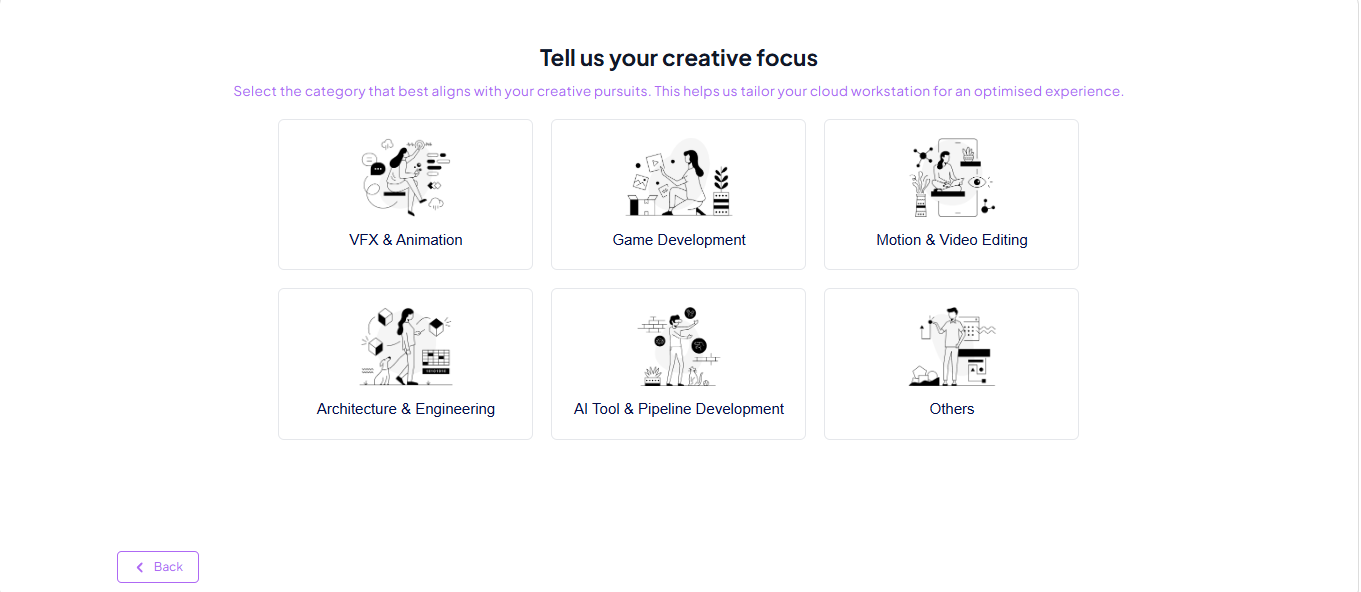
Select a Use-Case: In the Help Me Choose section , you can choose a pre-configured environment for 3D, video editing, AI, etc.
-
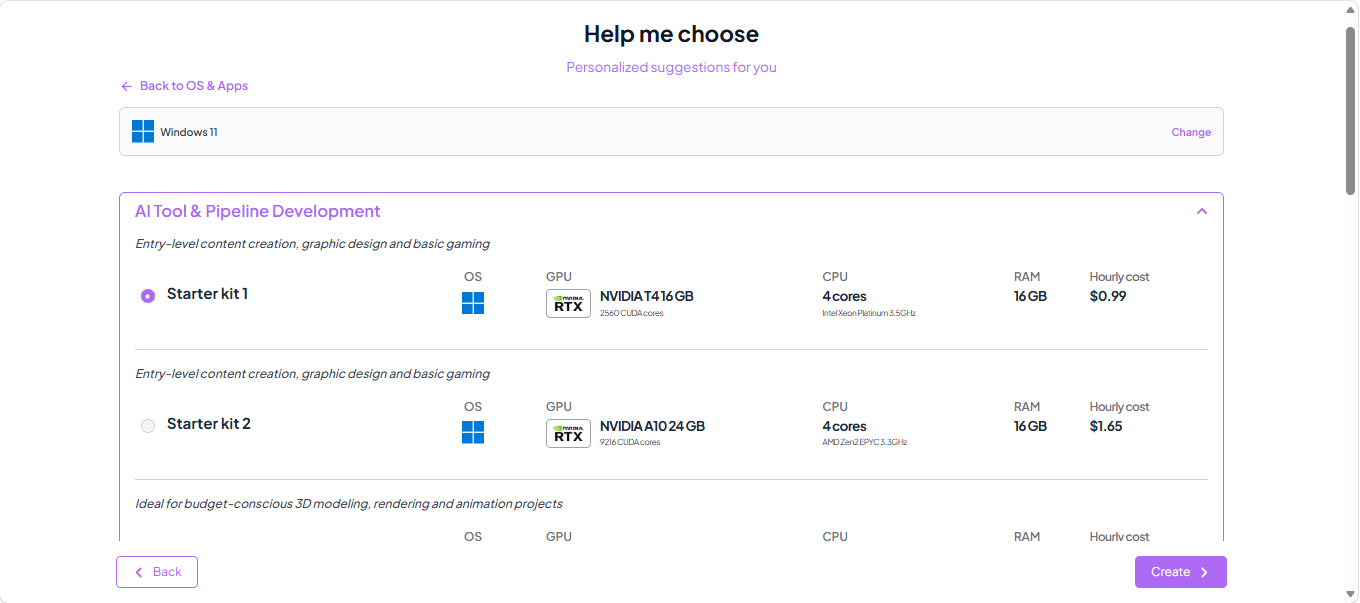
Customize Specs: Pick your desired CPU, GPU, RAM, and region.
-
Launch Workstation: Click on the Launch button.
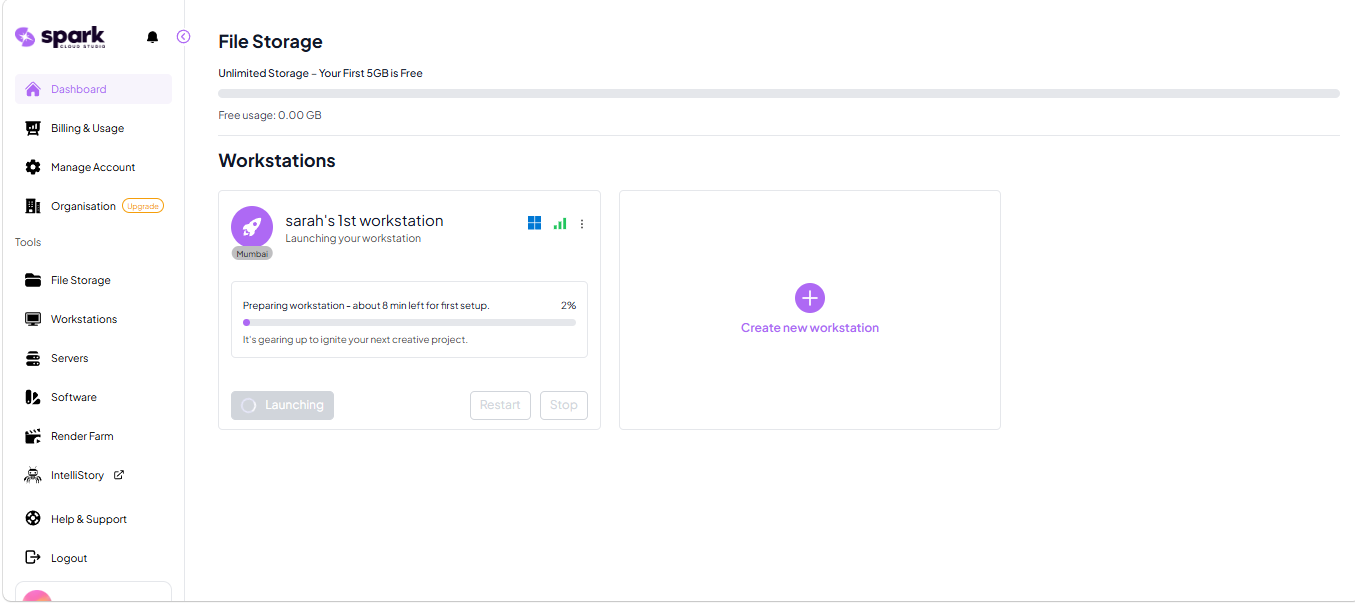
Workstations typically boot in under 10 minutes and launch on your system through our VDI platform. Launch times may vary depending on the workstation configuration selected, with first-time launches potentially taking slightly longer due to initial environment setup and provisioning.
Once done, click “Connect” to Connect and access your workstation seamlessly.
You can also connect with Wacom tablets, external drives, or USB devices directly if needed.
To learn more about workstations and workstation tools, head over to the Spark ProStation section.
Access Your Files with Spark ShareSync
The Spark ShareSync client is already configured and ready to use. Simply log in from your File Storage tab in the desktop app once to begin syncing your assets automatically with the cloud. This ensures your project files are always available, across devices, locations, and collaborators.
- Share folders and grant access permissions
- Versioning and recovery are built-in
- Adheres to strict industry standards (MPAA, TPN, GDPR)
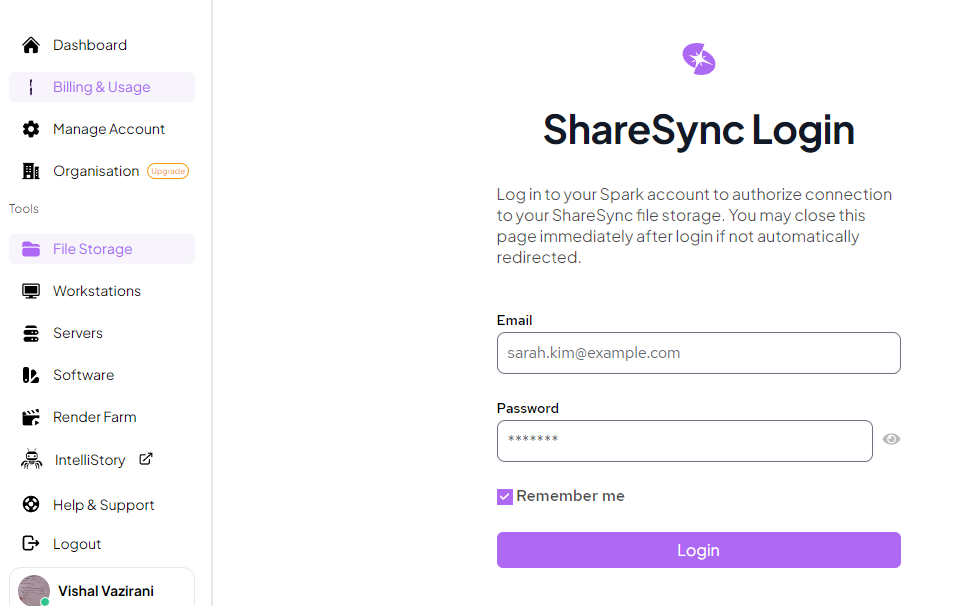
Quick Sync Check
1. Download & Upload
Download this file and upload it to your File Storage through the desktop app.
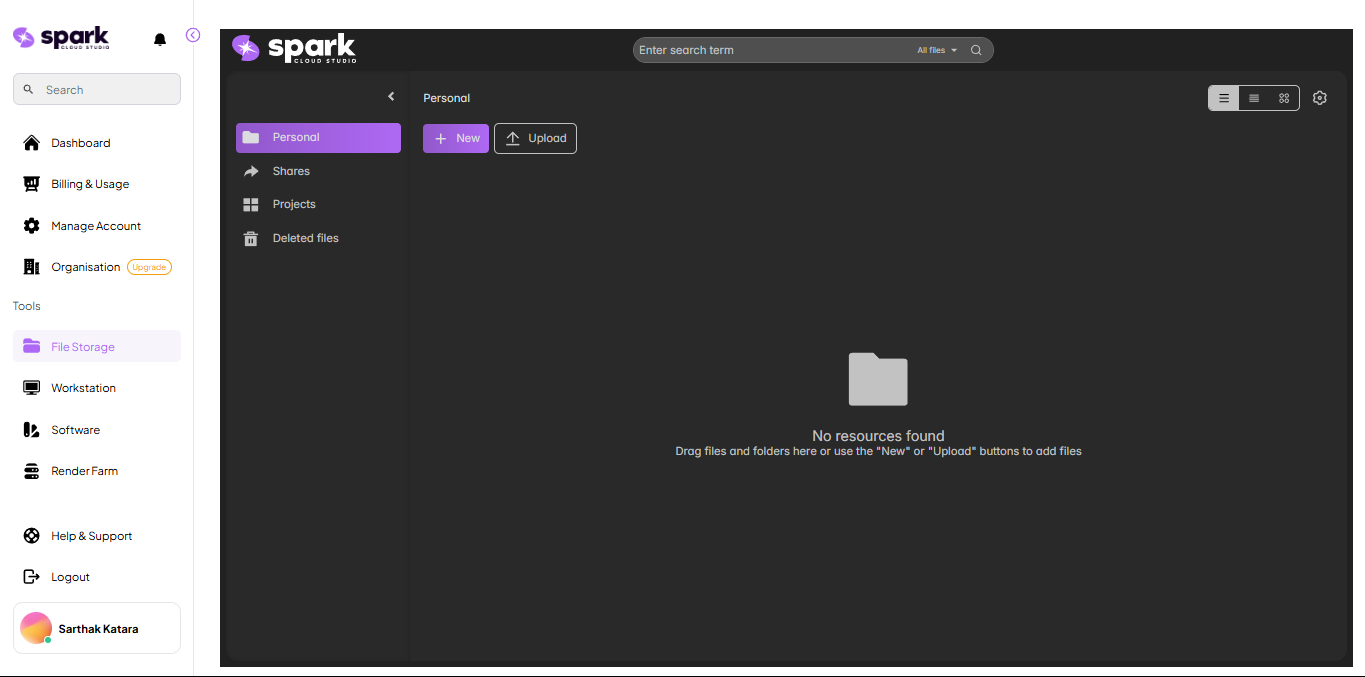
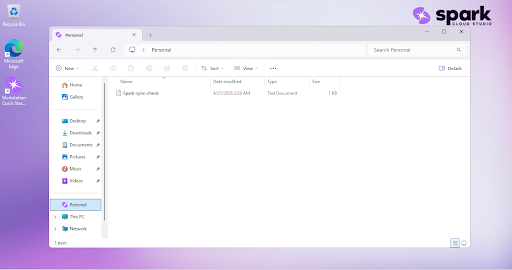
2. Verify on WorkStation
Switch to your WorkStation and open the Personal Drive. Locate your file. This confirms that your file server is synced correctly, allowing for a seamless transition between local and cloud environments.
Storage Tips
Shared storage (ShareSync): Use ShareSync for all your projects and work files. Files stored here are automatically available across your devices and your workstation.
Local workstation storage: Files saved directly on the workstation remain on that machine only. They are not shared across devices, but will persist across restarts of that workstation.
Temporary storage: High-performance temporary storage may be available for tasks like caching or intermediate processing.
You're All Set
With your workstation live and files synced, you're ready to go. You can launch pre-installed software like Adobe CC, Photoshop, After Effects, Premiere Pro, Unreal, and more — no setup, no licensing, no delays.
Need more horsepower for a render or simulation? Offload it to SmartCompute™ and let Spark handle the scale while you stay focused on your work.
Spark supports multi-user teams, shared workspaces, and studio-level permissions. Add teammates or freelancers, assign projects, and manage access using your dashboard.
- Collaborate in real-time using shared storage
- Track usage by user or team
- Set up role-based permissions and region locking

This feature is available for organisations. You can learn more about Organisations here.