Port 40001 Network Connection Error
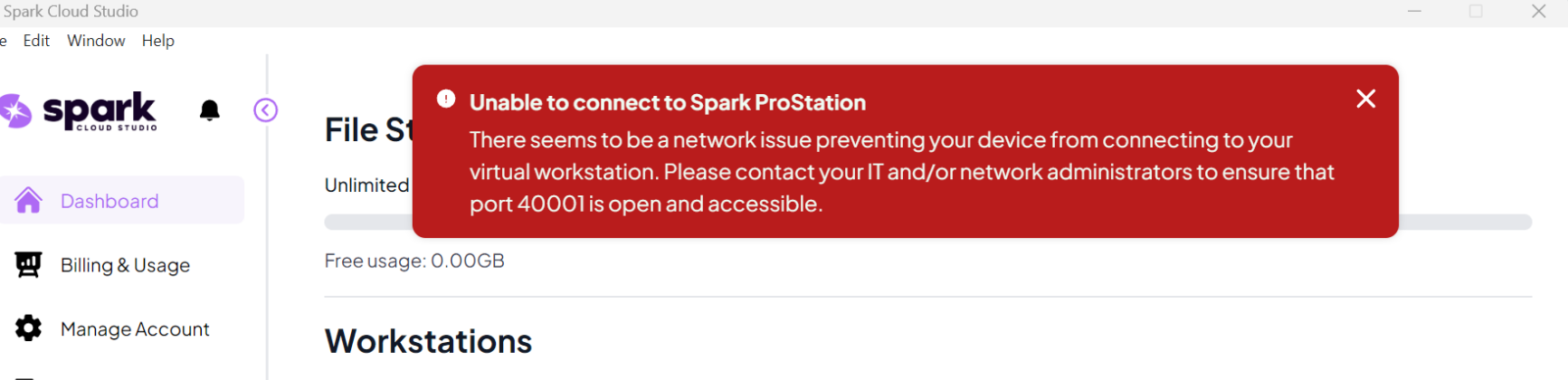
Unable to connect to Spark ProStation
When launching your workstation, you may encounter this error:
Understanding the Error
Your network is blocking TCP port 40001. This port must be open for both outbound and inbound encrypted communication to your Spark ProStation.
On secured or managed networks, outbound traffic is often limited to standard web ports (80/443) or routed through a firewall/proxy policy. This can block encrypted traffic on non-standard ports like 40001.

Your IT/network team needs to allow bidirectional TCP port 40001 (inbound and outbound) for encrypted/HTTPS traffic.
Check Port Accessibility
Before contacting your network team, confirm the port is blocked by running these tests:
- Open Terminal and run:
curl -vk https://portcheck.sparkcloud.studio:40001/
- If it times out or fails, port 40001 is blocked
- Open PowerShell and run:
Test-NetConnection portcheck.sparkcloud.studio -Port 40001
- TcpTestSucceeded: True = Port is accessible
- TcpTestSucceeded: False = Port is blocked

If you have curl available on Windows as well
- Open Command Prompt or PowerShell and run:
curl.exe -vk https://portcheck.sparkcloud.studio:40001/
Resolution Steps
- Request they allow TCP port 40001 for both inbound and outbound traffic
- Explain this is for encrypted/HTTPS traffic
Share the following details with your network team:
Protocol: TCP (encrypted/HTTPS traffic)
Port: 40001
Direction: Bidirectional (Inbound and Outbound)
Requirement: Full bi-directional communication required for VDI
- Once your network team opens the port, run the test commands above again
- Launch your workstation from Spark Cloud Studio
- Contact us at
support@sparkcloud.studio - Include your port test results