Sparkserver™ Tools
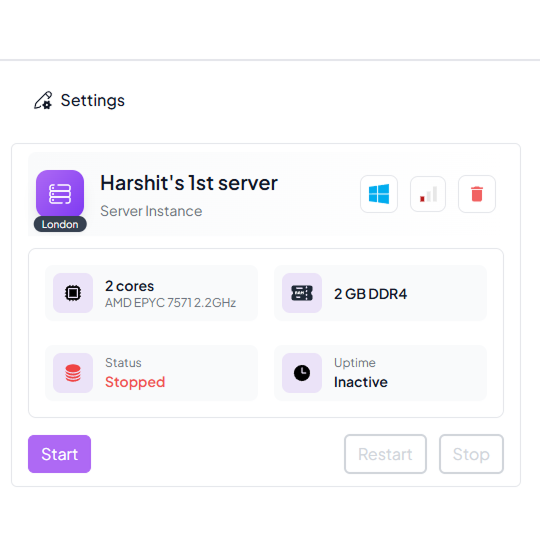
The SparkServers™ feature in Spark Cloud Studio provides tools to manage, monitor, and control your servers efficiently.

Click the Start button to power on your server when it is in a Stopped state.
The server status will transition to Starting and then Running.
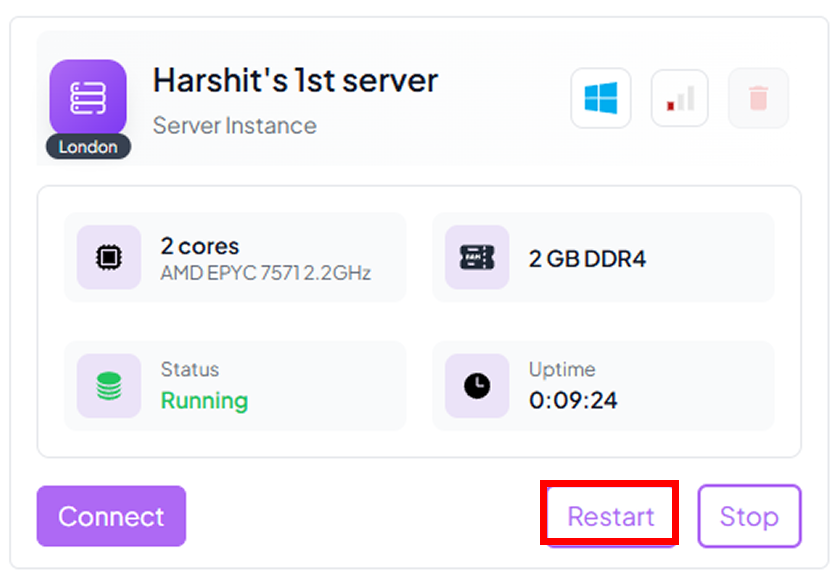
Click Restart to reboot your server while it is Running.
Useful for applying configuration changes or refreshing services.

Click Stop to temporarily shut down the server.
It will go from Running to Stopped without deleting resources.

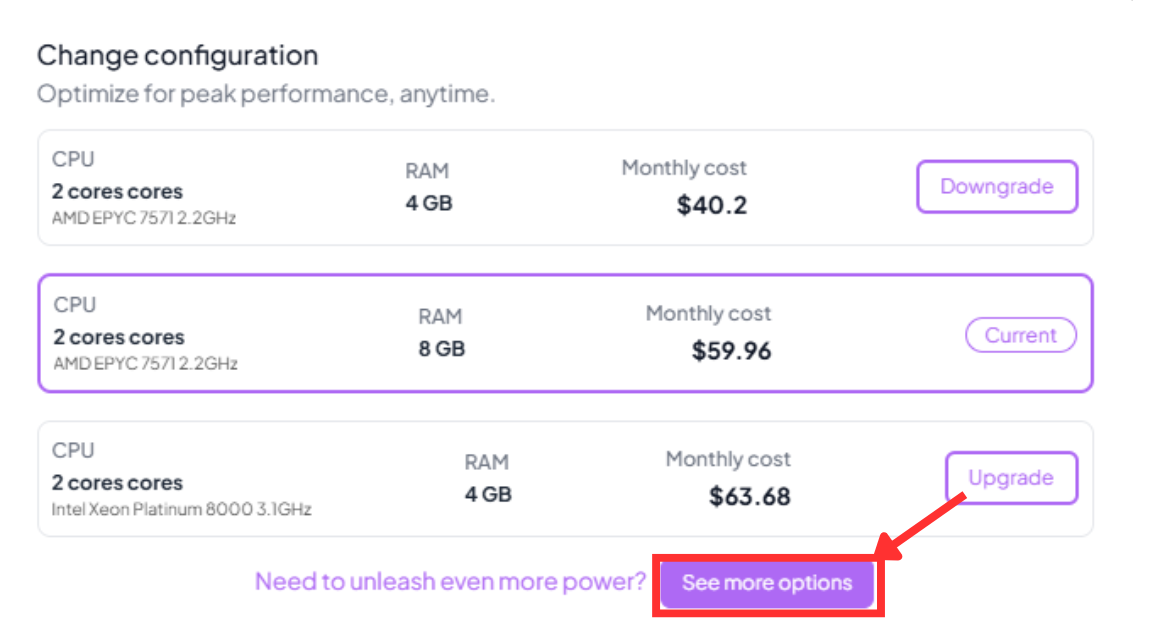
Click on Change Configuration from the server options menu.
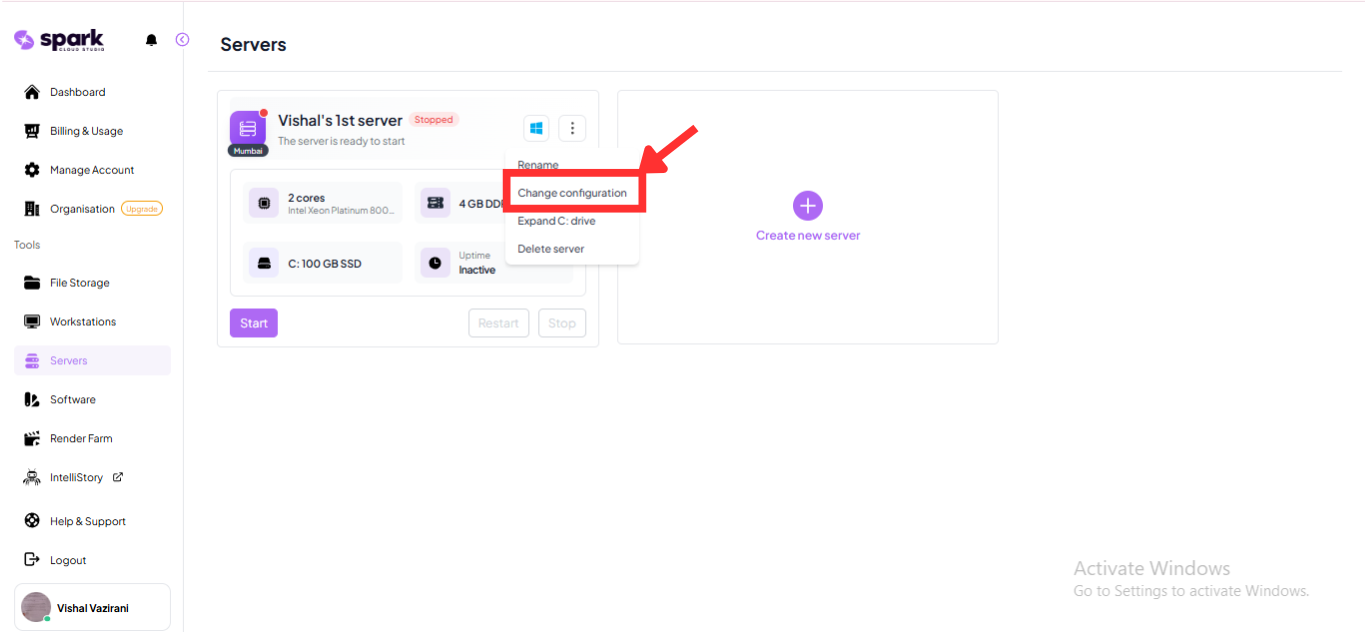
When you click this option, a panel will open allowing you to optimize your server for peak performance at any time. It will display your current hardware configuration along with immediate options to either Upgrade or Downgrade.
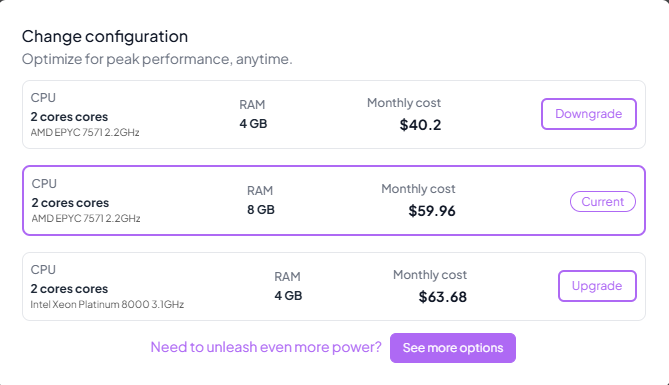
The configuration modal outlines everything you need to know about each hardware tier before making a decision:
- Pricing Details: Displays the transparent monthly cost.
- Hardware Specs: Clearly lists the allocated CPU core count/processor architecture, and system RAM.
- Upgrade / Downgrade: You can quickly select the corresponding button to switch to a higher or lower tier.
If you need to view even more hardware options, click the See more options button at the bottom of the modal.
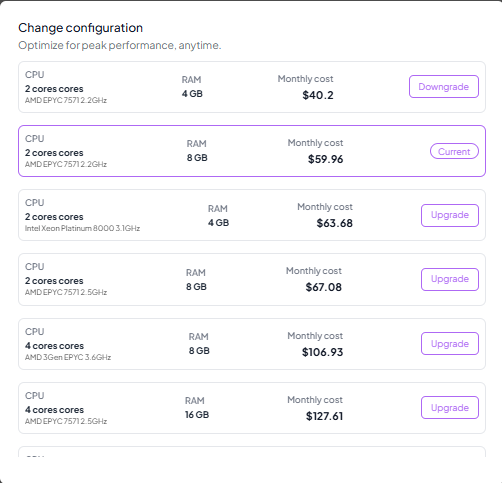
From the expanded list, you can scroll through all available server specs and freely choose to upgrade or downgrade your server to any tier. The status badge will always indicate your Current hardware configuration.
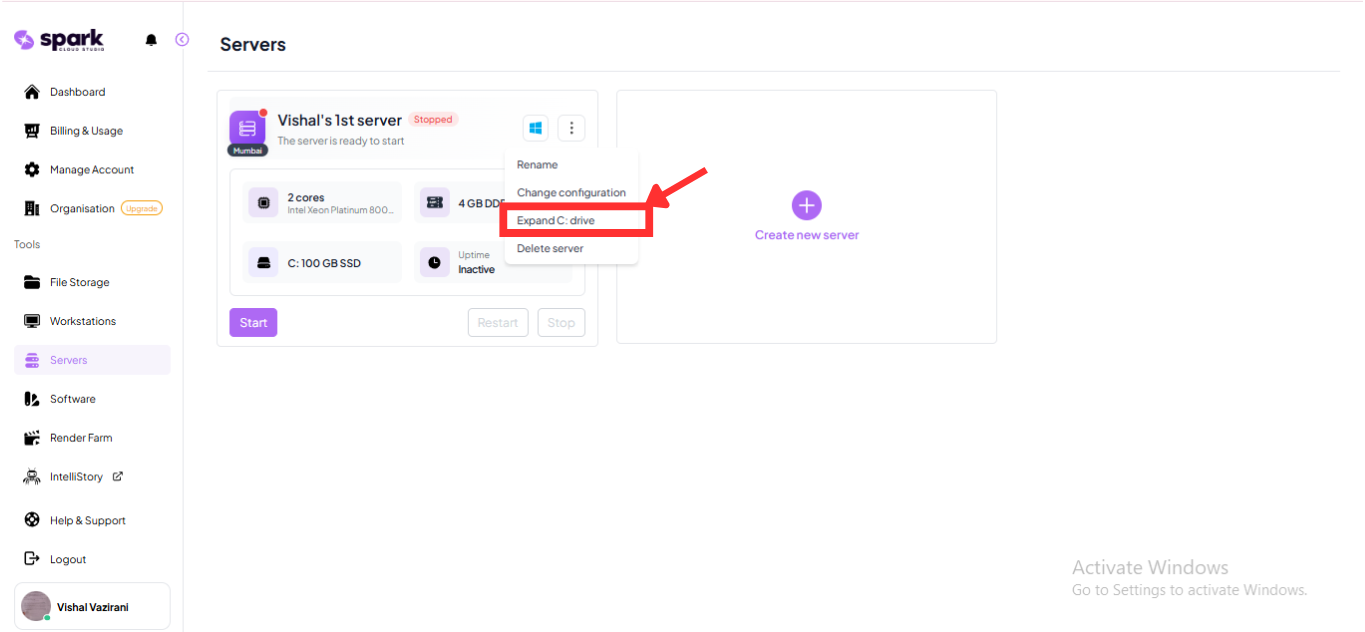
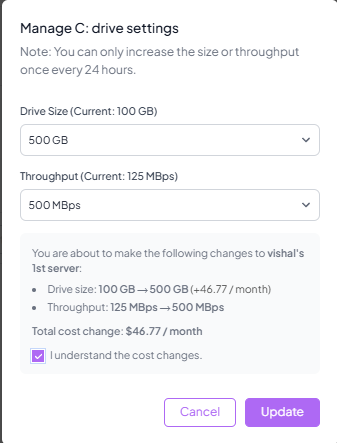
Select Expand C: drive from the server options menu to increase the capacity and throughput of your primary OS disk without losing any data.
You can adjust two primary settings for your C: drive:
- Drive Size: Select a new storage capacity from the preset list to meet your specifications.
- Throughput (Speed): Choose a desired disk read/write throughput from the available dropdown options to improve disk performance.
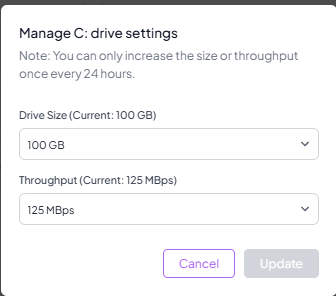
You can choose the new size and throughput for your C: drive. Before applying the changes, the modal will display a summary that includes the Total cost change per month. Check the I understand the cost changes box to proceed and click Update.
Important Note:
- You can only increase the size or throughput once every 24 hours.
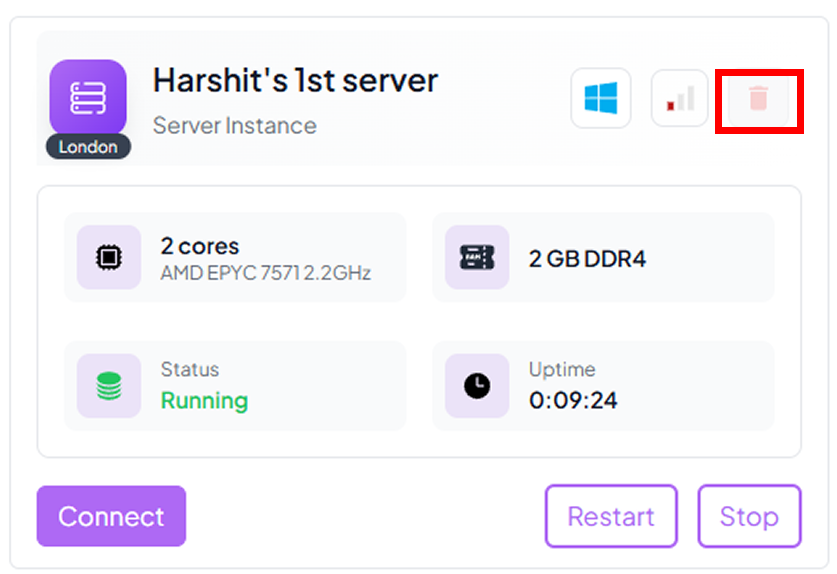
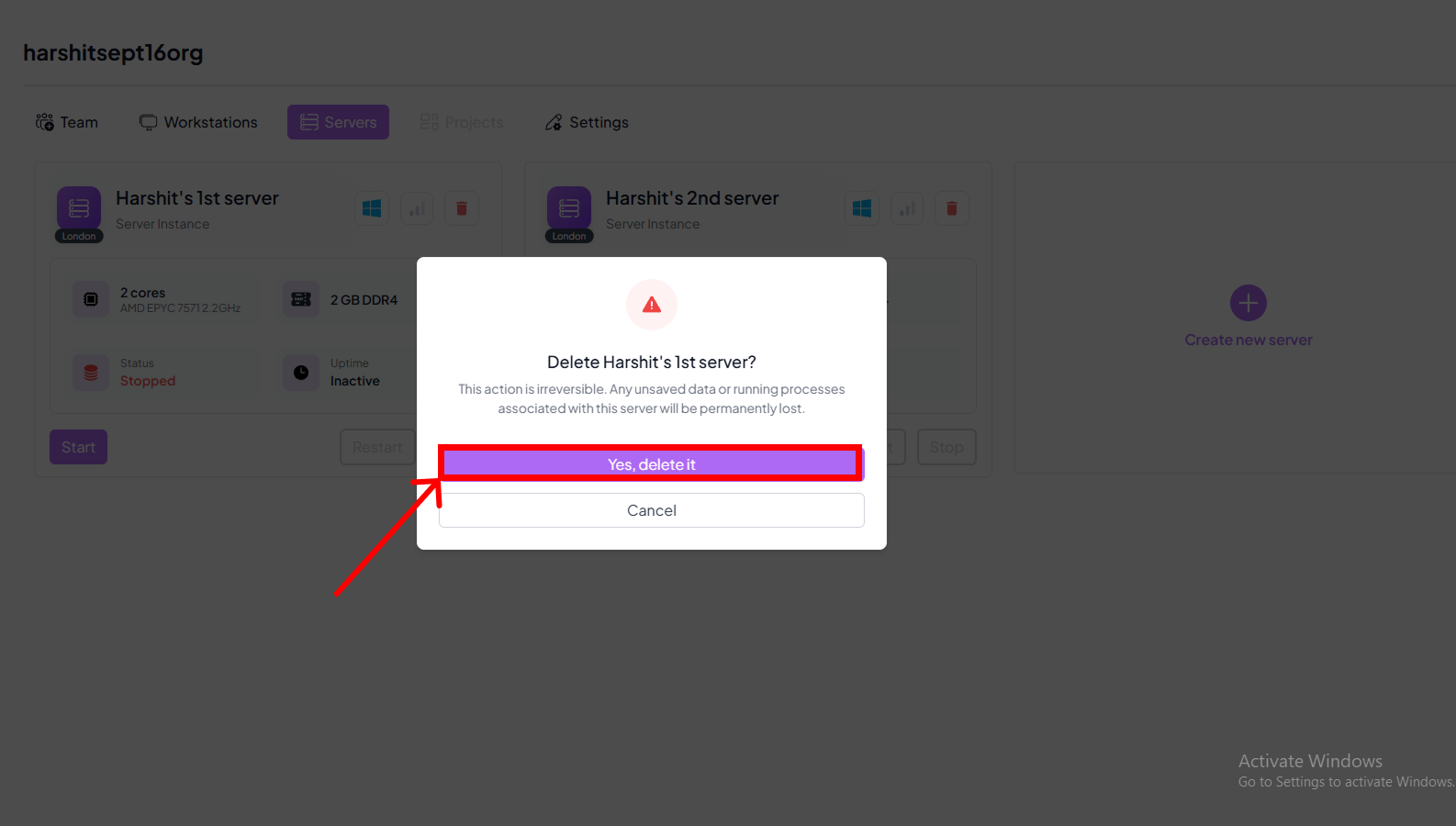
Click Delete to permanently remove the server and all associated data.
This action is irreversible.
Server Status / Flags
| Status | Tag | Description |
|---|---|---|
| Stopped | Stopped | The server is offline and inactive. |
| Running | Running | The server is active and operational. |
| Starting | Starting | The server is initializing. |
| Pending | Pending | A server action (creation, deletion, restart) is in progress. |
| Uptime | Uptime | Shows how long the server has been continuously running. |
| Latency | Latency | Shows the server response time for monitoring performance. |