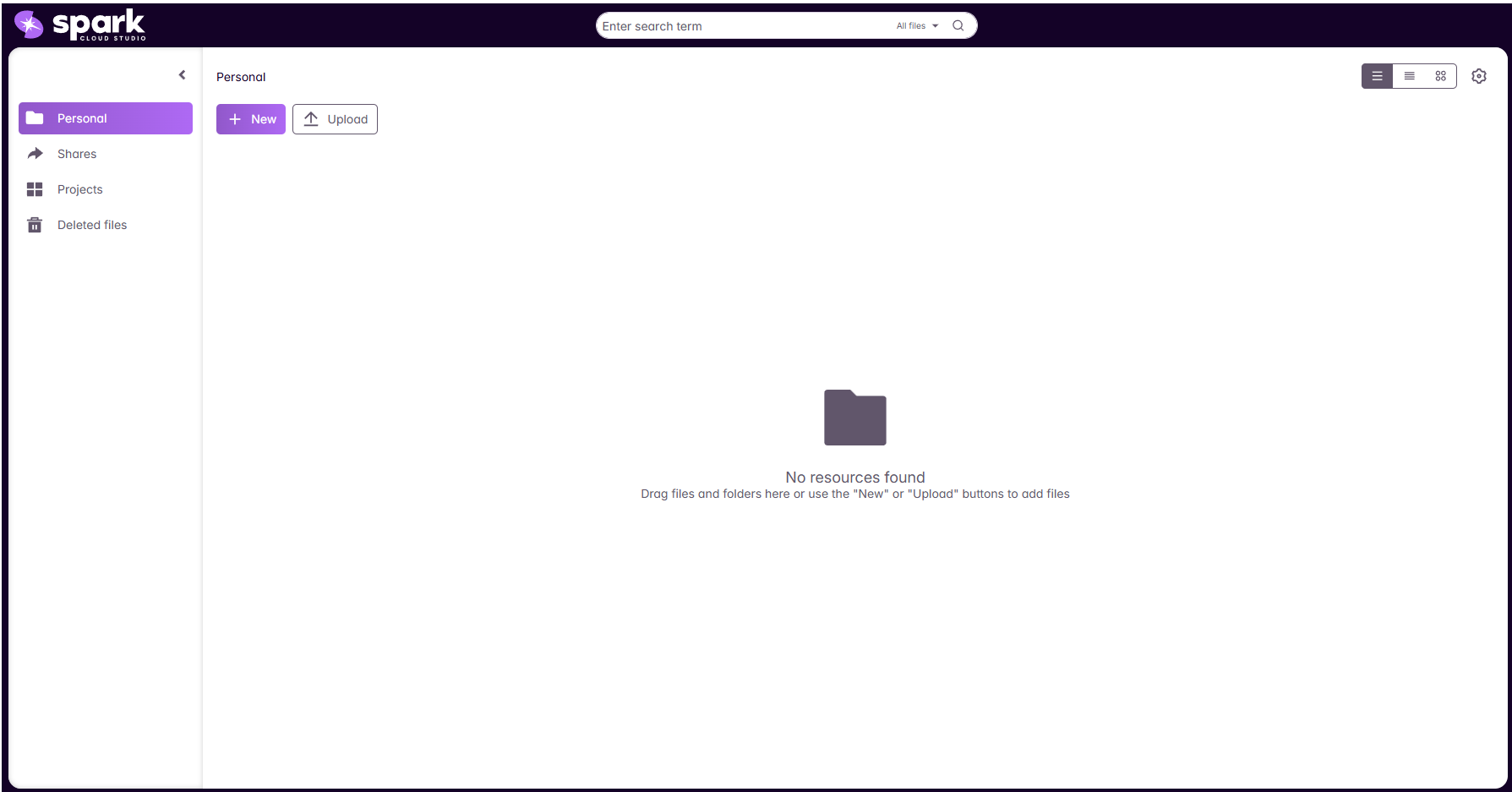
Managing Storage in Spark ShareSync
The Spark Dashboard gives you full control over your ShareSync storage. From tracking usage to organizing files and managing access permissions, everything is available in one place. This guide walks you through the essential steps.
Getting Started
Step 1: Open the Storage Dashboard
- Log in to sparkcloud.studio and navigate to the File Storage tab.
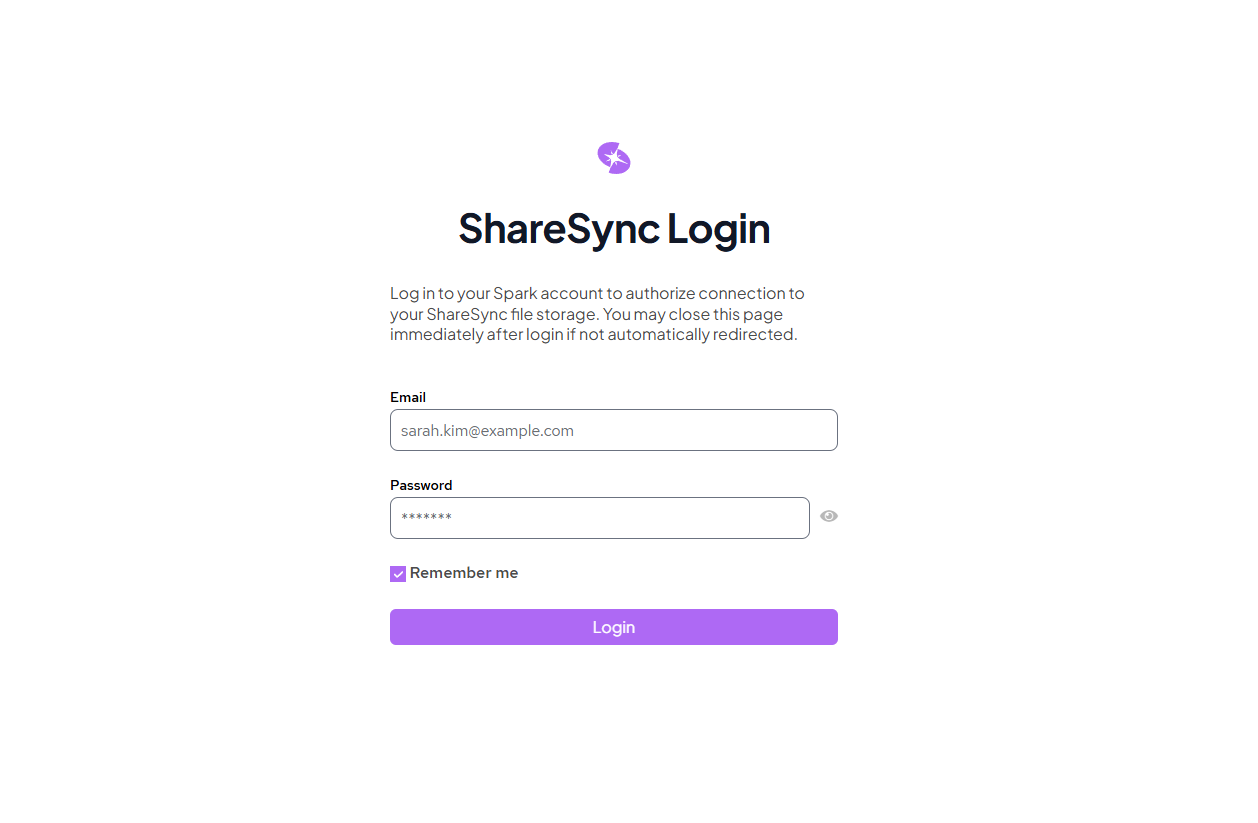
- You’ll be prompted to log in to Spark ShareSync. Here, you’ll find the Storage Overview showing:
- Total storage used (billed per GB/month)
- Usage trends and region details
- Quick links to file and access management
Step 2: Upload & Organize Files
- Go to the Files tab in the dashboard.
- From here, you can:
- Upload files or folders directly into your storage.
- Create and rename folders to organize projects.
- Move or delete files as needed.