Share Using Links
ShareSync provides flexible options for sharing resources beyond direct invites, including Permanent Links for quick access and Public Links that can be configured with expiration dates and passwords.
Public Links
Public Links allow you to grant access to your files or folders to anyone who has the link, with customizable security and expiration settings.
Open the Sharing pane by clicking the share icon or the kebab menu (⋮) next to your file or folder.
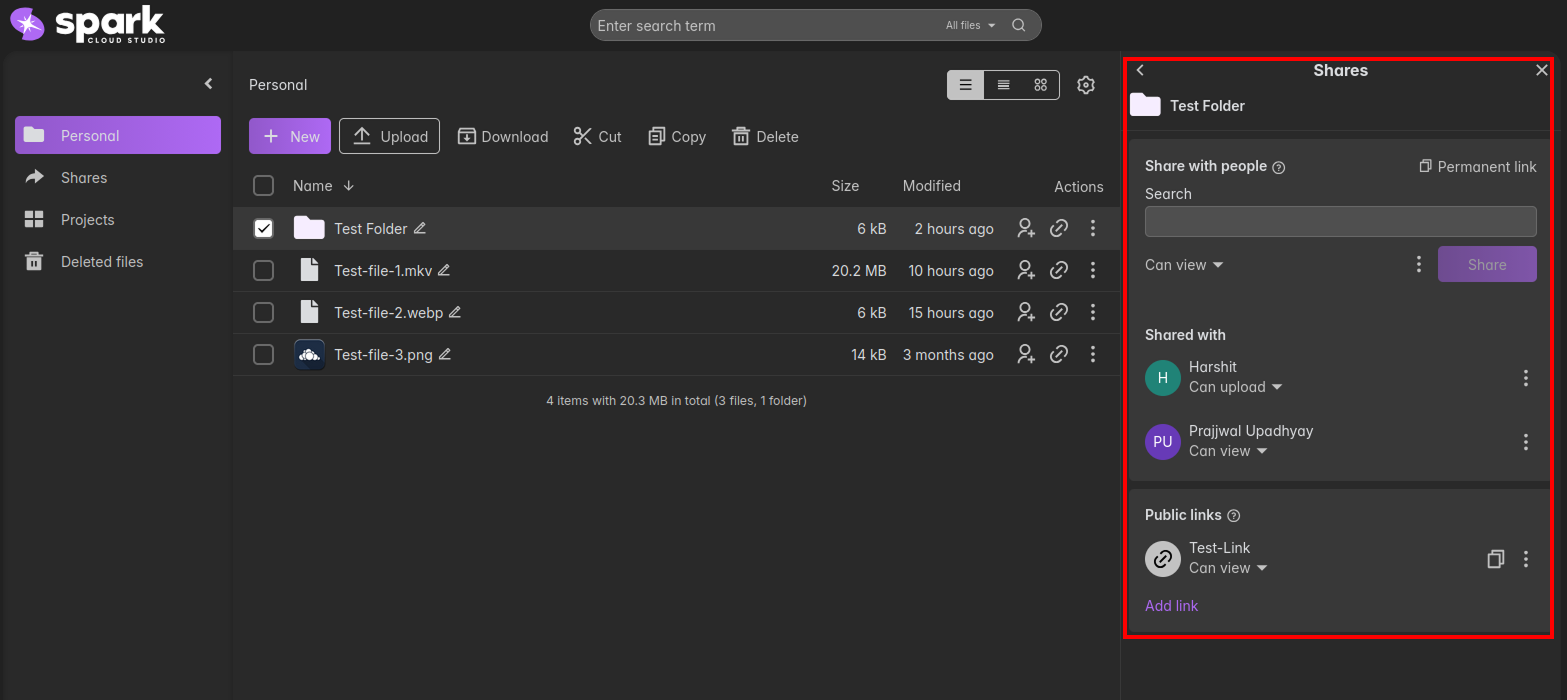
Scroll to the bottom of the Sharing pane to find the Public links section.
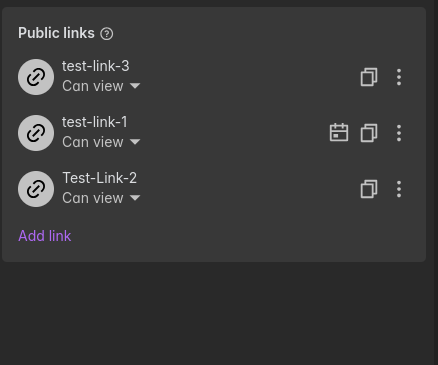
Click on "Add link" to generate a shareable link. The new link will appear in the list with its assigned permission level.
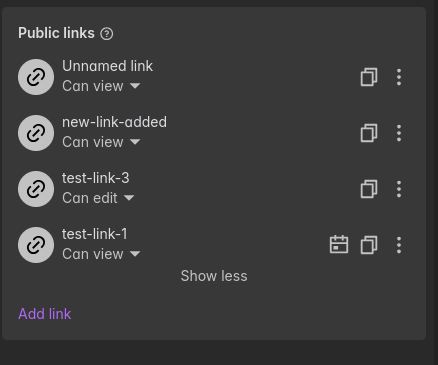
Initially, the link will be created with the name "Unnamed link". You can change this later using the Rename option.

Access and Login Requirements:
- No login required: By default, everyone with the link can access the resource.
- Invited People: If you share a public link with people already on the "Invited people" list, they should log in to ensure their individual assigned permissions take effect.
- Guest Access: If invited users are not logged in, the general permissions of the public link will apply instead of their specific user permissions.
Managing Public Links
Each public link comes with additional options that can be accessed via the kebab menu (⋮) next to the link:
| Option | Description | Screenshot |
|---|---|---|
| Copy Link | Copies the public link to your clipboard for quick and easy sharing. | 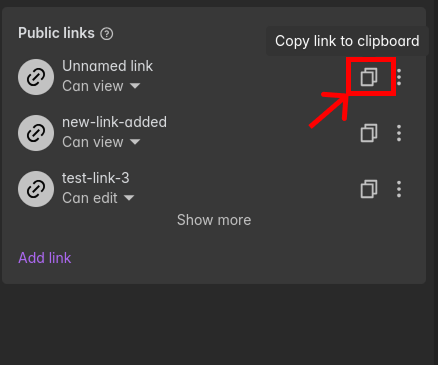 |
| Rename | Allows you to change the name of the public link for better identification. | 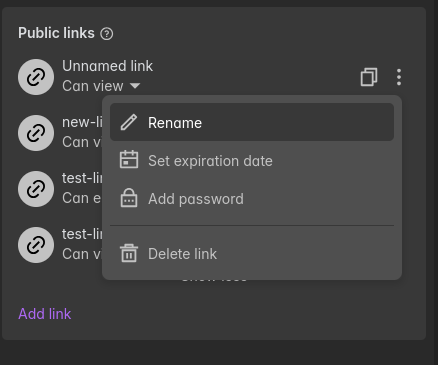 |
| Set Expiration Date | Lets you define a date after which the public link will no longer be accessible. | 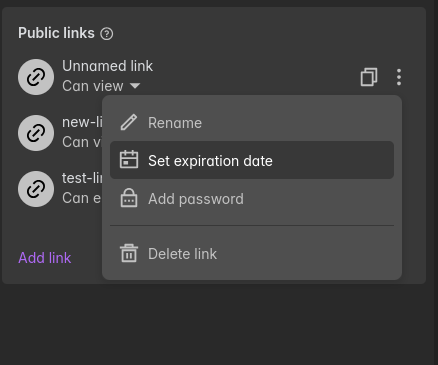 |
| Add Password | Enables password protection for the link, ensuring that only users with the password can access the shared resource. | 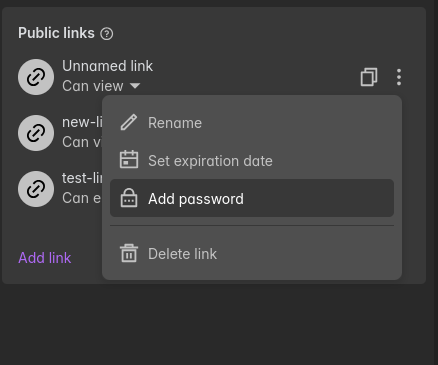 |
| Delete Link | Permanently removes the public link, revoking access for anyone using it. | 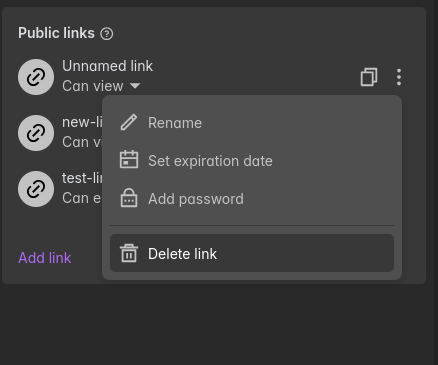 |
Permanent Link
ShareSync provides a Permanent Link option to quickly copy a direct access link to a file or folder.
Copying a Permanent Link
Within the Share panel, click on "Permanent link" to instantly copy the link to your clipboard.
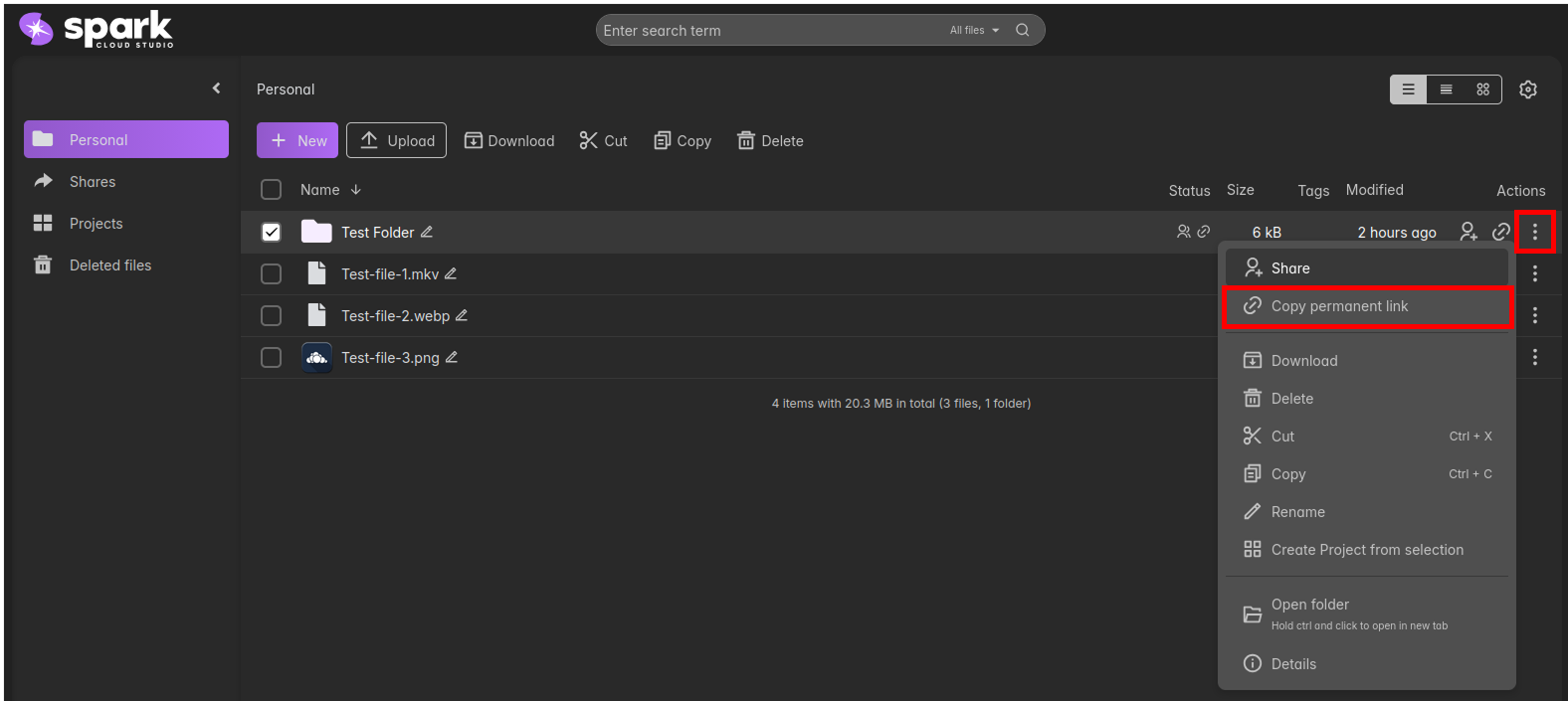
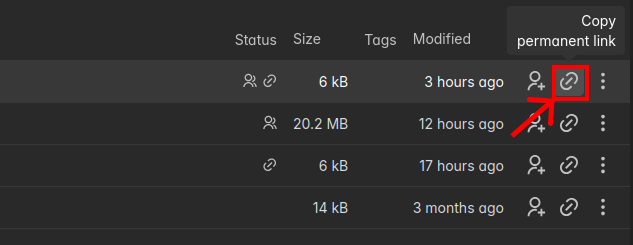
You can also copy the permanent link directly from the file list by clicking the link icon next to the file or folder name or clicking it inside the kebab menu (⋮).

Key Points:
- The permanent link provides quick access without needing to manually add users.
- It is useful for fast sharing in chats or documents.
- Access permissions depend on the current sharing settings of the file or folder.