Getting Started with IntelliStory
This guide helps you move from first login to a usable concept workflow for shots, references, and image generations.
Prepare Your Project Assets
- Prepare a starter folder of reference images and/or clips for your project.
- Keep a simple naming pattern ready for projects and shots (for example,
FEATURE_A / SCENE_010 / SHOT_010A).

Set naming conventions before generating. Consistent names make budgeting, approvals, and legal reviews easier later.
Quick Start Workflow
- Go to intellistory.sparkcloud.studio and sign in.
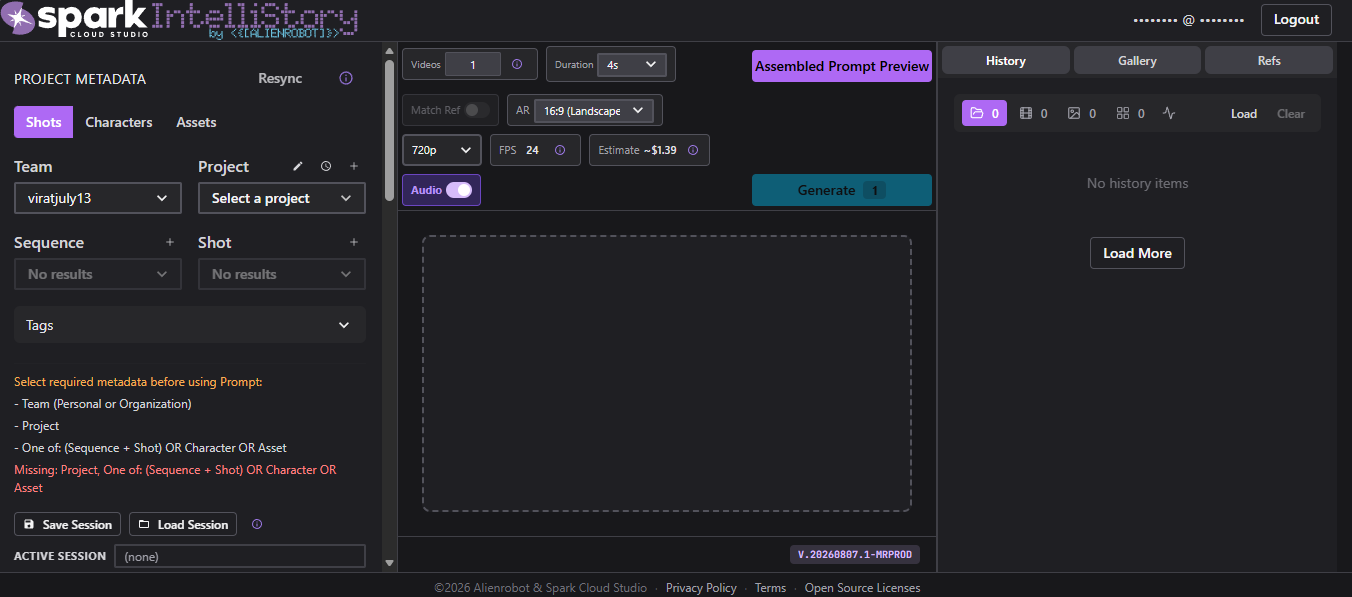
- Create a new project for your film, episode, or concept package.
- Add a brief project description and intended visual direction.
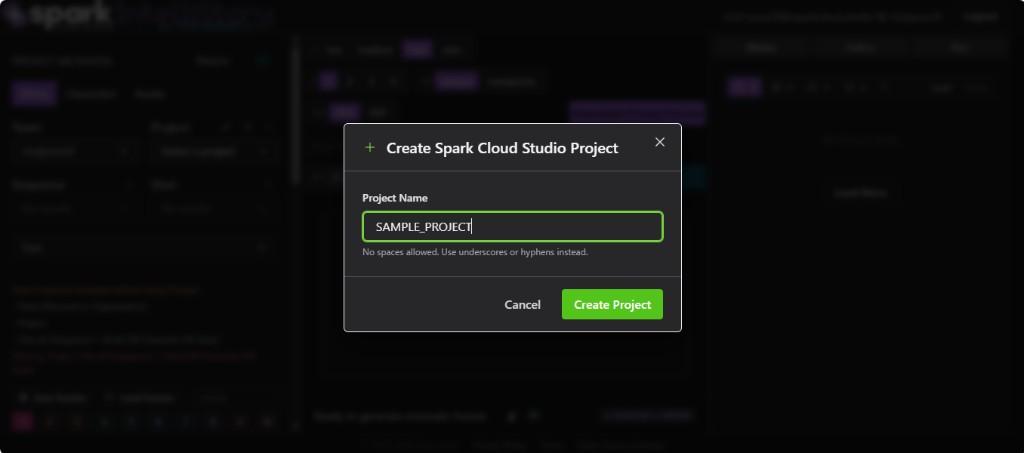
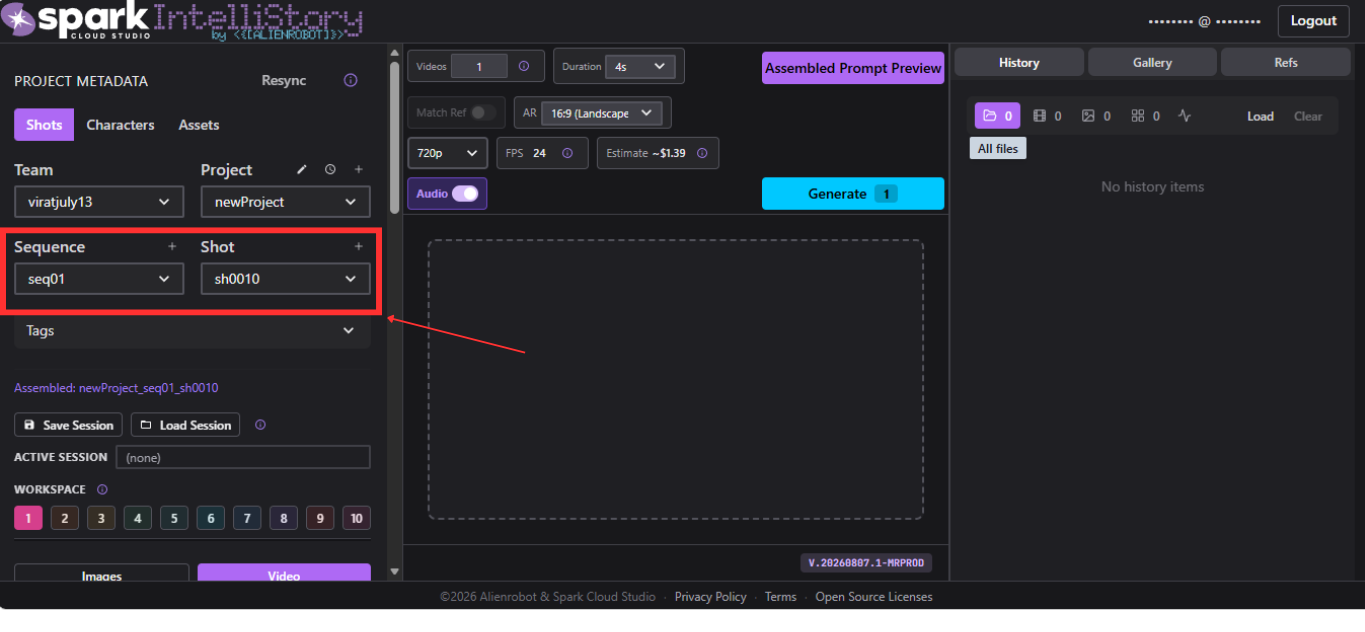
- Create shot entries and define core entities (characters, props, environments).
- Use consistent labels so generations remain organized for producers and legal review.
- Upload references you want to guide output style and composition.
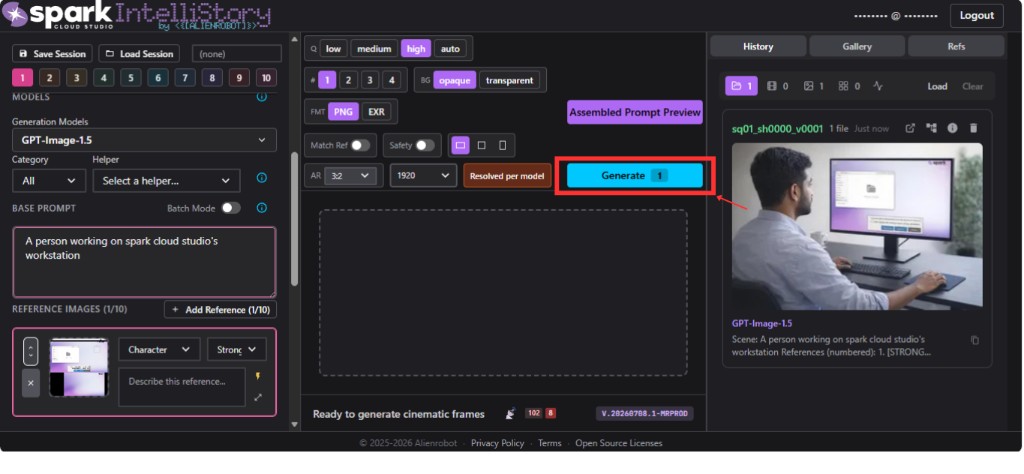
- Add prompts in the available sections: Base Prompt (mandatory), Shot Style Prompt, Look Dev Prompt, Positive Prompt, and Negative Prompt.
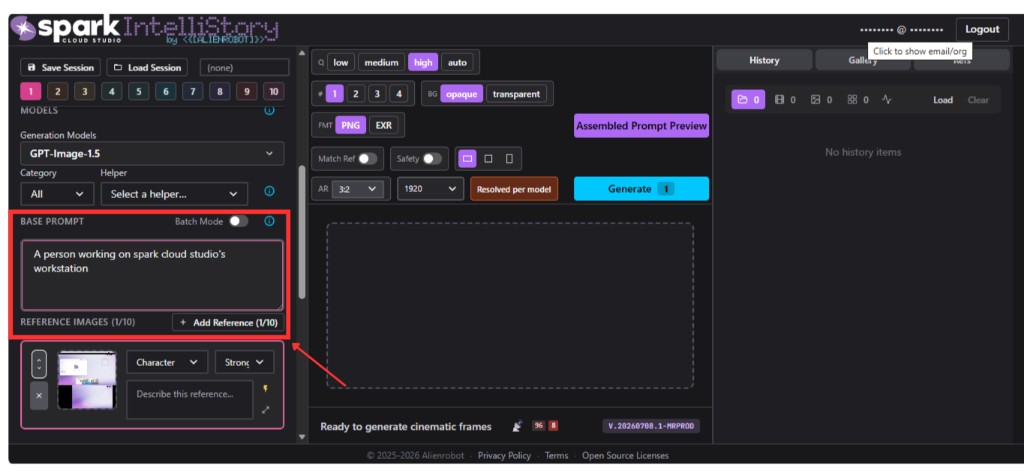
- Run test generations first, then refine prompts and references.
- Shortlist approved outputs and track which prompt settings produced them.
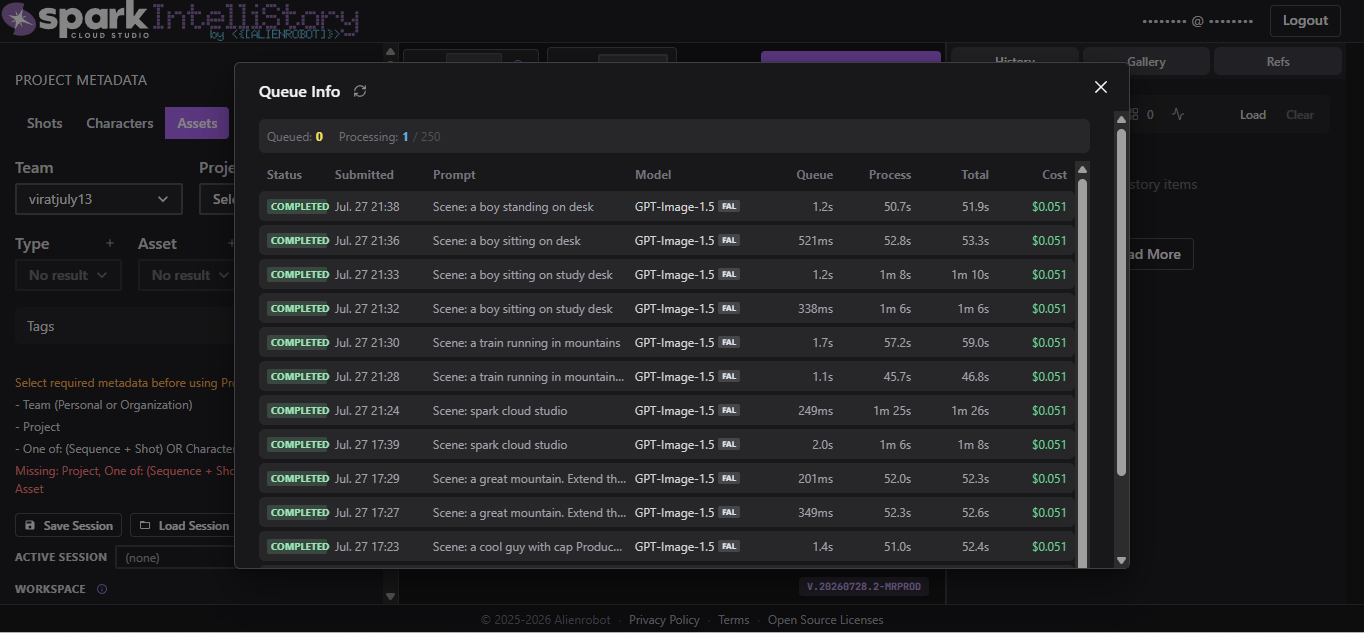
- Open the Queue Info panel to see your current and completed image jobs.
- Review the cost column to confirm the price for each generated image.
Storage and generation costs
IntelliStory storage (references and outputs) uses ShareSync rates. Project storage costs with the ShareSync calculator. Generation costs are usage-based and shown in the app at generation time.
For account-level billing and usage tracking, see Billing & Usage.
Ownership of generated output
You have 100% rights to all generation output created in IntelliStory. For formal legal clearance on a production (for example, studio legal review), request official legal documentation through Spark support and have your counsel review the current terms.